AI in Droplit: help you barely notice
Droplit uses AI in many places, but you don't have to learn prompts for it. Sometimes you write a sentence, sometimes you just tap a button, and sometimes it works entirely in the background. This article shows every spot: what the AI does there, what it isn't allowed to do and how you always stay in control.
The short version
- The AI only picks building blocks that exist in Droplit: moods, colors, sliders, gobos, effect templates and rules for single lights. Droplit calculates the DMX values itself.
- You always see a result in the preview first. “Undo” brings back what you had before.
- Nothing reaches SoundSwitch until you tap “Save to SoundSwitch”.
- Bars, song parts, special moments, your rig and colors from a photo are calculated by Droplit without AI. That's instant and costs no request.
- Where you use your own ChatGPT or Claude, Droplit writes the prompt for you. You just copy it.
- Droplit works without any AI too. The AI is a shortcut, not a requirement.
How the AI works in Droplit
A language model understands very well what you mean when you write “romantic, rosé and gold, movers slow”. But it doesn't know which DMX channel makes your moving head show rosé, and it must not guess when the party is on. That's why Droplit splits the work with the AI:
- You write what you have in mind, or tap a button such as “Suggest a concept”.
- Droplit sends your wish to the AI together with a list of the building blocks that exist: moods, color palettes, your fixture groups with their count, the positions of your moving heads and, for songs, the structure with bars and song parts.
- The AI answers with a selection from that list, for example “mood Romantic, colors rosé and gold, movement 15 %, uplights red in the chorus”.
- Droplit checks the answer and drops anything your rig doesn't have. Then it builds the show exactly as if you had tapped a mood. Family party safety and your show rules always apply.
- You see the result in the preview, in 2D or 3D, and decide: keep it, refine it or “Undo”.
You get the best of both: the AI understands your words, and Droplit makes sure every DMX value fits your fixtures.
The AI features run on Claude by Anthropic, a fast or a more thorough model depending on the task. Whether an answer from the help texts really fits your question is checked by Jev, a small AI model. You only use ChatGPT through your own account, if you want to.
What in Droplit is not AI (but still thinks along)
A lot of what looks like AI is calculated directly by Droplit. It's instant, costs no request and sends nothing to an AI:
- Song analysis: bars, song parts such as intro, chorus and drop, and the energy come straight from the music. See Song analysis.
- Special moments: accents, breaks and the spots where all instruments kick in are found by the analysis too. See Special moments.
- Your rig: which lights you have, what they can do and which groups they belong to is read from your SoundSwitch project. See How Droplit recognizes your lights.
- Colors from a photo: your browser calculates the color palette. The photo never leaves your device. See Taking colors from a photo.
- Guided tools: the interview, “Fill bank” (fill assistant), the Look Assistant and “Check show” in the song studio work without AI.
- Help assistant: your browser compares your question with the text blocks of “Ask Droplit”.
These calculations are the foundation the AI builds on. For a song concept, for example, the timing comes from the song analysis. The AI only comes up with what happens in which part.
Three ways you meet the AI
1. You type a sentence
In your own words, in English or German, no jargon needed: Just say it in the studio, “Say what should happen here” in the moment workshop, a wish for the song concept or your own Claude as a remote control.
2. You tap a button
Here you don't write anything. Droplit puts the question to the AI together itself: “Suggest a concept” for a song, “Analyze photos (AI)” for your location and “Complete with AI” at the end of the interview.
3. You barely notice it
Some help happens on the side:
- If “Ask Droplit” finds no text block it's sure about, the AI help answers by itself. When you're signed in, Jev quietly checks first whether the block it found really fits.
- If you send us a manual because a fixture profile is missing, we let the AI draft a profile, check it in the 3D preview and put the finished profile in your account. All you get is the message that it's there.
- Droplit re-applies the rules from “Just say it” every time the show is rebuilt, even if you change the mood, colors or length afterwards. You don't have to say anything twice.
- Your thumbs under AI results show us where the AI misses. We use these cases to improve its instructions, and everyone benefits.
And with your own ChatGPT or Claude
In a few places you use your own AI. Droplit then writes the whole task for you, and you just copy it over: “Create with ChatGPT” for a missing fixture, “Rebuild with ChatGPT” for a location, “Photo look with ChatGPT” for an image that looks like a real photo, and the Claude remote control. This runs on your account there and doesn't count towards your requests in Droplit.
One sentence instead of many sliders: Just say it
In the studio, the “Just say it” field sits at the top of the right column. Write how the light should be, for example “First dance, romantic, rosé and gold, movers slow”, and tap “Go”.
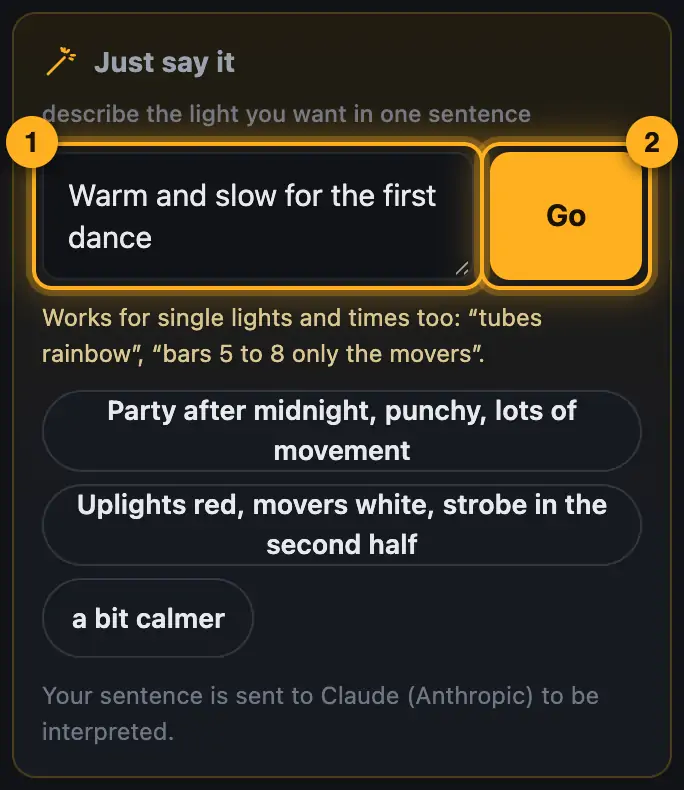
After a few seconds a green box shows what was set: mood, colors, the Energy, Movement and Base light sliders, the length for Autoloops and a name for new shows. The preview plays the new show right away.
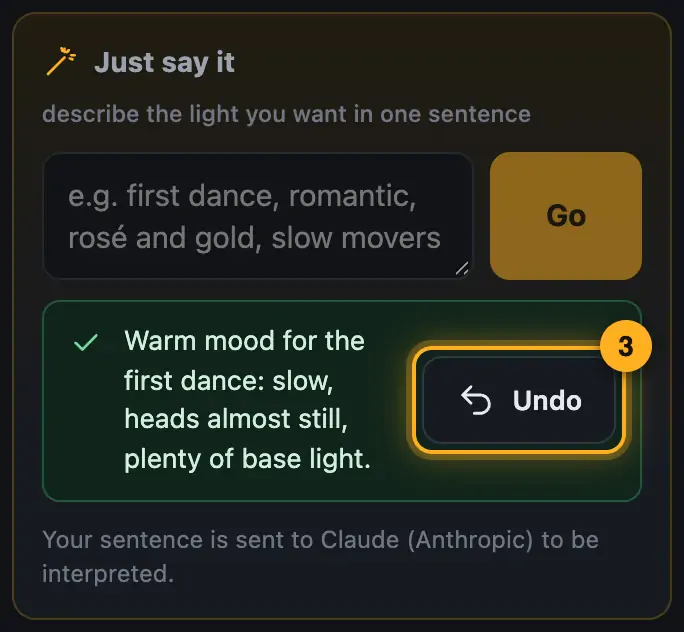
- Refine: “a bit calmer”, “more movement” or “warmer”. The AI then changes only what you mention.
- Go back: “Undo” restores everything as it was.
- For Autoloops, Static Looks and song shows: for Static Looks the AI picks look moods such as “First dance” or “Speech & cake”.
All the details are in Just say it.
Single lights and moments in time
If you name specific lights or a spot, the AI turns it into a rule: “uplights red, movers white, strobe in the second chorus” or “blackout at 1:23”. For this, the AI knows the fixture groups of your rig and the song parts from the song analysis. Parts of a group work too, for example “left uplights blue” or “every second uplight”.
Each rule then appears in the “Also applies” list, with the time it applies. Tap × to take a rule out again. Rules win over the mood, and your own settings under “Set single fixtures” win over the rules. Examples and limits are under “Single lights and moments” in Just say it.
A concept of its own for every song
So that not every song looks the same, the AI comes up with a concept just for this track at the press of a button. In the studio of a song show you'll find it at the top right in the “Song concept” card → “Suggest a concept”.
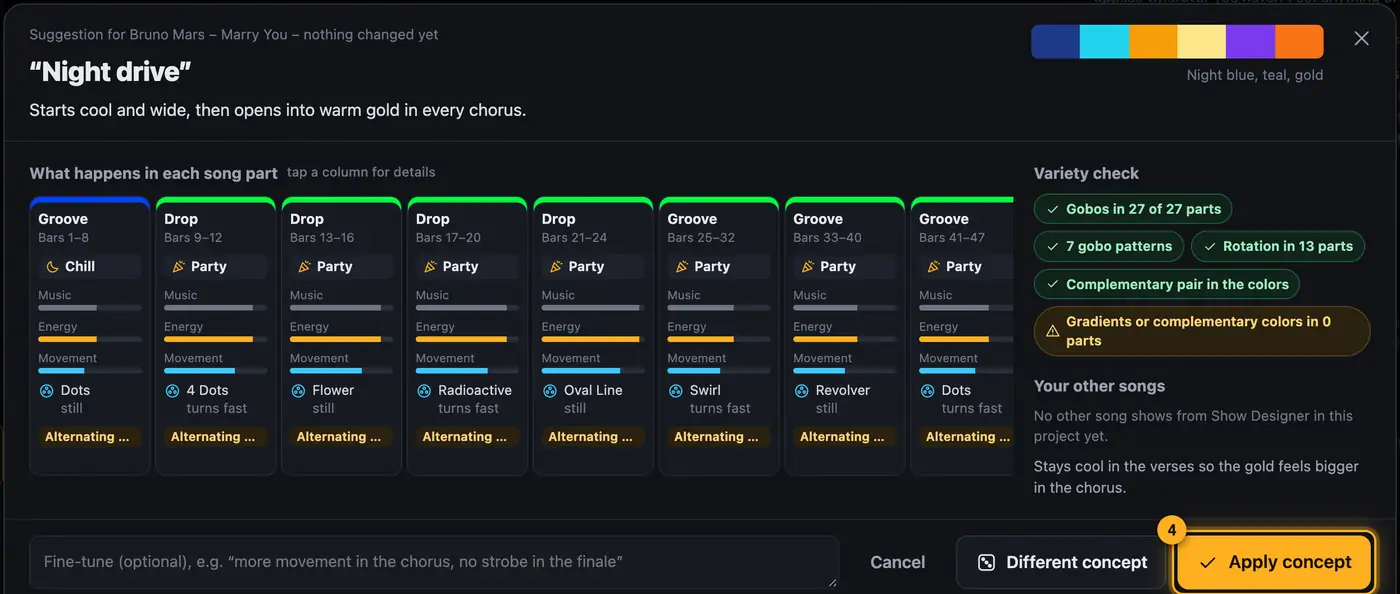
- After 10 to 20 seconds a large window opens with a name, an idea and colors, for example “Dance Hall 1963”.
- Every song part has a column: mood, energy, moving head movement, gobo with rotation and one or two signature effects.
- The “Variety check” shows whether there are enough gobos, patterns, complementary colors and gradients. Below it are your other song shows for comparison.
- “Apply concept” puts everything into the preview. “Different concept” gets a new suggestion, ideally with a wish such as “more movement in the chorus, no strobe in the finale”.
The timing comes from the song analysis, not from the AI. The Energy, Movement and Base light sliders keep working on all parts afterwards. More in Suggest a song concept.
One moment, one sentence
In the timeline of a song show, the special moments appear as little flags. Tap one and the spot plays in a loop with light. On the right you can tap an effect or write in the “Say what should happen here” field, for example “everything flashes red and the movers point up”. The AI then picks the effect, color, strength, the lights involved and what the moving heads do, just for this one moment.
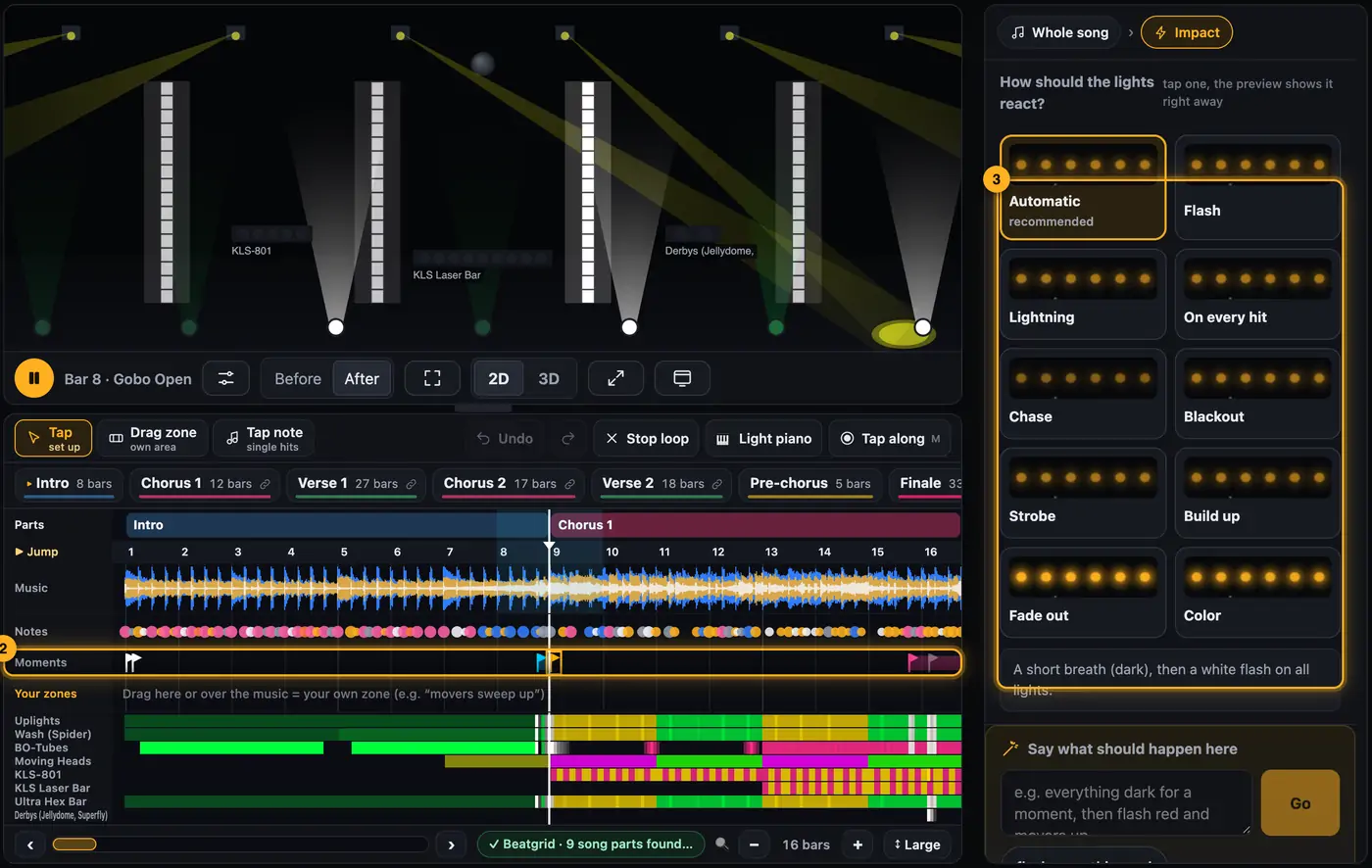
See Moment workshop.
Tap instead of type: the interview with an AI extra
Don't like writing? The interview asks you step by step about feeling, colors, fixtures and important spots, and every answer shows up in the preview right away. The interview itself uses no AI and costs nothing.
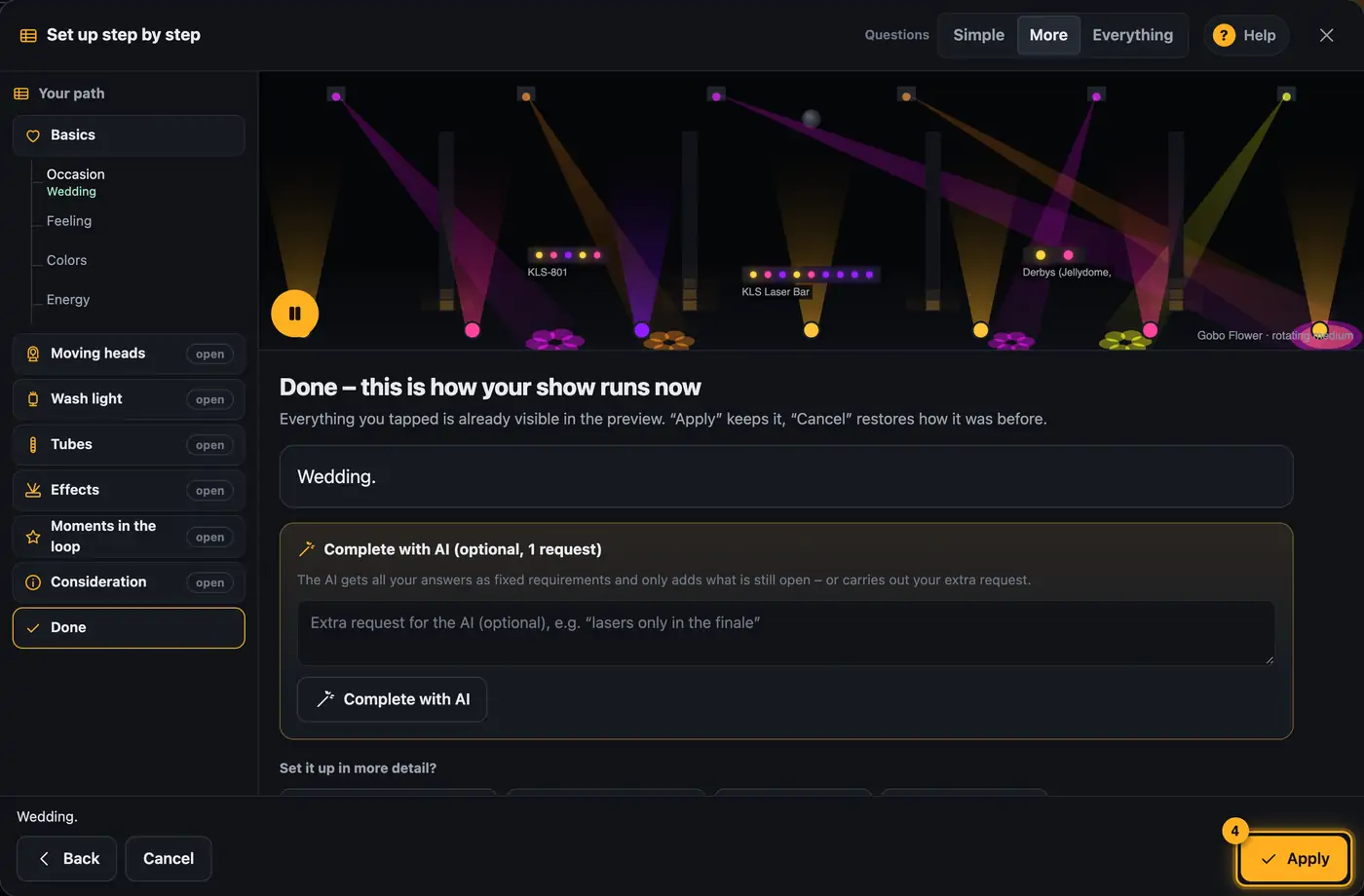
On the last page you can choose “Complete with AI”. The AI gets all your answers as fixed requirements, changes none of them and only fills gaps or adds something you asked for, for example “laser only in the finale”. Whatever it adds appears as a rule of its own under “Also applies”.
Your location from photos
In the 3D visualizer you rebuild the venue you play in. Under “Location” → “Make it real” there are two AI routes:
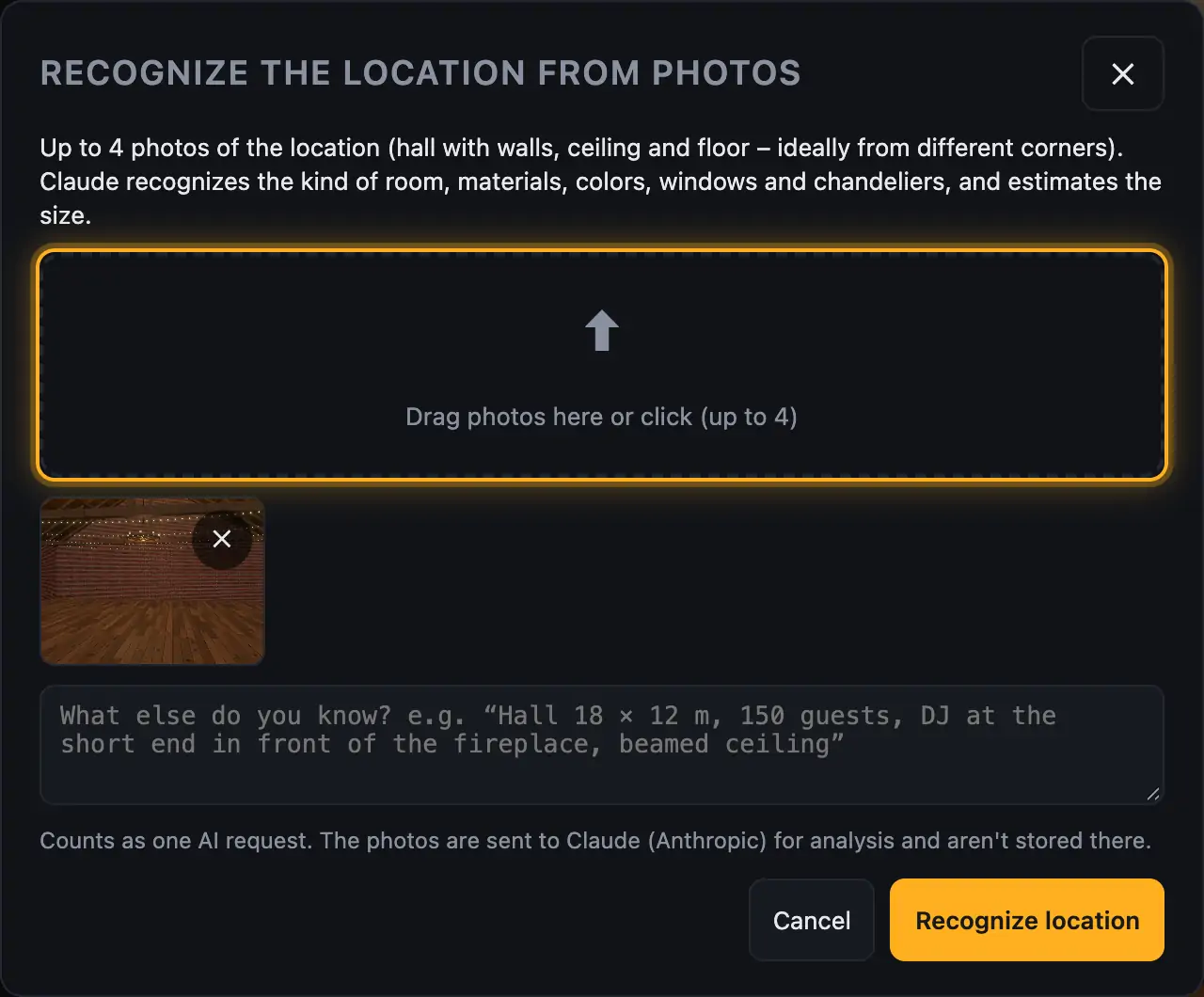
- “Analyze photos (AI)”: drop in up to 4 photos, add a few details such as size or number of guests, then “Recognize location”. The AI recognizes the type of room, materials, colors, windows and chandeliers and estimates the size. “Not sure about:” lists what it couldn't recognize with certainty.
- “Rebuild with ChatGPT”: Droplit gives you a ready-made prompt. You paste it into ChatGPT with photos, a floor plan or the link to the venue's website and load the file ChatGPT gives you back.
For the couple, “Photo look with ChatGPT” turns the 3D view into an image that looks like a real photo of your show. It stays an AI image for showing, not for measuring. Details: Recognize a location from photos (AI) or rebuild it with ChatGPT and Check and present.
A fixture is missing: ChatGPT or the manual
If the fixture database doesn't find your fixture, you have two routes. AI helps with both.
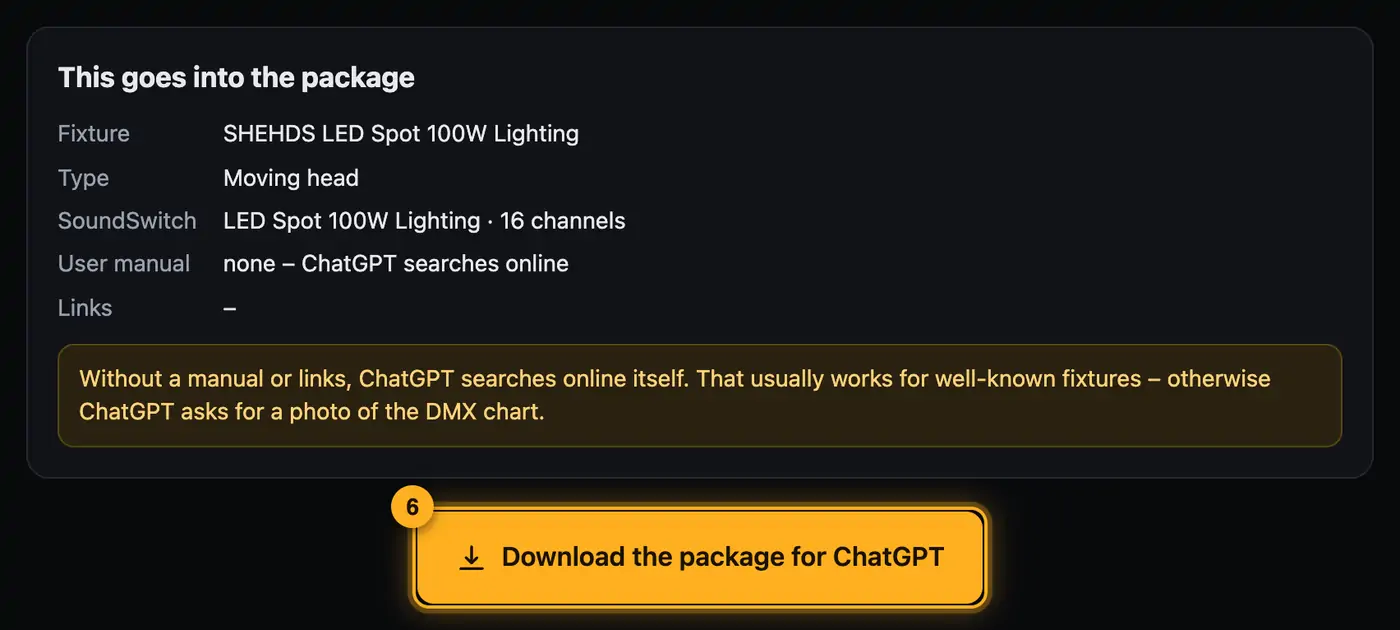
- “Create with ChatGPT” (about 5 minutes): an assistant asks for maker, model, manual, links and photos and packs everything into a ZIP file, together with a precise task and a check script. ChatGPT uses it to check its own result. You upload the result file, check the preview and tap “Apply”. See Create a fixture with ChatGPT.
- “Upload manual …” (a few days): you send us the manual, we let the AI draft a profile, check it and put the profile in your account. You don't notice the AI at all here. See No profile found: upload the manual.
Afterwards you can test moving heads on the real fixture, see Test a fixture profile on the real fixture.
Asking questions: Ask Droplit
At the top of the help (key ?) you'll find the “Ask Droplit” field. Type your question in your own words.
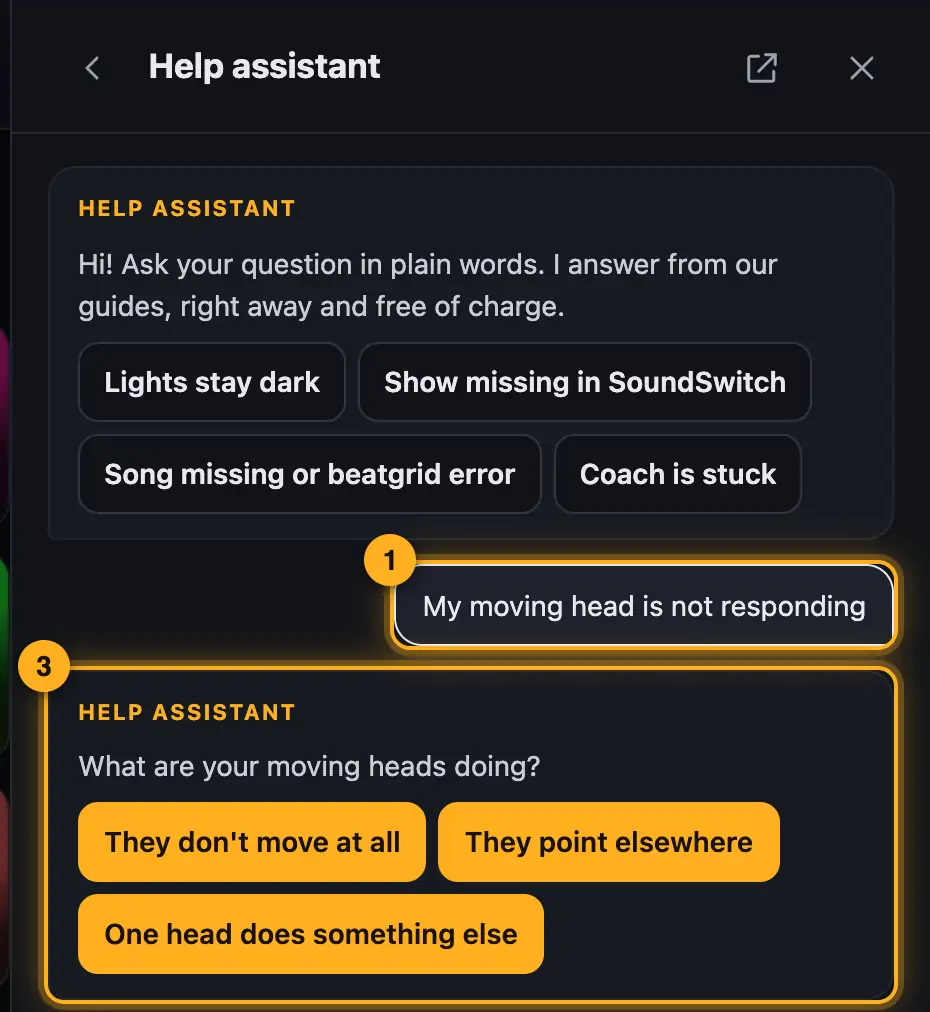
- If a guide fits for sure, the help assistant answers instantly from our text blocks. That never costs anything.
- If none fits for sure, the AI help answers by itself, with the matching guides as buttons below. It also understands freely worded questions and takes the conversation so far into account.
- If neither helps, send us the question with “Send us the question”.
Even without an account, “Ask Droplit” on the home page answers questions about what Droplit can do and what you need for it. See Ask Droplit: help assistant and AI help.
Your own Claude as a remote control
You can also control Droplit from your own Claude, on your computer or by dictation on your phone. Tell Claude what you have in mind and Claude sets it up in your open designer. You see every change live.
- Setup: in the designer, your name at the top right → “Claude remote control” → switch it on. In Claude, under “Connectors” → “Add custom connector”, enter the address from the designer, sign in with your Droplit account and tap “Allow”.
- Claude can open projects, choose pads, set mood, colors, sliders and rules for single lights, play the preview and fetch a preview image into the chat.
- Nothing is saved until you tap “Confirm saving” in the designer.
- This runs on your Claude account and doesn't count towards your AI requests in Droplit.
Step by step: Control it with your own Claude.
You make the AI better
Under the results of “Just say it” and “Suggest a concept”, Droplit asks “Did that work for you?” or “Does the concept fit the song?”. Thumbs up just counts. With thumbs down you tap reasons and decide whether only the rating or also your request and the result are sent.
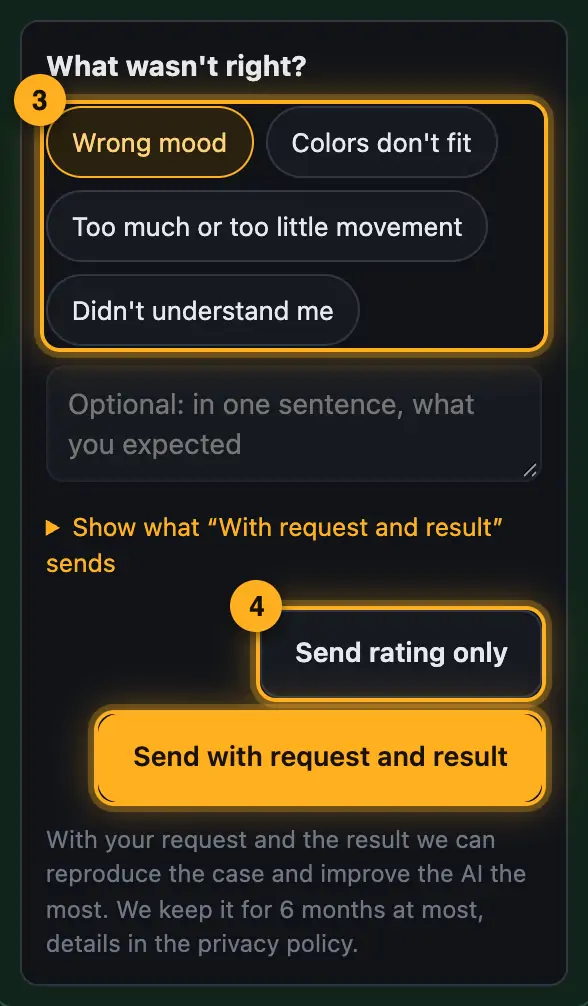
We use these cases to sharpen the AI's instructions where it misses. See Rating AI results.
What the AI sees from you
Droplit only sends the AI what it needs for the task:
- Just say it, moments and “Complete with AI”: your sentence, the current settings with your rules so far, the names of the moods and color palettes, the names of your fixture groups with their count, the positions of your moving heads and, for songs, the structure (bars, times and type of song parts).
- Song concept: in addition the song's title, artist and tempo, the names of the gobos and effect templates, which fixture types your rig has, and the name and colors of your other song shows in the project.
- Analyze photos: up to 4 photos and the text you add.
- AI help: your question, the conversation so far and the matching help articles. For Jev's check, the question and the answer text it found go to Jev.
Never included: your music, your project files and your account data. We don't store the text of your request, only that a request was made. Exception: you rate with thumbs down and explicitly tap “Send with request and result”.
With the ChatGPT routes, you upload things to your own ChatGPT yourself. We don't see that. Only the result of a fixture profile is sent to us after you apply it with an account, so we can check the fixture and release it for everyone.
How many requests you have
Every AI request costs us real money. That's why every account has a plan with a quota.
- AI requests in the designer: “Just say it”, “Suggest a concept”, “Analyze photos (AI)”, “Complete with AI” and the sentence in the moment workshop count once each. With the standard plan you first get 15 test requests.
- AI help: it has its own quota of AI questions and doesn't use up AI requests.
- Free: all text blocks, Jev's check, the interview without the AI extra, all calculations such as song analysis and moments, “View last suggestion”, the thumbs and every route through your own ChatGPT or Claude.
- Requests that didn't work don't count.
How many you have left is shown under the “Just say it” field, in the “Song concept” card, on your account page and in the overview. You can get more via “Need more requests?”. See Plan and AI requests.
What the AI doesn't do in Droplit
- It doesn't set DMX values and doesn't invent fixtures, colors or gobos your rig doesn't have.
- It doesn't save anything to SoundSwitch. You always do that.
- It doesn't control fog, sparks, confetti or the music.
- It doesn't play along on the night. In Live mode and in SoundSwitch, what you built and saved plays without any AI.
- It doesn't replace your own judgment: always check rigging, power and load yourself. When in doubt, the linked guides apply.
Questions
No. Write the way you'd tell a colleague. In many places you only tap a button, and where you use your own ChatGPT, Droplit writes the prompt for you.
No. The AI only changes the preview in Droplit. Nothing reaches SoundSwitch until you tap “Save to SoundSwitch”. If that replaces a show already in SoundSwitch, Droplit asks first. Droplit also saves into a copy of your project, see Your original stays untouched.
Droplit gives it the names of your fixture groups with their count and the positions of your moving heads. It doesn't know hidden fixtures.
Claude by Anthropic for the AI features and the AI help, Jev for quietly checking help answers. ChatGPT only if you use it yourself through your account.
Yes. The AI understands English and German. The AI help answers in the language of your question.
Tap “Undo” and be more specific, for example with colors, tempo or the song part. Or adjust the sliders by hand afterwards. A thumbs down helps us find such cases.
Yes. Moods, color palettes, sliders, the interview, the assistants, the moment workshop with its effects and the effect lanes all work without AI. If your requests are used up, you just keep working.
No. The AI only helps while you build. On the night, SoundSwitch plays your saved shows.
You can, with an AI agent that controls the screen. We've done it ourselves. But until the shows look good, you have to teach the AI over many rounds: movers towards the audience instead of the ceiling, variety between songs, gobos in the right places. Droplit already has these rules built in. More in route 6 of Using AI with SoundSwitch.
Yes. The routes outside Droplit are covered in Using AI with SoundSwitch.