Song studio – parts, zones, notes and effect chains
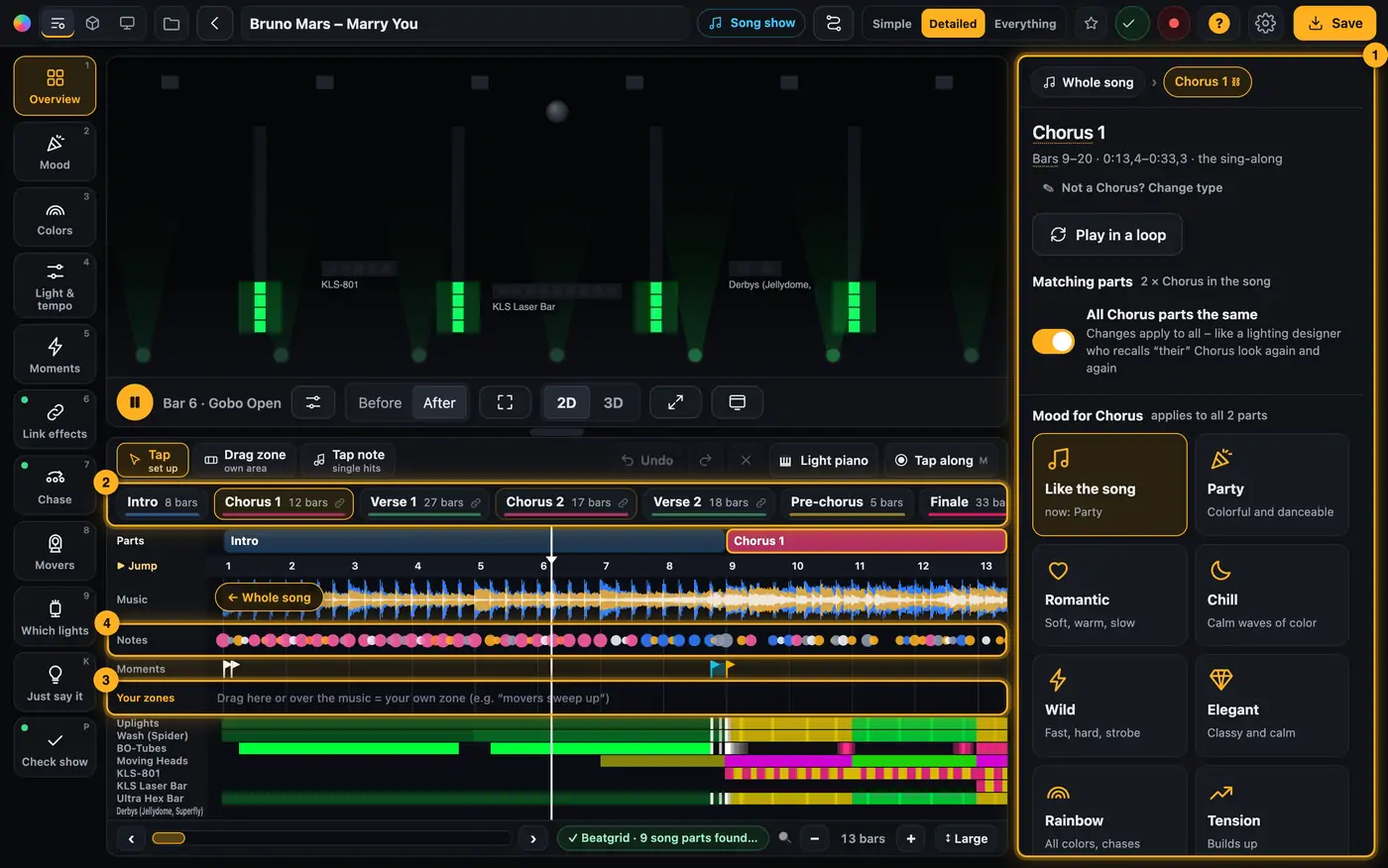
The song page works like a lighting console: tools on the left, the stage in the middle, below it the song as part cards and as a timeline with the beatgrid. On the right you adjust whatever you tapped below – the whole song, a part, a zone or a single note.
Overview
Parts, timeline and notes in the song studio.
How it works
Whole song: pick a mood and a color palette on the right.
Change a part: tap a part card below, e.g. “Chorus 1”. The right side now shows only the settings for this part: its own mood, how strong, which lights join in. With “All chorus parts the same” it applies to every chorus in the song.
Drag a zone: in the timeline, drag over the music (or in the “Your zones” lane). On the right, “What should happen here?” appears: different color, short blackout, strobe, fade out, mover target, chase, only some lights or “Link effects”. Drag a zone right across the music.Fade in goes smoothly from dark to full over the whole zone – also lights that are off in the show right there. Fade out goes down just as smoothly. Only a few groups should fade in: “Only some lights” (in the zone under “What should happen here?”, at the bottom) → under “These lights are off in the zone” tap the others. In the “Everything” level the groups are shown as tiles: above them, “Join in:” switches each group on or off with one tap, and “all” brings them all back. Copy a zone: Select the zone, tap “Copy zone” under “Copy” (Ctrl/Cmd + C), move the playhead to the new spot and tap “Paste at playhead” (Ctrl/Cmd + V). The copy starts at the playhead, has the same length and can be changed on its own. Chases come along as their own copy. Several zones at once: Shift- or Ctrl/Cmd-click them (on a phone tap “+ Add zones”, then the zones) – they light up too, “Copy 2 zones” takes them all, and pasting keeps the spacing. In the “Everything” level the copy buttons are at the bottom right.
Tap a note: in the “Notes” lane every dot is a hit in the music. With “Tap note” on, the legend below tells you what each color is: blue “Boom” (kick drum), yellow “Tchak” (snare), orange “Dum” (tom), white “Tsss” (cymbal), pink “All” (the full band), grey “Melody” (a note). Tap it and choose on the right, e.g. “White flash”. While your mouse is over the lanes, the timeline stops scrolling during playback so you can hit the dots; “Tap note” pauses the music.
Jump and listen: tap the “▶ Jump” strip (with the bar numbers, right below the parts) = the playhead jumps there and plays; press and drag = scrub back and forth. Zoomed in? Use the bar below the lanes (or ‹ ›) to move through the song. The view then stays put even while the song keeps playing; “Back to the song” brings it back.