
Create a fixture with ChatGPT (fastest way)
If the fixture database doesn't find your fixture, the fastest way is to create it with ChatGPT. An assistant briefly asks for the manufacturer, model, user manual, links and photos and packs everything into a ZIP file with precise instructions. You upload it to ChatGPT. ChatGPT gives you a result ZIP that you upload here – then the fixture is complete: 3D shape, size, weight, housing color, colors, gobos, prisms and all DMX modes, and for multi-part fixtures every part in its place.
Step by step
- “Create with ChatGPT” → “Let's go”.
- Fixture: check manufacturer and model (prefilled from SoundSwitch), choose the kind of fixture and the housing color.
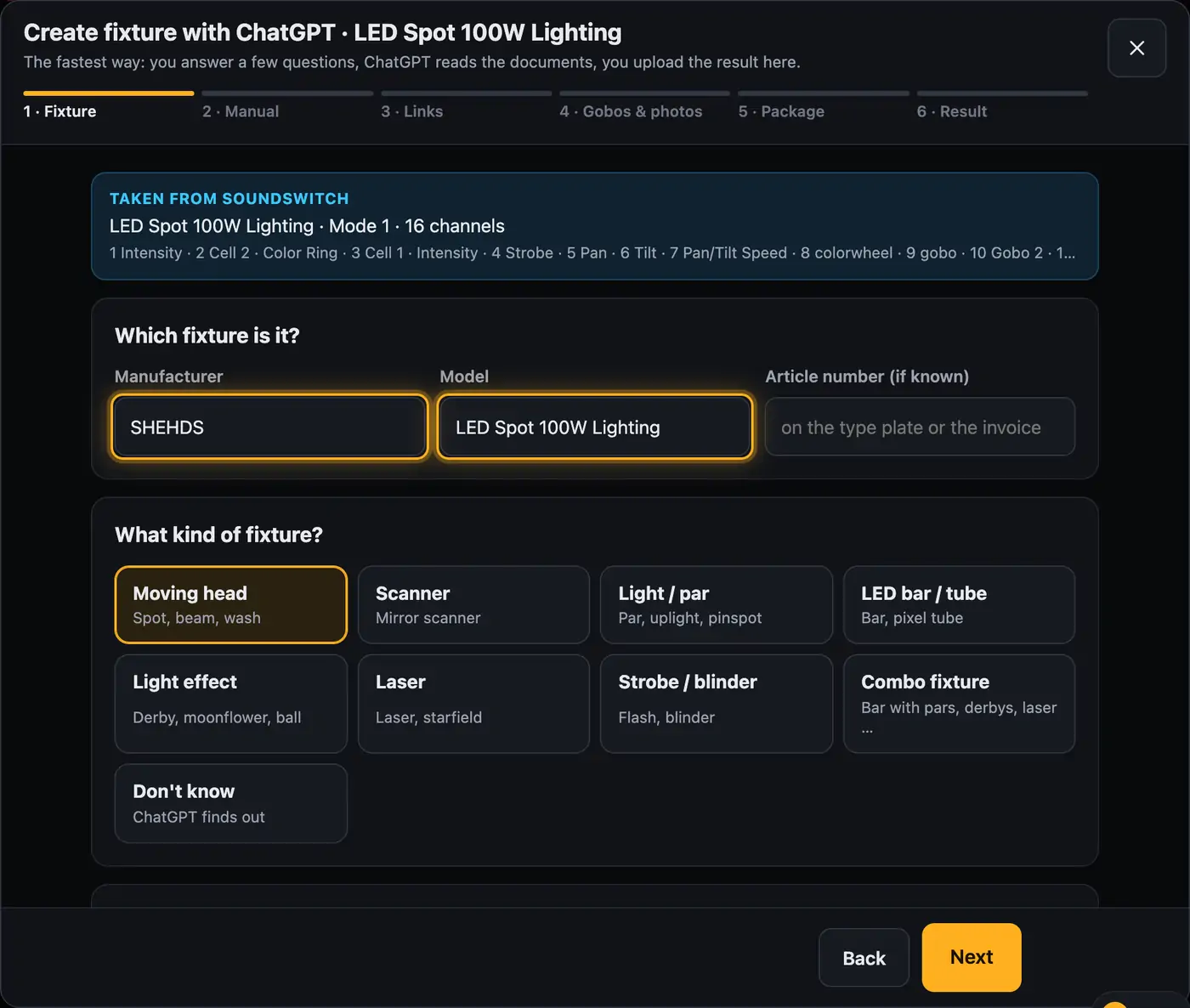
Maker and model are prefilled. - Manual: “Do you have a user manual?” – as a file (PDF or photos of the pages), as a link or “No”. Without a manual, a photo of the type plate or the DMX chart helps.
- Links: link to the manufacturer page and to the shop where you bought the fixture (both optional).
- Gobos & photos: photos of the gobos (shine onto a light wall, one photo per gobo) and a photo of the fixture from the front. All optional.
- Package: “Download the package for ChatGPT”. The file is called
chatgpt-paket-….zip.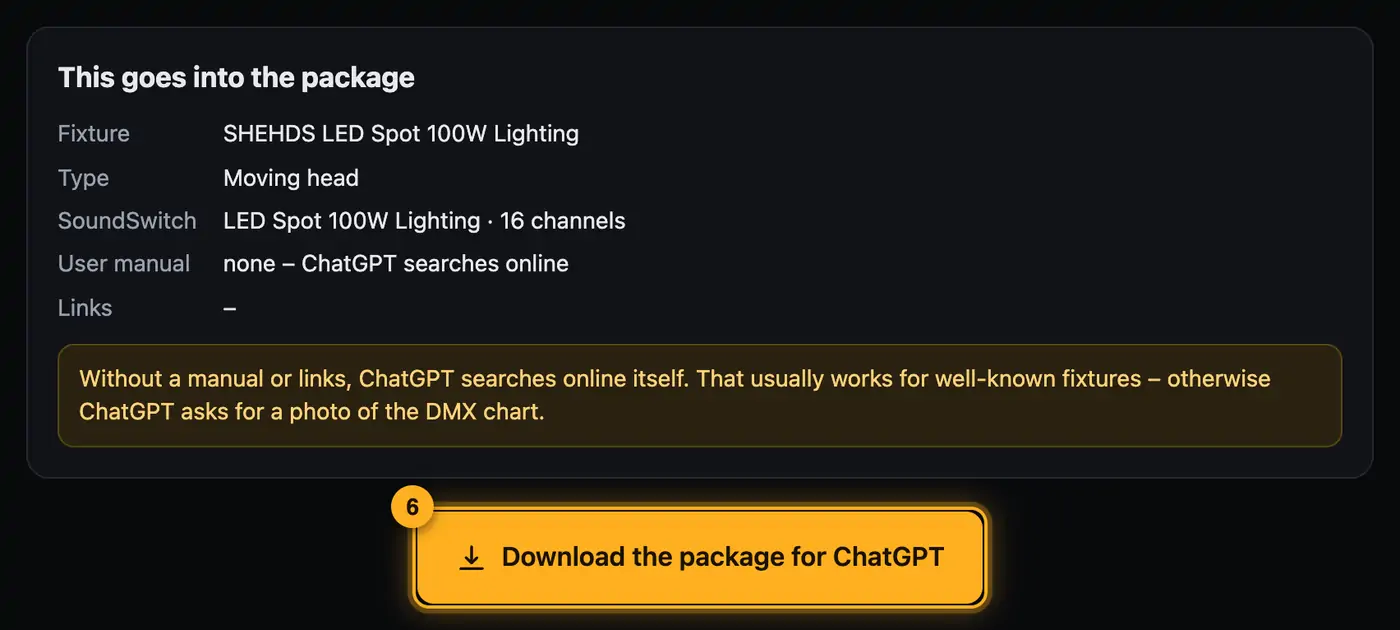
The package holds everything ChatGPT needs. - Open ChatGPT (“Open ChatGPT”), start a new chat, attach the ZIP and send the message with it (“Copy message”).
- ChatGPT works for a few minutes and gives you
ergebnis-….zipto download. - Result: back in the assistant, “Next: upload the result” and drop the file in. Check the preview and click “Add”.
You can also drop the result ZIP directly in the visualizer under “More” → “Fixture profiles” onto the area “Drop a GDTF file or the result from ChatGPT here”.
Did you close the assistant while ChatGPT was working? Open it again with “Create with ChatGPT” and tap “I already have a result from ChatGPT” on the first page. You go straight to the “Result” step.
More from “Fixture profiles & rig”
- How Droplit recognizes your lightsDroplit reads your SoundSwitch project and builds your rig from it: which fixtures there are, what they can do, which groups they belong to and in which order they stand. You don't have to create anything by hand.Summary
- Roles: what a fixture does in showsThe role decides what a fixture does in your shows. The designer assigns it when it recognizes your rig, and if it got something wrong, you change it with a few clicks.Summary
- Roles & order: check groups and rolesIn the “Roles & order” window you check and change what the designer recognized from your patch: groups, order, roles, moving heads, positions and gobo mapping.Summary
- Taking over your rig in another projectA checked rig doesn't only apply to copies with exactly the same patch. If you open a project where your fixtures are patched a little differently, the designer takes over groups, roles and order from the most similar rig you have already checked.Summary
- Hiding fixtures you don't bringNot every fixture in your patch comes to every gig. If you hide it, it disappears from the 3D view and the floor plan, and in “Fixtures & stage” the shows leave it out too.Summary