
Recognize a location from photos (AI) or rebuild it with ChatGPT
You have photos of the hall, a link to the venue's website or just a description? Then you don't have to set up the location by hand. “Analyze photos (AI)” recognizes the kind of room, materials, colors and furnishings right in the visualizer. “Rebuild with ChatGPT” runs for free through your own ChatGPT. Either way, you first see the result as a preview in 3D.
Analyze photos (AI)
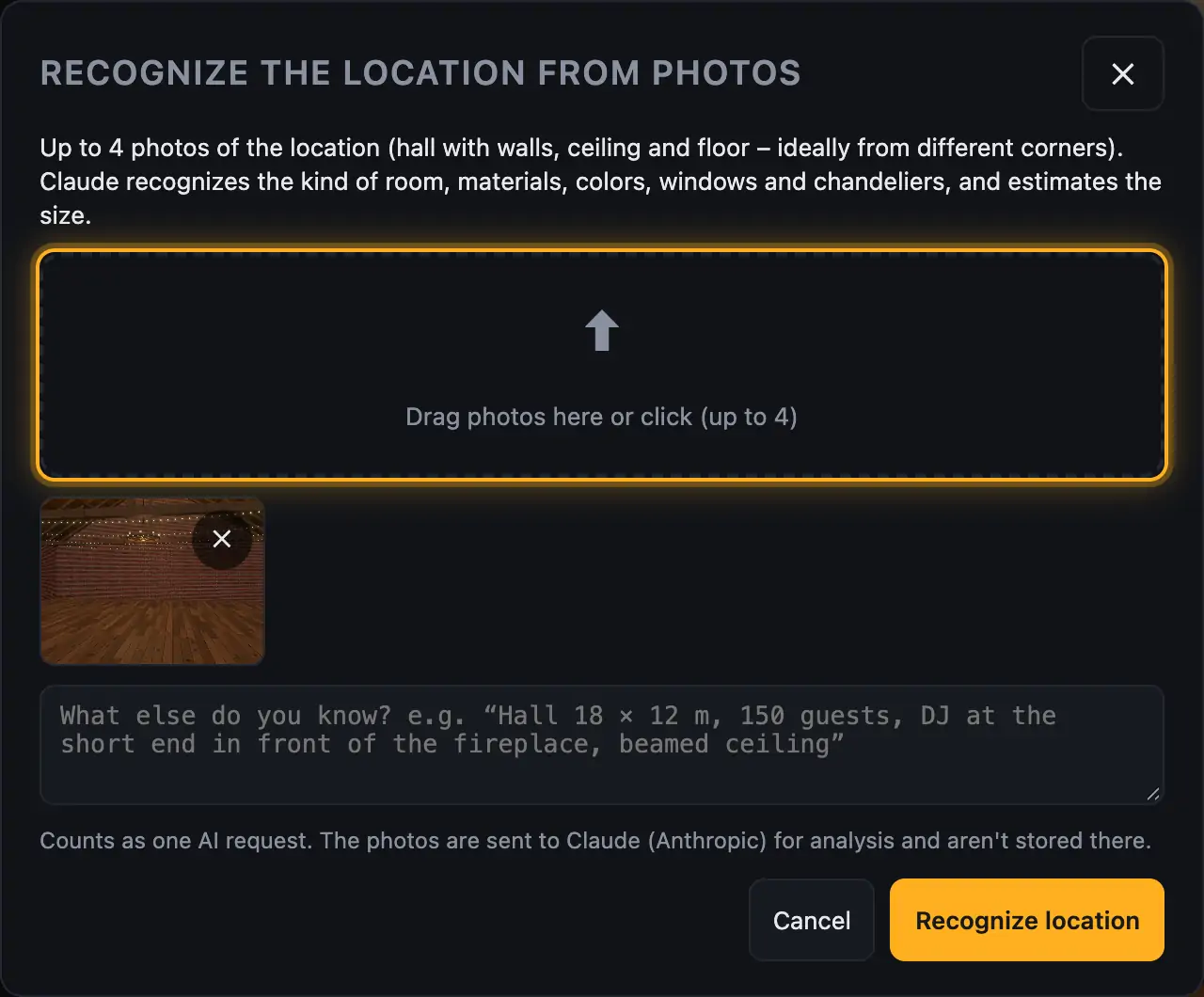
- Click “Analyze photos (AI)”. The “Recognize the location from photos” window opens.
- Drag up to 4 photos onto the area or click it to pick them. Photos showing walls, ceiling and floor work best, ideally from different corners. The ✕ on a photo takes it out again.
- In the text field, write what else you know, for example size, guest count and where the DJ stands.
- Click “Recognize location”. While “Claude is looking at the photos …” is shown, the AI analyzes the photos.
- The 3D view shows the result. The window lists the name, a short description and the size, marked “Size from your details” or “Size estimated”. “Not sure about:” lists what the AI couldn't recognize with certainty.
- If it fits, click “Apply”. “Try again” runs the analysis once more. “Cancel” keeps your previous location.
More from “Fixtures, stage & 3D”
- The workbench: setting up the visualizer with the toolbar on the leftThe visualizer has a new layout: instead of one long sidebar and lots of buttons at the top, there is a toolbar on the left with seven areas. Only one area is open at a time, and the 3D view stays large next to it. At the top you see which location and which setup are loaded, and the search gets you to any function in two seconds.Summary
- Opening and using the 3D visualizerThe 3D visualizer shows your lights on a virtual stage. You see what SoundSwitch or Droplit is sending to your fixtures right now, and you can rebuild your real setup.Summary
- Fixtures & stage in Droplit“Fixtures & stage” is the full 3D visualizer right inside Droplit. This is where you set up your stage and hide fixtures that your shows shouldn't use.Summary
- Choosing the source: SoundSwitch, Designer or test patternAt the top right of the 3D view you choose where the light values come from. You either watch live what SoundSwitch sends to your fixtures, or the preview from Droplit.Summary
- Fixture details and DMX monitorClick a fixture to see its address, its mode and all channel values live. The DMX monitor adds all 512 channels of a universe at a glance.Summary