Using AI with SoundSwitch: every way explained
Can AI help you with light shows in SoundSwitch? Yes, in many places, but differently than many people think. SoundSwitch itself works with music analysis, chatbots like ChatGPT or Claude help with planning and fixture profiles, image AI with moodboards, and Droplit uses AI right on your SoundSwitch project. This article shows every route, what it really does and where you'd better check for yourself.
The short version
- SoundSwitch doesn't advertise AI. Its automation is called Autoscript: it analyzes the music, detects phrases such as intro, drop and breakdown, and builds simple shows from them.
- In a normal chat, ChatGPT, Claude and Gemini can't operate SoundSwitch. They help with planning, explaining and creating fixtures, which you then enter yourself in the Fixture Manager.
- AI agents that control the screen can operate SoundSwitch themselves. To get good shows out of them, though, you have to teach them first, and that takes much more time.
- Without the manual, chatbots guess DMX values. Always give them the manual and check every line.
- SoundSwitch doesn't use stems from your DJ software as far as is known today. For the lighting, a clean beatgrid and well-detected phrases matter.
- There is no official interface (API) an AI could use to write shows in SoundSwitch. MIDI, Ableton Link and Art-Net are the official ways out.
- Droplit brings AI right to your SoundSwitch project: the AI picks building blocks, Droplit calculates the DMX values for your fixtures, and you save.
- On the night, SoundSwitch plays your shows without any AI.
What AI can and can't do for lighting
“AI” covers three very different things when it comes to lighting. Once you tell them apart, it's obvious which tool fits which job:
- Language models such as ChatGPT, Claude or Gemini understand what you write in your own words, read manuals and photos, and write plans, lists and explanations. They're great at translating: a wish becomes a concept, a DMX chart becomes a channel list. But when information is missing, they often fill the gap with something that only sounds plausible.
- Music analysis detects tempo, beatgrid, song parts and energy straight from the music. It's in SoundSwitch, in your DJ software and in Droplit. It's fast and reliable, but it doesn't understand wishes.
- Image AI creates or changes images and videos, for example a photo of your venue with show lighting, or visuals for a screen.
That leads to a simple rule: AI for ideas, translation and groundwork, exact values from the manual and the fixture definition. Which channel is strobe and which is dimmer is in the manual, not in a chatbot's imagination. And on the night, SoundSwitch plays your shows without any AI.
Every route at a glance
AI and automation can contribute to your show in six places:
- SoundSwitch itself: Autoscript, the Phrase Editor, Autoloops and BPM Detection. Not AI in the strict sense, but a lot of automation.
- Your DJ software: beatgrid, phrase analysis and AI features such as stems. Some of it helps the lighting, some doesn't.
- Chatbots: ChatGPT, Claude or Gemini as an assistant next to SoundSwitch, for fixture profiles, address plans, the flow of the evening and troubleshooting.
- Image AI: moodboards for the couple, gobo designs and visuals for screens.
- Droplit: AI that builds shows right on your SoundSwitch project, without you having to write prompts.
- For advanced users: AI agents that operate SoundSwitch themselves, plus MIDI, Ableton Link and Art-Net. Possible, but with much more effort.
Route 1: What SoundSwitch does automatically
SoundSwitch doesn't advertise AI features. But it has automation that does much of what people hope AI would do:
- Autoscript: SoundSwitch analyzes a track and places lighting effects to match the music and the beatgrid. It works for single tracks and for whole playlists and crates at once. According to the maker, this creates basic light shows: a good starting point, not a finished choreography. SoundSwitch stores the show information as metadata in the audio file.
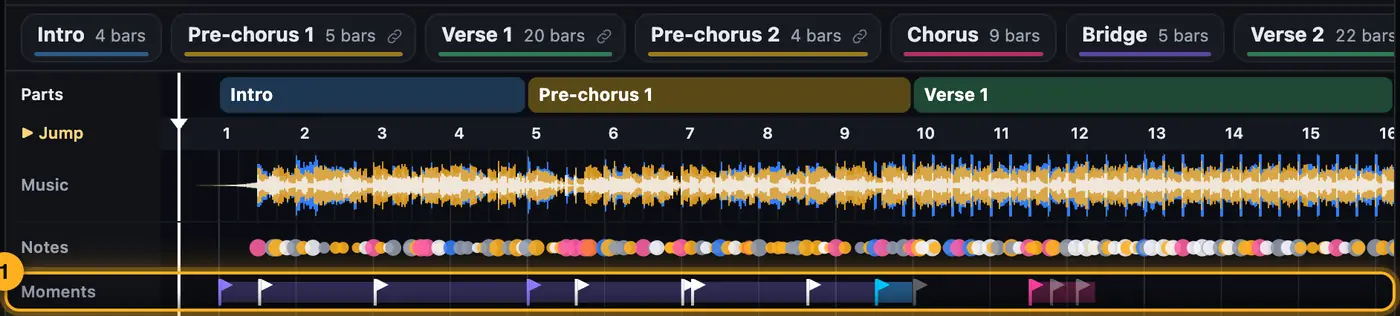
- Phrases: since version 2.2, SoundSwitch detects sections such as intro, build-up, drop, breakdown and outro automatically. Since 2.8 there's the Phrase Editor with the phrase types Intro, Main 1 (high energy, like a chorus), Main 2 (verses), Middle, Bridge and Outro. You can rename, split, delete or disable phrases and program them yourself. “Quick Autoscript” then rebuilds with the same preset.
- Presets, styles and exclusions: Autoscript presets and styles set the character of a show. You can exclude single fixtures or groups from Autoscript.
- Fixture categories: how you categorize your fixtures on the DMX page, for example as “Wash Primary”, “Wash Secondary”, spot or strobe, changes the result a lot, according to SoundSwitch support. A clean patch is half the show.
- Autoloops filled automatically: since 2.7, Autoscript can fill Autoloops too, with its own presets and a choice of which position cues and attribute cues go in. Movement effects can be excluded.
- BPM Detection: since 2.9, SoundSwitch detects the tempo from an audio source (microphone, audio interface or virtual audio cable) and keeps the Autoloops in time.
Limits: streaming tracks can't be autoscripted; for those you have Autoloops. With BPM Detection, too, only Autoloops and Static Looks play, no scripted tracks. With Autoscript, lasers only run via attribute cues. Whether SoundSwitch picks Autoloops by the energy of a track isn't documented. Sorting tracks by mood (HIGH, MID, LOW) is something rekordbox's own lighting mode does, not SoundSwitch.
How to get the most out of it: set a clean beatgrid in your DJ software, categorize your fixtures correctly, run Autoscript, check the phrases in the Phrase Editor and rework the most important spots by hand. See also Checking a song show in SoundSwitch.
Route 2: AI and analysis in your DJ software
SoundSwitch gets tempo and track data from your DJ software. Its analysis decides how well the light sits. Here's what the DJ programs bring:
- rekordbox: phrase and key analysis, AI detection of vocal positions, automatically created cues and stems. Since SoundSwitch 2.11, rekordbox is connected directly (rekordbox 7.2.19 or later with the Creative or Professional plan). rekordbox also has its own lighting mode (LIGHTING), which builds on the phrase analysis and sorts tracks by mood into HIGH, MID and LOW.
- Engine DJ: stems since version 4.2, pre-calculated in Engine DJ Desktop, and since 5.0 directly on some devices. With Engine Lighting, shows run without a computer, in the advanced mode with a SoundSwitch license and a DMX interface.
- Serato DJ Pro: stems since version 3.0. SoundSwitch is connected through an interface provided by Serato.
- VirtualDJ: real-time stems. The connection to SoundSwitch runs over OS2L.
What actually helps the lighting:
- The beatgrid matters most. Scripts and Autoloops run to the beatgrid. If it's off, the light is off. Check it especially on live recordings, older songs and tracks with tempo changes.
- Phrases help directly: with Autoscript in SoundSwitch and in rekordbox's lighting mode.
- Stems aren't used by SoundSwitch for the lighting as far as is known today. Vocal detection only helps you plan, for example where an announcement fits.
How to connect SoundSwitch with your DJ software is covered in Connect SoundSwitch with DJ software.
Route 3: ChatGPT, Claude and co. as a lighting assistant
A chatbot next to SoundSwitch is the easiest way in: it costs little or nothing, there's nothing to install, and it helps with many tasks around the show. In a normal chat it can't operate SoundSwitch. You enter what it gives you yourself, and you check it first. How an AI operates SoundSwitch itself is covered in route 6.
Creating a fixture that's missing in SoundSwitch
If a fixture is missing from the SoundSwitch library, you create it in the SoundSwitch Fixture Manager (sign in with your inMusic Profile). SoundSwitch doesn't describe an import from other formats such as GDTF or QLC+. You enter the maker, model, mode and every channel by hand: attribute, description, whether there's a fine channel, value ranges and color or gobo wheel. Then you check the profile with “Check Fixture”.
This is exactly where a chatbot saves a lot of typing:
- Search the SoundSwitch library first, by channel count too. The fixture often exists under a different name.
- Upload the manual as a PDF to the chatbot and ask for a table for the Fixture Manager, only for the mode set on your fixture (prompt 1 below).
- Have anything unclear marked as “UNCLEAR” with the page number instead of guessed.
- Enter the table in the Fixture Manager, run “Check Fixture” and test on the real fixture.
If the manual doesn't list the color wheel values, even the best AI can't help. SoundSwitch then recommends running through the values with the slider on the real fixture and writing them down.
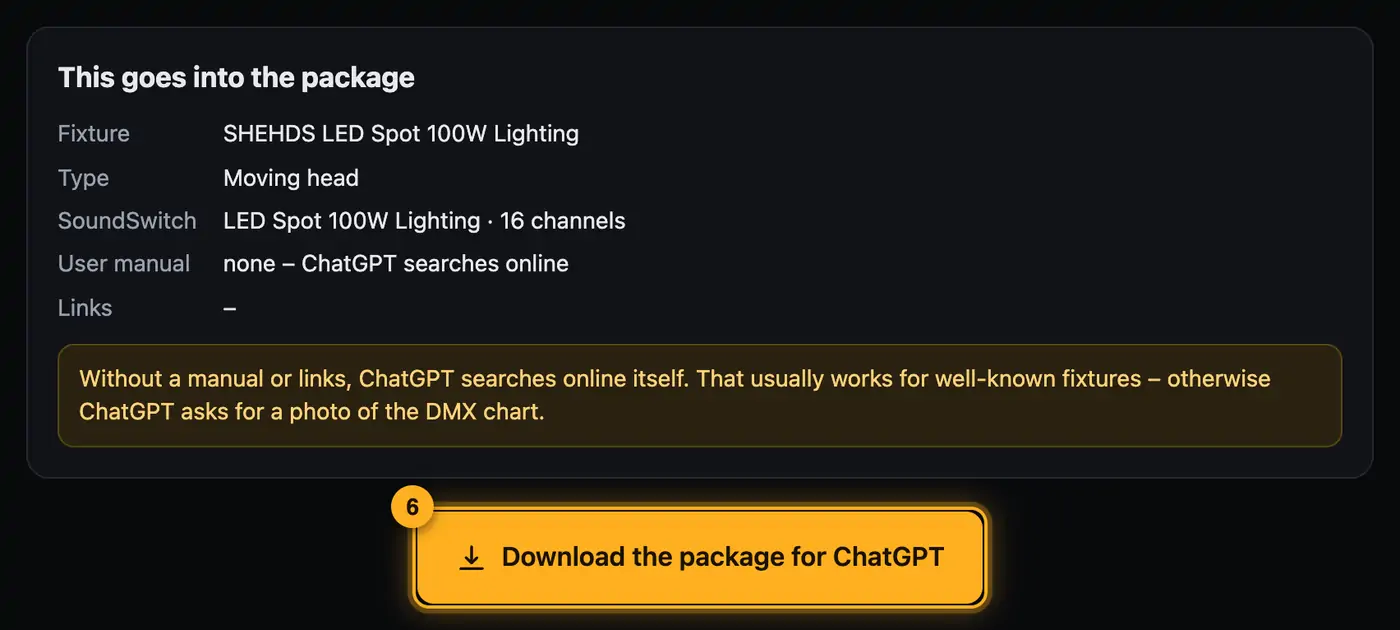
In Droplit, “missing” means something else: your fixture is patched in SoundSwitch, but Droplit doesn't know its gobos and shape for the 3D preview yet. For that, Create a fixture with ChatGPT packs the manual, photos, a precise task and a check script into a package for your ChatGPT. The check script catches many typical mistakes before the result comes back.
Planning DMX addresses
Give the chatbot your fixture list with the channel count per mode and ask for an address plan: which fixture gets which start address, without overlaps, with room for one more fixture. Ask for a printable table you can tick off while setting up. The math is simple, and that's exactly why it's easy to check: start address plus channel count minus one gives the last address used, and the next start address has to be above it. More in Planning DMX addresses.
Planning the evening and its moods
Describe the flow of your event, for example a wedding with a drinks reception, dinner, speech, first dance, party and a midnight snack. Ask for a lighting mood for each part: colors, brightness, movement, whether strobe fits. That becomes your list of which Autoloops and Static Looks go on which bank in SoundSwitch. See also Pacing the evening and Colors that work together.
Troubleshooting
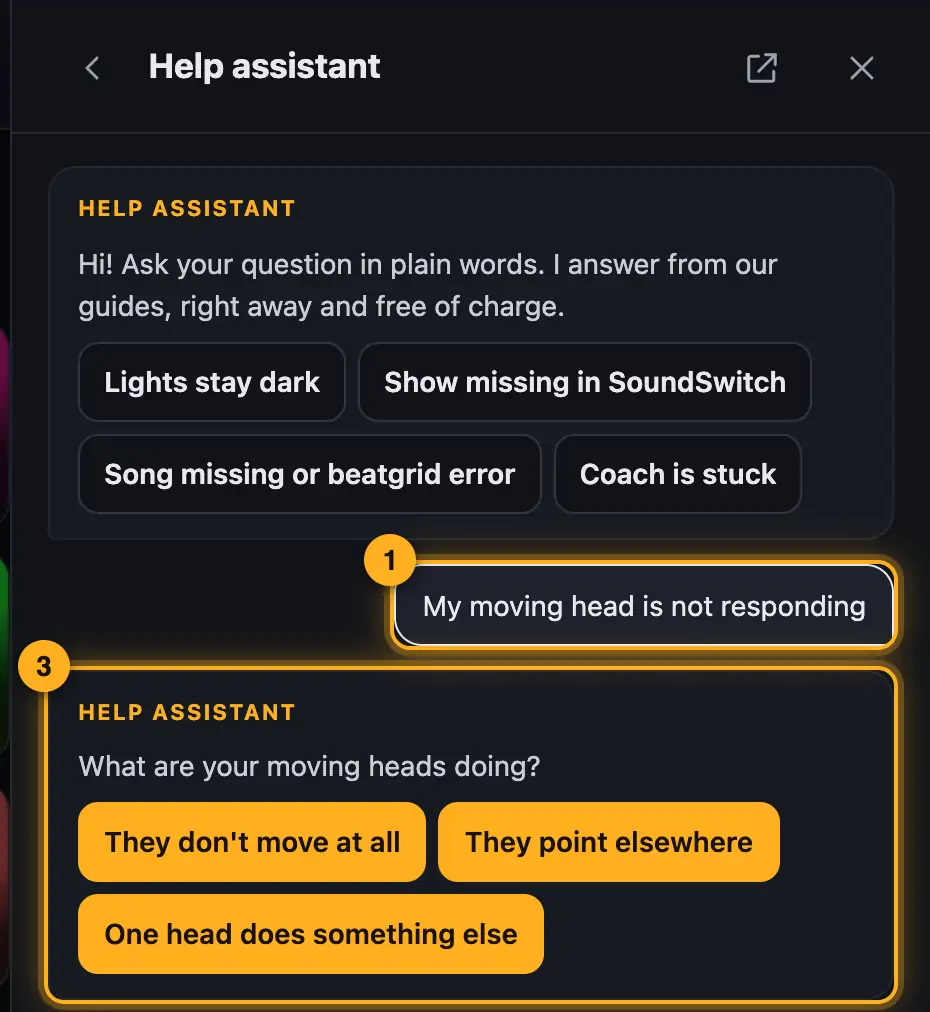
Describe what happens (“moving head spins wildly at startup and then doesn't respond”) and what you have (fixture, mode, address, interface). A chatbot walks you through the usual causes: wrong mode, double addresses, a missing end-of-line plug on the DMX cable, the wrong output in SoundSwitch. Feel free to attach a photo of the fixture's display or back panel. For SoundSwitch menus, check the answer against the official manual, because menu names change between versions. Our troubleshooting guides start with A light stays dark. Questions about Droplit and how it works with SoundSwitch are answered right in the help by “Ask Droplit”, with AI when needed.
Learning and understanding
What's a gobo, what does a prism do, why does pixel lighting need a different mode, what does “fine” mean for pan and tilt? Chatbots are ideal for questions like these, because you can keep asking until it clicks. Ask for examples from a wedding DJ's everyday work.
Check first, then enter
Chatbots make typical DMX mistakes: swapped channels, a mode with a different channel count, guessed value ranges, a similar fixture mixed up. So for anything that ends up in SoundSwitch:
- Always ask for the source, for example “manual page 12, table for 13CH mode”.
- Compare the channel list line by line with the manual, especially dimmer, strobe and shutter.
- Check the channel count of the mode set on your fixture.
- Test new profiles with one fixture first, dimmed and without guests.
- For rigging, power and load, only the maker and qualified people count. No chatbot decides that.
Prompts to copy
Replace the square brackets with your details. The prompts work in ChatGPT, Claude and Gemini.
1. DMX chart for the Fixture Manager
“I'm uploading the manual of my fixture [maker, model] as a PDF. Use only the DMX mode with [X] channels. Create a table for the SoundSwitch Fixture Manager with the columns channel, attribute (e.g. Dimmer, Red, Green, Blue, White, Pan, Tilt, Color Wheel, Gobo, Shutter/Strobe), description from the manual, fine channel yes/no, value range from–to. List the color wheel and gobo steps separately with their value ranges. Don't invent anything: if something isn't clear in the manual, write UNCLEAR and give the page. At the end, tell me how many channels you counted and whether that matches [X].”
2. Cross-check in a new chat
“Here are a manual as a PDF and a channel table another AI created. Check it line by line against the manual: wrong mode, swapped or missing fine channels, wrong value ranges, missing channels. Only list the differences, each with the page number.”
3. DMX address plan
“My rig: [fixture, mode, channel count, quantity, e.g. 4× par with 7 channels, 2× moving head with 13 channels, 1× strobe with 4 channels]. I have [1 or 2] universes with 512 channels each. Create an address plan without overlaps. Identical fixtures get consecutive addresses, and each group keeps room for one more fixture. Give me a table with fixture, start address, end address and universe, plus a short list for sticky labels. Double-check every end address (start + channel count − 1).”
4. Wedding schedule into lighting moods
“Schedule: [reception, entrance, dinner, speech, cake, first dance, party, midnight snack, last song]. The couple's colors: [e.g. sage, cream, gold]. Rig: [uplights, pars, moving heads, strobe]. Plan for SoundSwitch which parts run with Static Looks and which with Autoloops, and how to name the four banks sensibly. Rules: no strobe and no movement during dinner, moving heads never at the guests' eye level, strobe only from the party on and sparingly. Give me a table with part of the evening, look name, colors, brightness in %, movement and who triggers it.”
5. A lighting idea per song from the phrases
“Song: [title, BPM]. The phrases from the Phrase Editor in SoundSwitch: [Intro 0:00–0:15, Main 2 0:15–0:45, Bridge …, Main 1 …, Outro …]. Suggest a lighting idea for each phrase: colors, brightness, whether the moving heads move, strobe yes or no. Also tell me which phrase I should rather disable and program by hand instead of leaving it to Autoscript. The high point should clearly stand out from the rest.”
6. Color palette from the decor
“I'm uploading a photo of the invitation or the table decor. Name 4 to 5 main colors as RGB values (0–255) for RGB or RGBW pars. Match each color to the closest step of my color wheel; the steps from the manual are: [list]. Tell me which shades LEDs struggle with (e.g. pastels, gold, brown) and which substitute color to use.”
7. Troubleshooting as an interview
“My problem with SoundSwitch: [e.g. light doesn't respond, Autoloops play instead of my script]. Setup: [DJ software with version, SoundSwitch version, DMX interface, Mac or Windows]. Ask me step by step, one question per message, and check: the input setting in Preferences, the connection indicator, the DMX interface indicator, venue and addresses, the track's beatgrid, whether BPM Detection was active when the track was loaded, streaming or local track. Don't guess menus I haven't confirmed.”
8. Terms for beginners
“Explain in simple words, with one wedding example each: DMX universe, start address, channel mode, fine channel, Autoloop, script, Static Look, Thru, attribute cue, position cue, Art-Net. If you're not sure about a SoundSwitch term, say so instead of guessing.”
Route 4: Images and visuals with AI
- Moodboards for the couple: ChatGPT and Gemini edit uploaded photos. A photo of the empty venue plus “uplights in sage and gold, warm atmosphere” makes a lovely mood image. But it doesn't show how your light really looks: image AI doesn't know beam angles, brightness or the colors of your LEDs. Show it as an idea, not a promise.
- An honest preview: how the show really looks is shown by a visualizer that receives SoundSwitch's DMX data over Art-Net, for example Droplit's 3D visualizer (see Watching SoundSwitch live in the visualizer). From the 3D view, “Photo look with ChatGPT” in Droplit also makes an image that looks like a real photo.
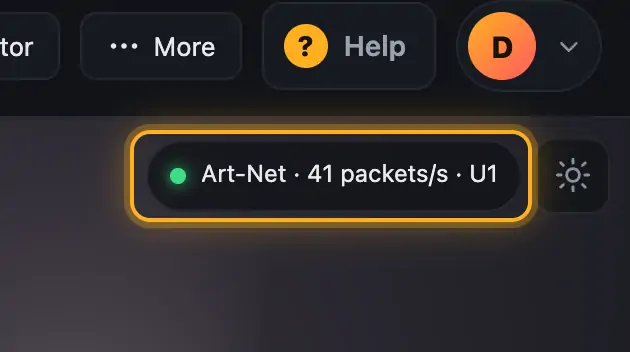
When SoundSwitch's signal arrives, the visualizer shows it at the top. - Custom gobos: AI delivers good designs, such as the couple's monogram. But gobos are made of steel or glass in fixed sizes. The design has to be vectorized and simplified (in steel, closed letters like O or A need small bridges), and your fixture needs a replaceable gobo slot. Many DJ moving heads only have fixed gobo wheels.
- Visuals for screens and LED walls: clips from AI video tools make good backgrounds. Make sure the loop runs without a jump. Resolume Arena can trigger clips via DMX or Art-Net, and SoundSwitch sends Art-Net. But SoundSwitch doesn't describe the chain all the way to Resolume, so test it before a gig.
- Advertising: platforms such as YouTube require realistic AI images and videos to be labeled, and in the EU transparency rules for this have applied since August 2026. Label an AI image of your show as such, it's also fair to your clients.
Route 5: Droplit, AI right on your SoundSwitch project
Droplit is an independent tool that reads your SoundSwitch project and writes shows into it: Autoloops, Static Looks and song shows. Because Droplit knows your rig, your groups and your songs, the AI there can help far more precisely than a chatbot on the side, and you don't have to type anything up.
The difference is in how the work is split: the AI only picks building blocks that really exist, such as moods, colors, sliders, gobos, effect templates and rules for single lights. Droplit calculates the DMX values itself, matched to your fixtures. You see everything in the preview first, and nothing reaches SoundSwitch until you tap “Save to SoundSwitch”. That way the AI can't mix up channels.
Much of it you barely notice:
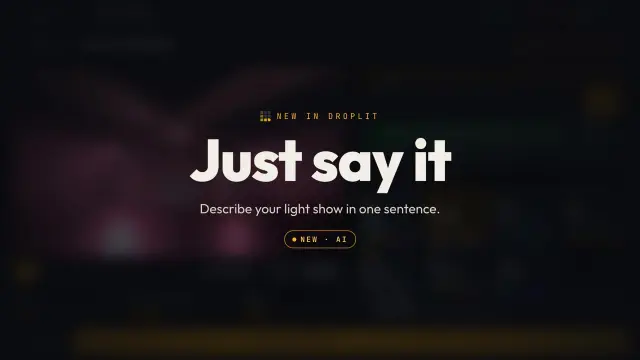
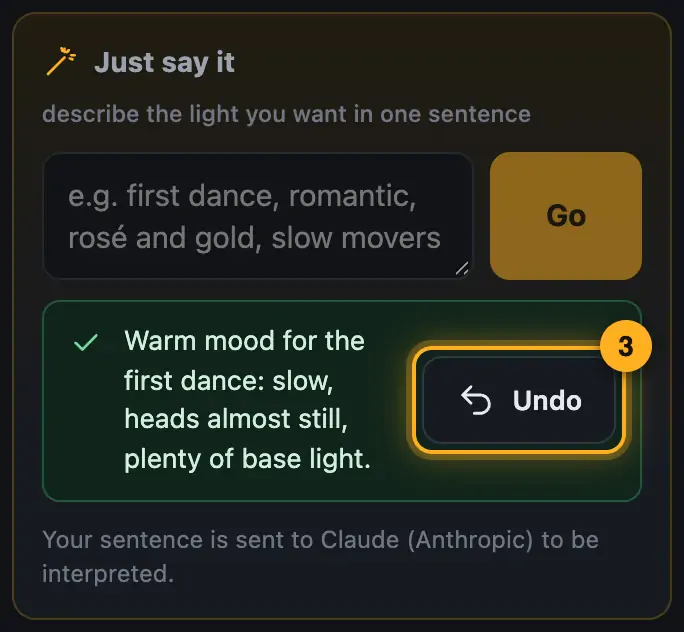
- Just say it: one sentence such as “First dance, romantic, rosé and gold, movers slow” sets up the whole show. Single lights and spots in a song work too: “uplights red, strobe in the second chorus”.
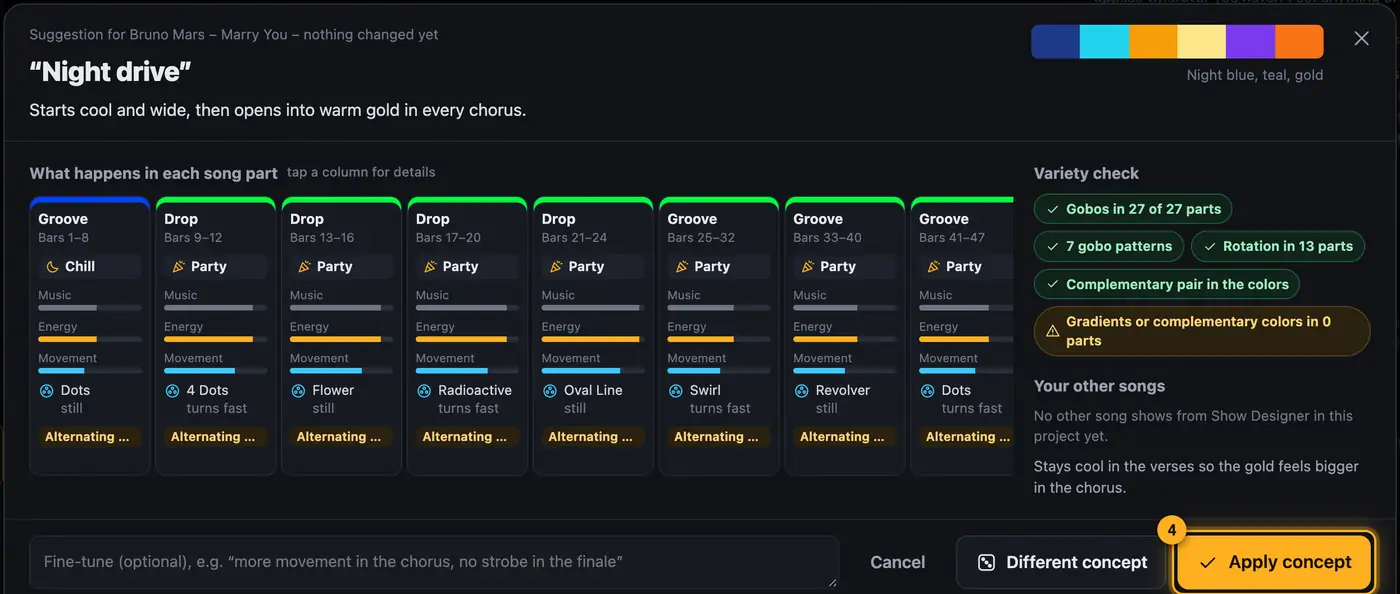
- Song concept: one button, and each song gets its own idea with colors, gobos and effects per song part. The timing comes from the song analysis.
- Moments: tap a hit or a break in the song and say in one sentence what should happen there.
- Location from photos: up to 4 photos, and the 3D visualizer rebuilds the venue.
- Missing fixture: Droplit packs the manual, photos and a precise task for your ChatGPT, including a check script. Or you send us the manual, and we create the profile for you with the help of AI.
- Ask Droplit: questions in your own words. If no guide fits for sure, the AI answers by itself.
- Your own Claude: controls Droplit by chat or dictation; you confirm saving in the designer.
And a lot of it isn't AI at all, just calculation: song analysis, special moments, recognizing your rig and colors from a photo. That's instant and free. All the details are in AI in Droplit.
Route 6: For advanced users: letting an AI operate SoundSwitch
Yes, it works: an AI can operate SoundSwitch itself and create shows in it. We do this at Droplit too. But the effort is much higher than on any other route, because the AI first has to learn how SoundSwitch works and what makes a good light show.
How an AI gets to SoundSwitch
- Through the screen: AI agents with screen control, for example Claude with computer use in the desktop app, see your computer's screen, click and type like a person. That way they can patch fixtures, place cues, build Autoloops and Static Looks, and save.
- Through the official interfaces: via MIDI, your own program can press buttons in SoundSwitch like a controller, for example to switch Autoloops, Static Looks or overrides. You can't write shows this way; SoundSwitch has no public interface (API) for that.
- Through a tool that works on the SoundSwitch project: that's how Droplit works. Your own Claude can control Droplit as a remote control, see Control it with your own Claude.
Why the effort is higher: the AI has to learn first
“Training” here almost never means training your own AI model. You teach the AI the craft over many rounds: with precise instructions it reads on every run (for example in a project with instructions in Claude or ChatGPT), with rules for good shows, with examples and with your corrections after each attempt.
From our own practice: the first shows an AI built for us worked technically but didn't look good. The moving heads only circled and pointed at the ceiling instead of the audience, and every song looked the same: the same colors, the same effects, gobos only at the very end. Only with firm rules did it get good: movers towards the audience, changing positions and offset movement between the heads, a concept of its own for each song with its own colors and complementary colors, gobos with rotation where they fit the music. On top of that came traps in operating the app: clicks that hit an invisible button, fixtures deleted without a confirmation, and saving in two steps.
What to expect:
- Time: it takes days rather than minutes until the shows look good. Every mistake has to show up once and go into the instructions.
- Speed and computing time: an agent operating the screen takes a screenshot after every click and thinks. A show takes much longer than by hand, and such runs use far more than a normal chat.
- Know-how: you need to know what makes a good show yourself, otherwise you can't correct the AI. Our lighting know-how is a good starting point for the rules.
- Checking: the AI needs a way to see its result, ideally a visualizer via Art-Net or the real rig. And in the end, you look yourself.
- Maintenance: if a SoundSwitch update changes menus or buttons, the instructions have to change too.
How to try it
- Make a copy of your project and only work in it, never in the project you play on the night. Close other programs before an agent controls your computer.
- Start small: one Static Look or one Autoloop, not a whole song right away.
- Write instructions with the menu names and buttons the AI should use, and what it must not do.
- Give it rules for good shows: colors, movement, when strobe fits, where gobos belong.
- Have the result checked via Art-Net in a visualizer and look at it yourself. Add every correction to the instructions so the same mistake doesn't come back.
- Never let an agent work unsupervised, and never during an event.
The interfaces at a glance
- MIDI: buttons and sliders in SoundSwitch can be mapped with MIDI learn (“MIDI” at the top right, right-click the control, then move the hardware). Your own program can send the same commands through a virtual MIDI port. On a Mac the system comes with virtual MIDI ports; on Windows you need an extra tool.
- Tempo: Ableton Link, MIDI Clock and BPM Detection give SoundSwitch the tempo.
- Art-Net: SoundSwitch also sends its DMX data over Art-Net. That lets an AI listen in and check what the light does, for example in a visualizer.
- OS2L: SoundSwitch uses it as the input from VirtualDJ for track and beat data. According to VirtualDJ, SoundSwitch doesn't implement the commands VirtualDJ uses to trigger scenes in other lighting programs.
Droplit saves you the teaching: the rules from our rounds are already built in, for example in the variety check of the song concept and in the show rules. You just say what you want.
Other lighting systems with “AI” compared
Some products advertise AI explicitly. Most of them take a different approach from SoundSwitch: they react to the music live instead of preparing shows.
- MaestroDMX: a small device that listens to the music through an audio input and controls the light in real time, without prior analysis. Good if you don't want to program anything at all. It doesn't replace a prepared show for a specific song. The “AI” claims come from the maker.
- rekordbox LIGHTING and Engine Lighting: lighting modes right in the DJ software or on the device, see route 2. rekordbox only supports certain fixture types (par, bar, moving head, strobe, spot).
- QLC+: free, with audio triggers and a documented web interface that your own scripts and even AI assistants can connect to. In return, you build your shows yourself.
- Lightkey (Mac only) and ShowXpress: classic lighting programs with tempo features such as Ableton Link, MIDI or sound triggering, without advertised AI.
For wedding and event DJs using SoundSwitch, this combination is usually the strongest: SoundSwitch for the night, Autoscript and Droplit for preparing, a chatbot for questions and plans.
Which route suits you?
- You're new to lighting: use what SoundSwitch and your DJ software already do automatically, and ask a chatbot when you don't understand a term. Droplit is made for your own shows without prior knowledge: tap a mood or write a sentence.
- You have your own rig and want variety: let a chatbot split the evening into moods, and build the shows in Droplit with “Just say it” and song concepts. That way not every night looks the same.
- A fixture is missing in SoundSwitch: check the SoundSwitch library first, then create it with the manual and a chatbot and cross-check it line by line. If Droplit's 3D preview is missing gobos or the shape, “Create with ChatGPT” helps you with a ready-made task and a check script.
- You want to show the couple something: the 3D preview in Droplit, turned into an image that looks like a real photo with “Photo look with ChatGPT”, or a preview link.
- You want an AI to operate SoundSwitch: plan time for teaching it, work in a copy and start with a single look. Never test it for the first time at an event.
Privacy, rights and safety
- What you upload goes to the provider. Don't send a chatbot guest lists, contracts or photos where guests can be recognized unless you know what the provider does with them. Manuals and photos of fixtures are usually fine.
- Music: you don't need to upload music files for lighting plans. Title, tempo and song parts are enough. Droplit never sends your music to an AI.
- SoundSwitch stays SoundSwitch. Only use AI with what SoundSwitch officially offers: the user interface, fixture definitions, projects and interfaces. Cracking or modifying programs is not part of that.
- AI agents on your computer: an agent that controls the screen sees everything that's open and can click anywhere. Only let it work with a copy of your project, close other programs and watch.
- Safety before show: check strobe frequencies, loads, circuits and fog according to the maker and the venue, not according to an AI answer. Think of guests with epilepsy when using strobe. Droplit has family party safety for that.
- Droplit is an independent project and is not part of SoundSwitch or inMusic.
Questions
SoundSwitch doesn't advertise AI. It has Autoscript, automatic show creation from music analysis with phrase detection. That's automation, but not an assistant that understands your wishes.
Not in a normal chat. There, ChatGPT gives you a concept per song or a plan for the evening that you then build in SoundSwitch. As an agent that controls the screen, an AI can operate SoundSwitch itself and create shows. Until they're good, though, it needs many rounds of teaching (see route 6). Without teaching and right in the project, Droplit does it.
Yes, as an AI agent through the screen, the way a person clicks and types. It's slower than doing it by hand, needs precise instructions and rules for good shows, and should only run in a copy of your project. All the details are in route 6.
No. “Training” here means instructions, rules, examples and corrections that the AI reads on every run. You don't need a model of your own.
SoundSwitch doesn't describe an import. Have ChatGPT make a table and enter it in the Fixture Manager, then run “Check Fixture” and test on the real fixture.
The one you give the manual to. ChatGPT, Claude and Gemini all read PDFs. What matters is that you have it answer only from the document and that you cross-check. A second chat used only for checking finds many mistakes.
Not directly as far as is known today, because SoundSwitch doesn't use stems. A clean beatgrid helps far more.
No. Streaming tracks can't be autoscripted; Autoloops play for them.
Through MIDI, a program could switch Autoloops or looks. For weddings and corporate events we advise against it, because on the night reliability is what counts. Prepare your shows and play them with SoundSwitch.
No. The AI features in Droplit run on your Droplit account with a quota of requests. You only need your own ChatGPT or Claude for the routes that explicitly use your own account.
No. Title, tempo and the phrases are enough for lighting plans. Droplit never sends your music to an AI.
No. Droplit is an independent project that works with SoundSwitch projects and is not part of SoundSwitch or inMusic.
If something goes wrong
- The chatbot gives a different channel count than your fixture: check the mode on the fixture's display and state the channel count firmly in the prompt.
- The Autoscript show looks restless or random: check the fixture categories on the DMX page, the beatgrid and the phrases in the Phrase Editor.
- The light isn't in time: check the beatgrid in your DJ software. With BPM Detection only Autoloops play, no scripted tracks.
- With Serato, a scripted track doesn't start: if BPM Detection was active when loading, SoundSwitch gets no track data. Set the input in SoundSwitch to Serato and load the track again.
- The AI agent misclicks or gets lost in menus: give it smaller tasks and instructions with the exact menu names, and have it check with a screenshot after each step that it's in the right place.
- The agent's shows all look the same: give it its own concept for each song (colors, signature effects, where gobos belong) and have it say first what sets this song apart from the others.
- A new fixture profile responds wrongly: compare it line by line with the manual, especially dimmer, strobe and shutter, and test dimmed with one fixture.