
Getting started in the web version
The web version runs in Chrome or Edge and needs a free account. Once it's set up, you're in your project with a few clicks.
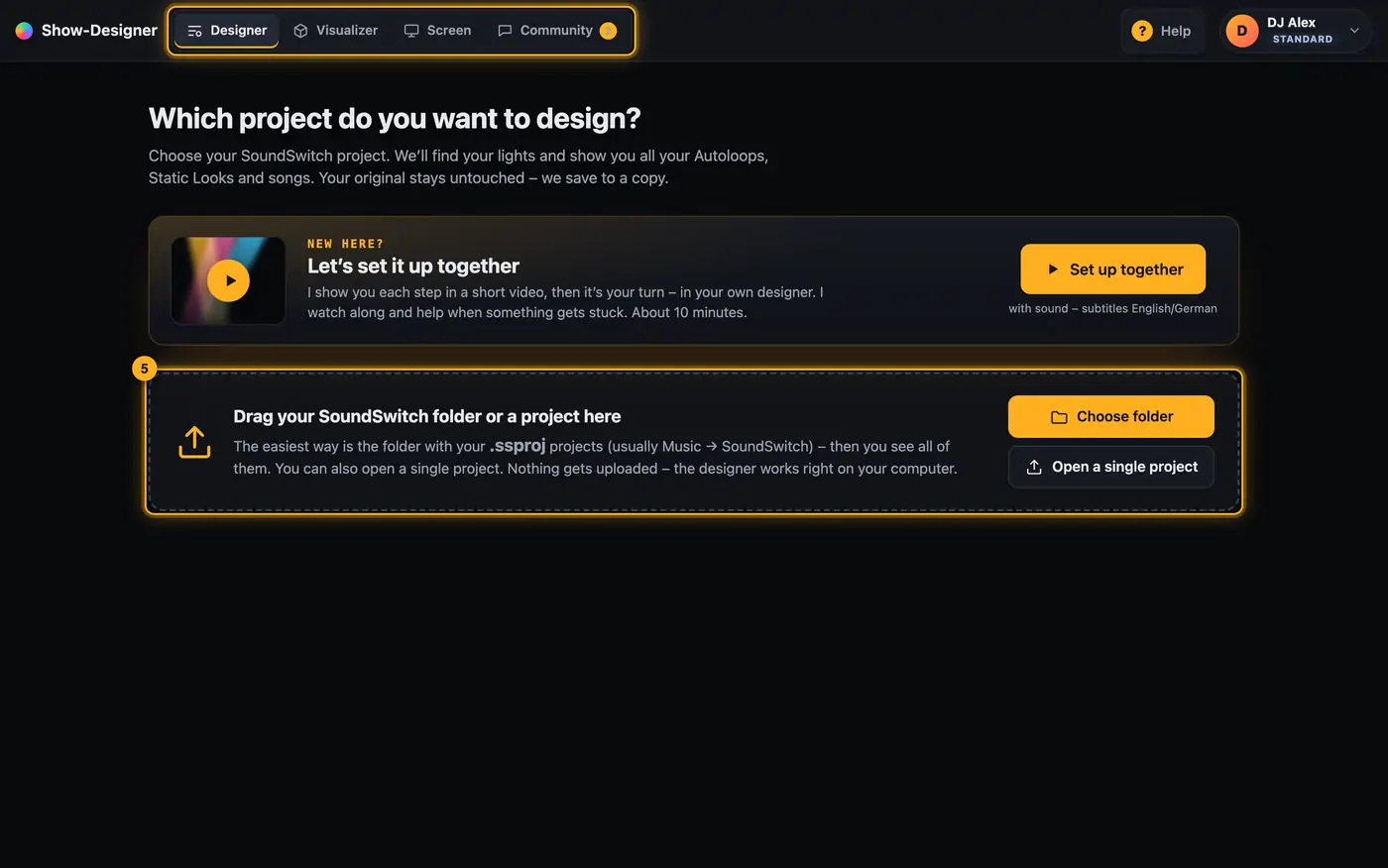
Step by step
- Open https://soundswitch.hochzeitdj.nrw in Chrome or Edge.
- Tap “Sign up for free” and create your account. Then click the link in the email (see Creating an account and confirming your email).
- Sign in with your email and password. Your overview opens. Tap “Continue in the Designer” there. If you haven't opened a project yet, the button says “Get started”.
- Wait until “Checking sign-in …” and “Loading the Python core …” at the top have disappeared. The first time takes a little longer.
- Drag your SoundSwitch folder onto “Drag your SoundSwitch folder or a project here” or tap “Choose folder”. Just one project? Use “Open a single project” (see Sharing your SoundSwitch folder).
- Tap your project.
Good to know
- Later you go straight to the “Designer” tab on the website. If you open the designer without being signed in, you land on the sign-in page and then back in the designer.
- At the top right of the designer is the button with your profile picture, your name and your plan below it. Tapping it opens a menu: “Overview” takes you to your overview, “My account” to the account page. The settings and “Sign out” are there too.
- The next time you start, the designer opens the project you last worked on.
- The browser remembers the shared folder. After restarting the browser it may ask again whether the designer may edit it.
- The page loads a core into your browser. Your projects and your music stay on your computer.
Questions
Do I have to sign in every time?
No. You stay signed in in this browser until you tap “Sign out” on the account page or the session expires.
Can I continue on another computer?
Yes. Sign in there and share the SoundSwitch folder on that computer. Your designer data comes from your account, the SoundSwitch projects need to be on that computer.
Does the web version cost anything?
Signing up is free.
If something goes wrong
- The page stays at “Loading the Python core …”: Check your internet connection and reload the page. An ad blocker or a company network can block cdn.jsdelivr.net, which is where the core comes from.
- You keep landing on the sign-in page: Allow cookies for soundswitch.hochzeitdj.nrw. Without the session cookie you don't stay signed in.
- “This browser can't share folders – please use Chrome or Edge.”: Open the web version in Chrome or Edge.
- Signing in doesn't work: see Signing in and out.
More from “Getting started”
- What is Droplit?Droplit builds light shows for SoundSwitch without programming effect after effect. You pick a slot, a mood and colors. Droplit turns that into a show for exactly your lights and saves it to your SoundSwitch project.free to read
- What you needFor Droplit you need a SoundSwitch project with your lights.free to read
- Sharing your SoundSwitch folder or a projectIn the web version, the designer works directly with your SoundSwitch projects. To do that, you share them with the browser once: either the whole folder with your projects or just a single project. Nothing gets uploaded.free to read
- Opening and switching projectsOn the start page you choose the SoundSwitch project you want to design. After that you see your lights, banks and songs in the Overview.free to read
- Set up together – the video coach“Set up together” walks you through the first setup with short videos. Each step plays as a video first, then it’s your turn – in your own designer, with your project. The coach watches along, notices when a step is done, and shows you the way out by itself when something gets stuck.free to read