
Opening and switching projects
On the start page you choose the SoundSwitch project you want to design. After that you see your lights, banks and songs in the Overview.
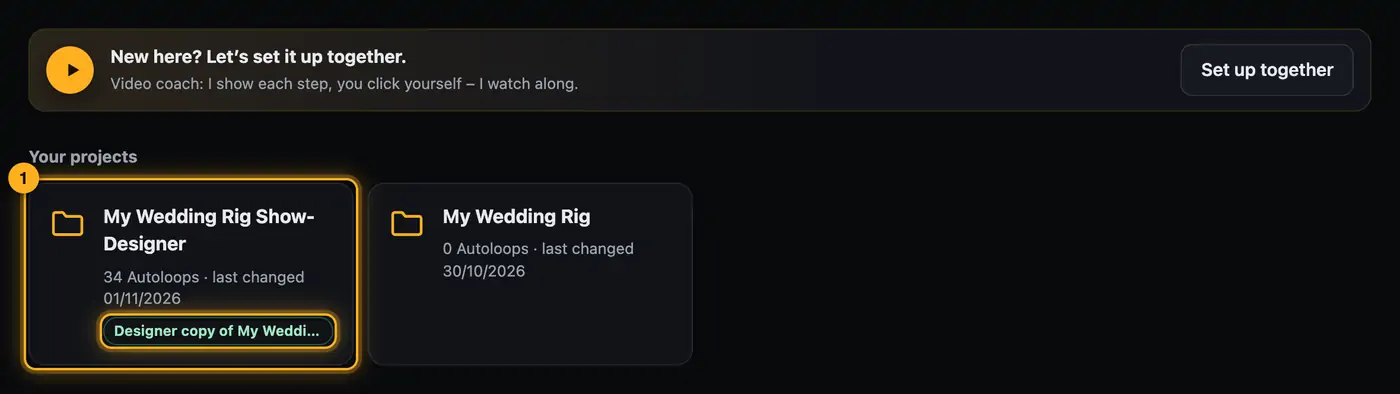
Step by step
- On the start page, tap your project under “Your projects”. The most recently changed projects are at the top.
- The designer reads the project (“Reading your project – fixtures, banks and songs …”).
- The first time you open a project whose lights haven't been checked yet, the “Getting started” assistant opens (see The “Getting started” assistant). Otherwise the Overview opens.
- The project name now appears at the top left. Below it you see whether you're working in the original (“Original – copy on save”), in a “Working copy” or in a copy (“Copy of …”).
- To switch projects, tap the project name at the top left (“Choose another project”) and choose again on the start page.
Good to know
- Each card shows how many Autoloops the project has and when it was last changed.
- Copies are in the same list and marked as such.
- “Designer copy of …” marks the copy the designer created the first time you saved. “Working copy” is another copy the designer is allowed to write to.
- The next time you start, the designer opens the project you last worked on.
- The status light at the top right shows whether everything is ready (“All set”) or something is still missing (e.g. “2 things to do”). Tap it to see what's missing.
- On the left, “Your lights” lists the fixtures the designer found in your project.
Questions
Why do I end up in the copy when I tapped the original?
If the designer already made a copy of this project, it switches there by itself and says “You’re working in your copy “…” – that’s where your saved shows are.” That way you never keep working in the original by accident.
Where's the copy in SoundSwitch?
It's called “<project> Show-Designer” and sits in your SoundSwitch folder. Open it in SoundSwitch like any other project.
My project isn't in the list.
In the web version, the start page only shows projects from the shared folder. If your project is somewhere else, tap “Choose folder” (another folder) or “Open a single project” (just this project) on the start page.
If something goes wrong
- “Couldn’t open “…”: …”: The project couldn't be read. Open it once in SoundSwitch, save it and try again. If that doesn't help, .
- “No lights found”: No fixture the designer can control is patched in the project. Choose the project with your lights.
- “Couldn’t read the pad colors – the shows themselves are fine.”: Only the preview colors of the pads are missing. You can keep working as usual.
- “Couldn’t read your projects: …”: Reload the page. In the web version, check whether the folder is still shared.
More from “Getting started”
- What is Droplit?Droplit builds light shows for SoundSwitch without programming effect after effect. You pick a slot, a mood and colors. Droplit turns that into a show for exactly your lights and saves it to your SoundSwitch project.free to read
- What you needFor Droplit you need a SoundSwitch project with your lights.free to read
- Getting started in the web versionThe web version runs in Chrome or Edge and needs a free account. Once it's set up, you're in your project with a few clicks.free to read
- Sharing your SoundSwitch folder or a projectIn the web version, the designer works directly with your SoundSwitch projects. To do that, you share them with the browser once: either the whole folder with your projects or just a single project. Nothing gets uploaded.free to read
- Set up together – the video coach“Set up together” walks you through the first setup with short videos. Each step plays as a video first, then it’s your turn – in your own designer, with your project. The coach watches along, notices when a step is done, and shows you the way out by itself when something gets stuck.free to read