
Your overview: what matters at a glance
The overview is your home page after signing in. At a glance it shows what's new, how far you've come and which shows you've built – and one button takes you back into the designer.
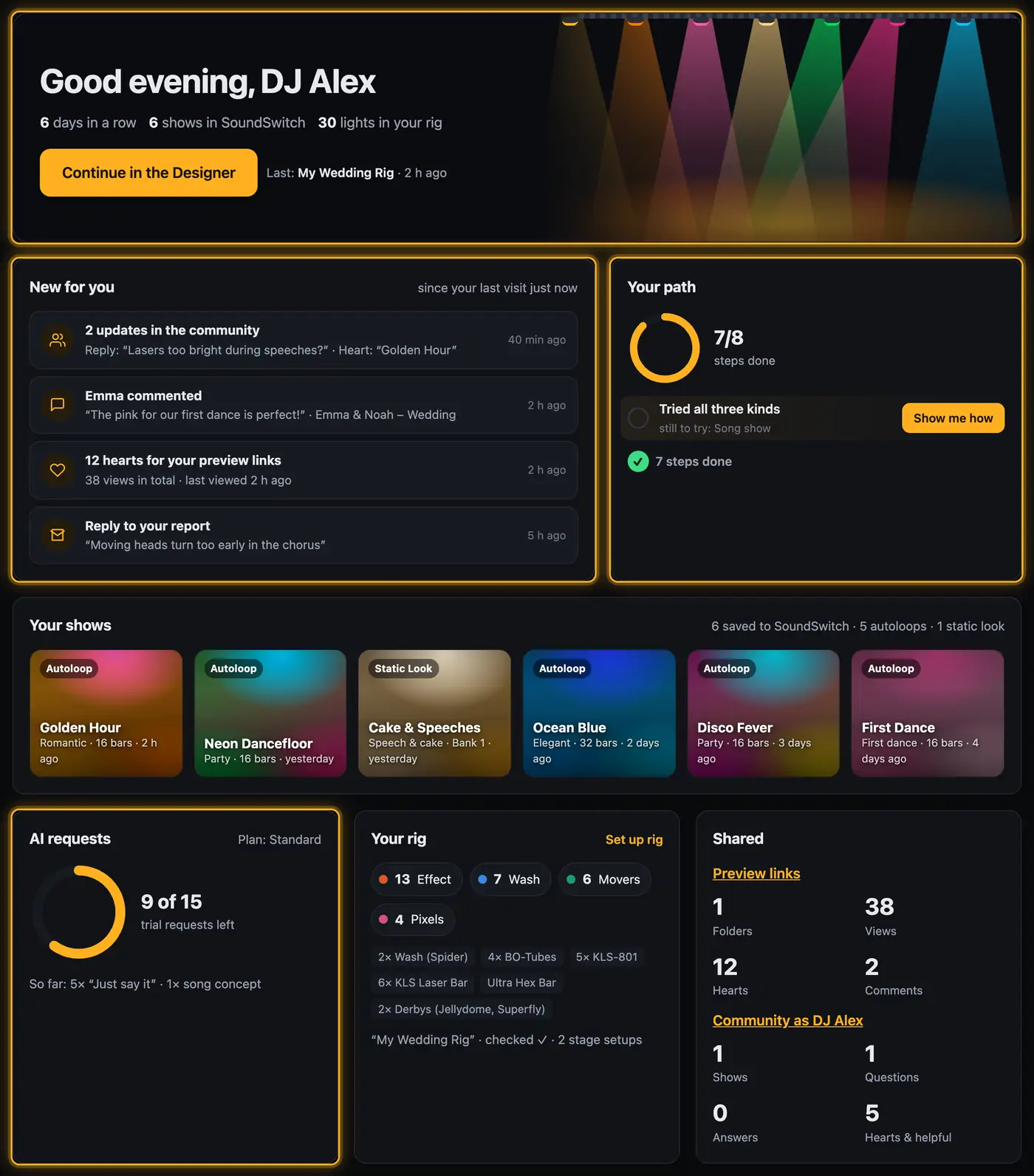
What you'll see
- Top: your greeting, how many days in a row you've been active, how many shows are in SoundSwitch and how many lights your rig has. Next to it, beams light up in the colours of your latest shows. Continue in the Designer opens the designer; below it you see which project you opened last.
- New for you: new comments and hearts on your preview links, replies and hearts in the community, our reply to your feedback and new features. One tap opens the right place.
- Your path: the steps up to your first shared show. At the next open step, Show me how opens the matching guide. Once you've done them all, the next steps follow with Effect lanes, Effect Studio, Live mode and more.
- Your shows: all shows you've saved to SoundSwitch as glowing pads in their colours, with kind, mood and when you saved them. Tapping a pad opens the show right in the studio.
- AI requests: how many AI requests you have left, which plan your account has and how often you've used “Just say it” and song concepts so far (see Plan and AI requests).
- Your rig: your lights by role (wash, pixel, mover, effect) and the recognised fixtures.
- Shared: numbers for your preview links and your posts in the community.
- Your activity: a calendar like on GitHub (the brighter, the more active you were that day) and your minutes in the designer over the last 7 days. Hover over a square to see the time and how often you saved.
Good to know
- The numbers come from your account: only shows you saved with “Save to SoundSwitch” are counted.
- Active time only counts while the window is visible and you're using it. In Live mode it's enough for the window to be visible.
- At the very bottom is the Usage statistics switch. It's only on if you agreed. Then we can see which features help and where things get stuck. If you turn it off, we immediately delete what has been stored about your usage so far and store nothing new. Your calendar then stays empty. The same switch is on your account page under “Data”.
- What exactly is counted is described in the privacy policy, section “Usage statistics and dashboard”.
- At the very bottom, “Account and settings” takes you to the account page and “Download my data” to a copy of your data. You also reach the account page via the button with your name at the top right → “My account”.
Questions
It shows the weeks since you signed up. Before 16 Oct 2026 we only know when you signed in or saved something.
The overview only shows shows you saved with “Save to SoundSwitch” (see Saving to SoundSwitch).
Yes. Tapping a pad opens the designer, the right project and the show straight in the studio. Overview at the top left takes you to the other slots in that bank. If your browser hasn't shared your SoundSwitch folder yet, share it first and the show opens by itself afterwards. If the project is in a different folder, the designer tells you and lists the projects it can see. If the slot no longer exists in SoundSwitch (for example because you deleted it there), you land on the project overview.
Only you. In their statistics the admins see your usage, but no content that isn't in your account anyway (see Privacy: what we store).
More from “Account & data”
- Creating an account and confirming your emailFor the web version you need a free account. You create it with your email address and confirm the address via a link.free to read
- Managing preview linksAll folders you created in the Studio with “Share preview” are managed on your account page. There you see likes and comments, reply to your guests, extend links or withdraw them.free to read
- Plan and AI requestsEvery AI request on the website costs real money. That's why every account has a plan, and the plan decides how many AI requests you can make.free to read
- Signing in and outYou sign in on the website with your account. Your overview then opens, and from there one click takes you into the designer.free to read
- Forgot your passwordIf you've forgotten your password, the website sends you a link to set a new one.free to read