
Signing in and out
You sign in on the website with your account. Your overview then opens, and from there one click takes you into the designer.
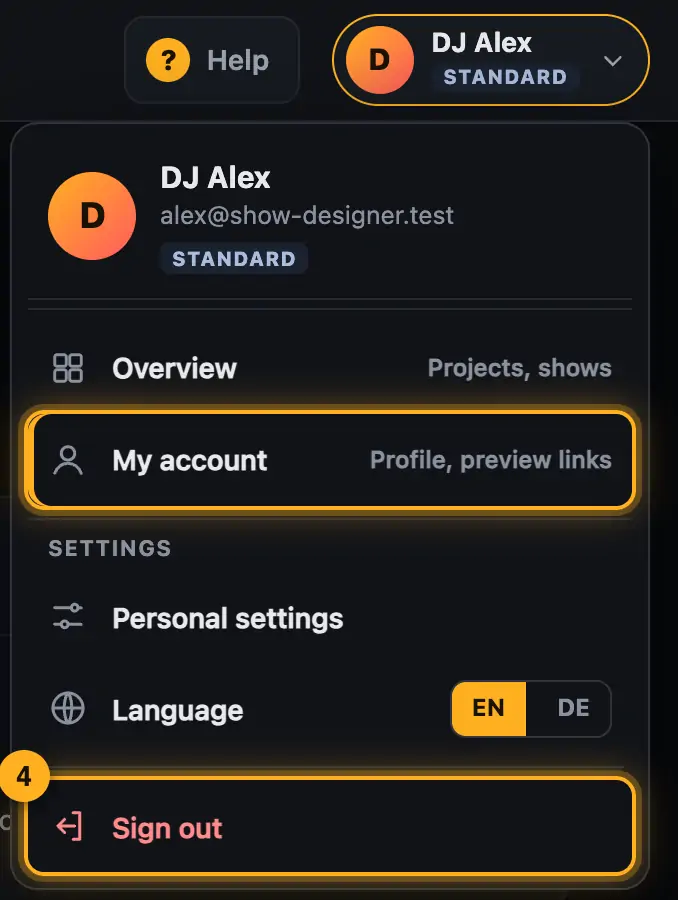
Step by step
- Tap “Sign in” on the website.
- Enter your email address and password.
- Tap “Sign in”. Your overview opens. If you came from another page, for example from the designer, you go back there.
- To sign out, tap the button with your name at the top right. “Sign out” is at the very bottom of the menu.
- Tap “Sign out”. You land on the website's home page. The account page still has its own “Sign out” button as well.
The account page
At the top you see your name, your email address, your plan and your AI requests. Below that you pick one of six areas:
- Profile: name, email address and language.
- Sign-in: password and signed-in devices.
- Preview links: your folders with likes and comments.
- My feedback: your bug reports, ideas and questions with our reply.
- Claude remote control: address and connected Claudes.
- Data: usage statistics, downloading your data and deleting your account.
To change your name, email or password, tap “Change” in that row. “Cancel” closes the form again.
Good to know
- When you're signed in, the website shows the tabs “Designer”, “Visualizer” and “Community” at the top left and, instead of “Sign in”, the button with your profile picture, your name and your plan (e.g. “Standard”) at the top right. Tapping it opens the menu with “Overview”, “My account”, the settings and “Sign out”.
- On a phone the tabs are hidden. They're at the top of the same menu instead.
- Normally your sign-in ends when you close the browser. If you tick Stay signed in when signing in, you stay signed in on this device for 30 days after last use. Don't use this on shared devices.
- Under Your account → Sign-in you can see these devices and end them one by one or with Sign out everywhere. When you change your password, all other devices are signed out.
- Sign out after working on someone else's computer.
- The account page shows your name, your email address and since when you've been a member at the top.
Questions
I forgot my password.
Tap “Forgot password?” below the sign-in button. See Forgot your password.
Can I be signed in on several computers at once?
Yes. Sign in on each computer. You share the SoundSwitch folder once on each computer.
Can I change my name or email address?
Yes, on the account page in the Profile area with “Change”. A new address counts once you click the link in the email sent to it. Your community name, on the other hand, you change yourself (see Community profile and badges).
If something goes wrong
- “Email or password is incorrect”: Check your address and password. “Show password” lets you see what you type.
- “Please confirm your email address first (link in the email)”: Click the link in the confirmation email (see Creating an account and confirming your email).
- “This account is blocked”: Write to us via .
- “Too many attempts – please try again later”: After several failed attempts, signing in is locked for a short while. Wait about a quarter of an hour.
- You keep being sent back to the sign-in page: Allow cookies for soundswitch.hochzeitdj.nrw.
More from “Account & data”
- Creating an account and confirming your emailFor the web version you need a free account. You create it with your email address and confirm the address via a link.free to read
- Your overview: what matters at a glanceThe overview is your home page after signing in. At a glance it shows what's new, how far you've come and which shows you've built – and one button takes you back into the designer.free to read
- Managing preview linksAll folders you created in the Studio with “Share preview” are managed on your account page. There you see likes and comments, reply to your guests, extend links or withdraw them.free to read
- Plan and AI requestsEvery AI request on the website costs real money. That's why every account has a plan, and the plan decides how many AI requests you can make.free to read
- Forgot your passwordIf you've forgotten your password, the website sends you a link to set a new one.free to read