
Creating an account and confirming your email
For the web version you need a free account. You create it with your email address and confirm the address via a link.
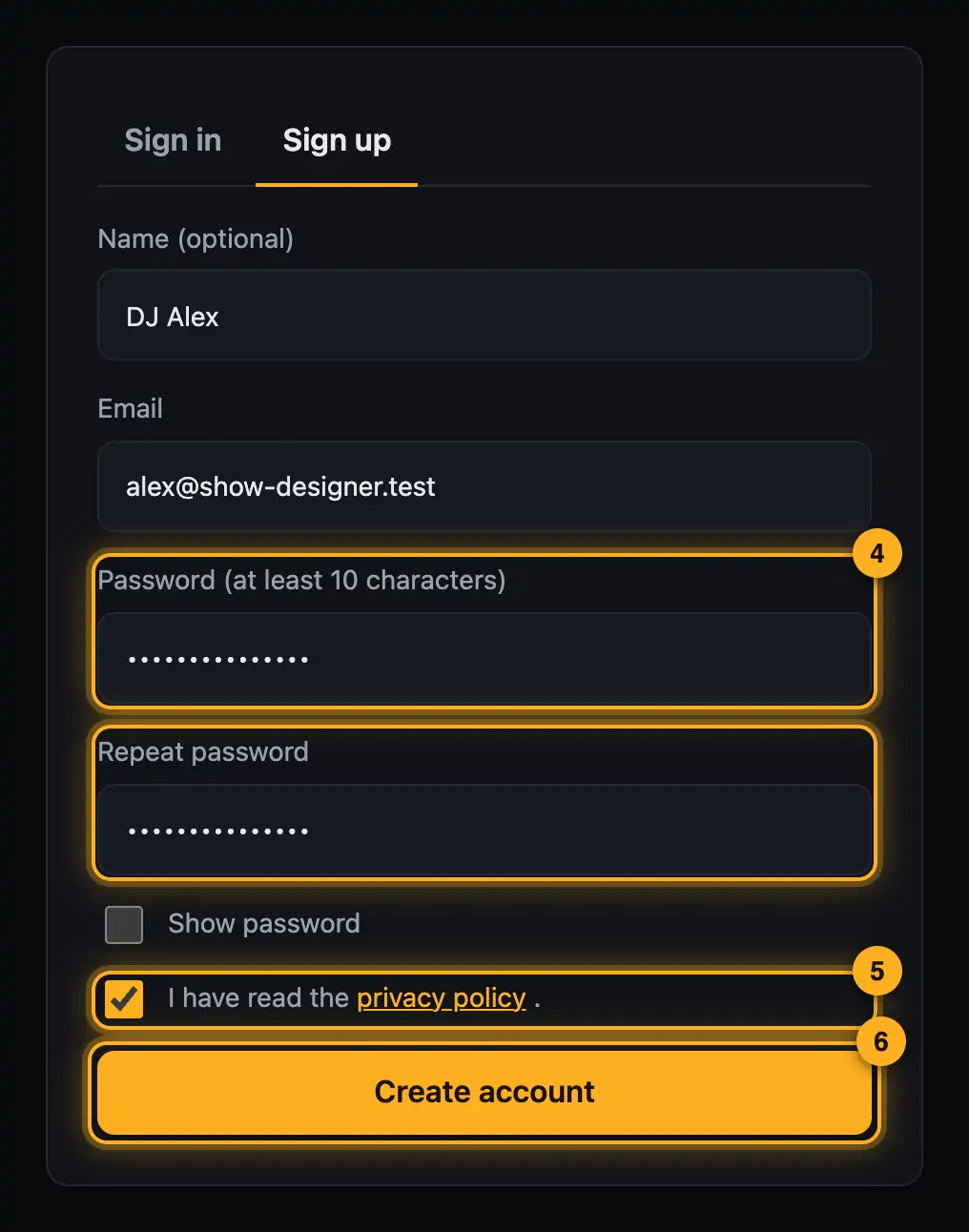
Step by step
- Tap “Sign up for free”.
- Enter your name under “Name (optional)” if you like.
- Enter your email address.
- Choose a password with at least 10 characters and repeat it. “Show password” lets you see what you typed.
- Tick the box “I have read the privacy policy.”
- Tap “Create account”. You'll see “Almost done – please click the link in the confirmation email.”
- Open the email “Droplit: confirm your email” and click the link in it.
- The sign-in page says “Email confirmed – you can sign in now.” Sign in with your email and password.
Good to know
- The confirmation link is valid for 48 hours.
- The email comes in the language the page is currently shown in. That language is also the starting language of your account.
- You can only sign in once your address is confirmed.
- You'll see your name later on your account page and at the top of the designer.
Questions
Does the account cost anything?
No, signing up is free.
I didn't get a confirmation email.
Check your spam folder. If there's nothing, just sign up again with the same address. You'll get a new link, and the old one stops working. The password you enter the second time is the one that counts.
Can I sign up again with a different address?
Yes, each address is its own account. Your data isn't transferred between accounts, though.
If something goes wrong
- “The confirmation link is invalid or has expired. Just sign up again with the same address.”: The link is older than 48 hours or was already used. Sign up again.
- “There’s already an account for this email address – please sign in”: The address is already confirmed. Sign in or use “Forgot password?” (see Forgot your password).
- “Please enter a valid email address”: Check the address for typos.
- “The two passwords don’t match”: Type both fields again the same way.
- “The password must have at least 10 characters”: Choose a longer password.
- “Please accept the privacy policy”: Tick the privacy policy box.
- “Too many attempts – please try again later”: Lots of sign-ups came from your connection in a short time. Wait about an hour.
More from “Account & data”
- Your overview: what matters at a glanceThe overview is your home page after signing in. At a glance it shows what's new, how far you've come and which shows you've built – and one button takes you back into the designer.free to read
- Managing preview linksAll folders you created in the Studio with “Share preview” are managed on your account page. There you see likes and comments, reply to your guests, extend links or withdraw them.free to read
- Plan and AI requestsEvery AI request on the website costs real money. That's why every account has a plan, and the plan decides how many AI requests you can make.free to read
- Signing in and outYou sign in on the website with your account. Your overview then opens, and from there one click takes you into the designer.free to read
- Forgot your passwordIf you've forgotten your password, the website sends you a link to set a new one.free to read