
Where Droplit saves
“Save to SoundSwitch” writes your show to exactly the slot you picked. Droplit never touches your original project: the first time you save, it makes a copy and works there from then on.
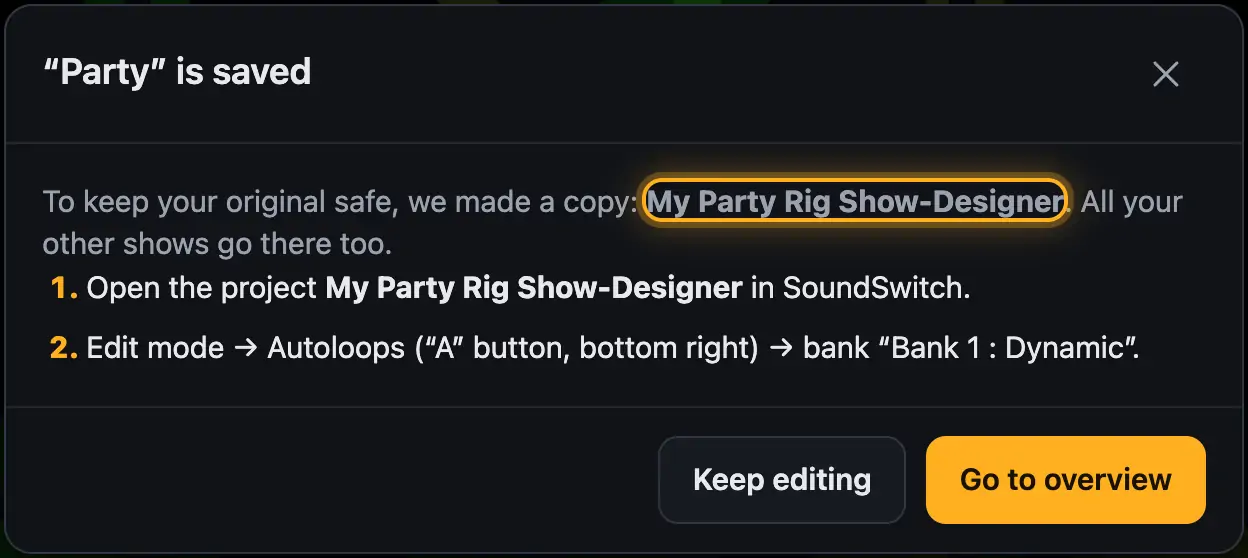
Step by step
- Design your show in the Studio and tap “Save to SoundSwitch”.
- If the project is an original, the first save creates a copy named “<project> Show-Designer”. It sits in the same folder as your other projects.
- You see ““…” is saved”. The first time it also says “To keep your original safe, we made a copy: …”.
- Below that it tells you what to do in SoundSwitch: first “Open the project … in SoundSwitch.”, then where the show is.
- “Keep editing” keeps you in the Studio, “Go to overview” takes you back to the banks.
- All further shows go into the same copy.
Good to know
- On the start page the copy has the tag “Designer copy of …”. At the top of Droplit, below the project name, it says “Copy of …”. An original says “Original – copy on save”.
- The copy’s folder contains a hidden marker file
.ssgen-kopie. Droplit only writes to projects with this file. Don’t delete it. - If you open the original in Droplit later, it switches to the copy by itself and shows “You’re working in your copy “…” – that’s where your saved shows are.”
- Projects that are already a working copy (tag “Working copy”) don’t get another copy. Droplit saves to them directly.
- The copy takes your 3D setup from “Fixtures & stage” along.
- For each slot, Droplit remembers the mood, sliders and effects of your show. As long as you don’t change the show in SoundSwitch, you get it back like that the next time you open it.
- If SoundSwitch saves the show again, Droplit asks when you open it whether to keep working with the Droplit version or the SoundSwitch version. With the Droplit version, changes from SoundSwitch are lost the next time you save.
- Where each kind of show ends up in SoundSwitch: Checking an Autoloop in SoundSwitch, Checking a static look in SoundSwitch, Checking a song show in SoundSwitch.
Questions
Why a copy and not my project itself?
So your project stays safe for your next gig. More in Why Droplit works in copies.
I can’t find my show in SoundSwitch.
You probably have the original open. Open the copy “… Show-Designer” in SoundSwitch, see Opening the project in SoundSwitch.
Can I rename the copy?
Better not. Your 3D setup and the remembered designer states are tied to the project name.
If something goes wrong
- “Please switch projects in SoundSwitch first”: SoundSwitch has this project open right now. See Switching projects in SoundSwitch before saving.
- “There isn't enough free disk space on your computer to create a copy of the project. Please free up some space and save again.”: free up disk space and tap “Save to SoundSwitch” again.
- “Please give the show a name at the top.”: Autoloops and static looks need a name. Enter it at the top of the Studio.
More from “SoundSwitch & export”
- Opening the project in SoundSwitchAfter saving, your show is in the copy “<project Show-Designer”. To see it in SoundSwitch, open exactly that project there.free to read
- Checking an Autoloop in SoundSwitchA saved Autoloop sits in SoundSwitch in the bank slot you picked in Droplit. Here is how to find and check it.free to read
- Checking a static look in SoundSwitchA saved static look sits in SoundSwitch’s Performance mode, in the bank and slot Droplit named when you saved.free to read
- Checking a song show in SoundSwitchDroplit writes a song show into the song’s script. In SoundSwitch it plays automatically as soon as you load the song.free to read
- Why Droplit works in copiesDroplit only writes to copies of your projects. That way the original you perform with stays unchanged, whatever happens while you design.free to read