
Switching projects in SoundSwitch before saving
SoundSwitch writes to the project it has open by itself, including when you switch projects and when you quit. If SoundSwitch has your project open while Droplit saves, it overwrites the new show later. So briefly open another project in SoundSwitch first.
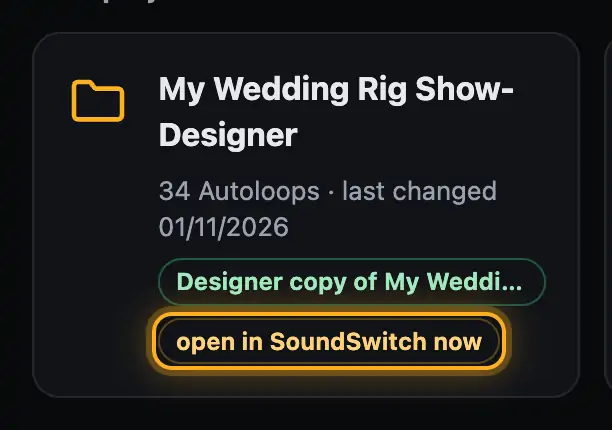
Step by step
- In SoundSwitch, open another project via “File” → “Open Project”, for example an empty test project.
- Tap “Save to SoundSwitch” in Droplit.
- If Droplit asks “Is the project open in SoundSwitch?” and you have switched, tap “Save now”. Otherwise tap “Cancel” and switch first.
- Then open the copy “… Show-Designer” in SoundSwitch and check the show.
- Before you save in Droplit the next time, switch SoundSwitch to the other project again.
Good to know
- The easiest way is a project you only use for switching. It can be empty.
- Instead of switching you can also quit SoundSwitch. That works for Autoloops, Static Looks and song shows alike: SoundSwitch reads the project fresh the next time it starts.
- If you save to an original, Droplit writes to the copy. If the original is open in SoundSwitch that’s harmless – Droplit doesn’t ask then.
- Web version: the browser can’t see which project SoundSwitch has open. So the first time you save to a project, Droplit asks “Is the project open in SoundSwitch?”. Switch first, then tap “It's closed – save now”.
- Web version: if you changed something in the project in SoundSwitch, reload the Droplit page afterwards. Droplit reads the files when the page loads.
Questions
Why can’t I see my show in SoundSwitch after saving?
SoundSwitch probably had the project open and wrote its old state when switching. Switch and save again.
Do I have to restart SoundSwitch every time?
No. Switching via “File” → “Open Project” is enough.
If something goes wrong
- “Please switch projects in SoundSwitch first” with “The project is open in SoundSwitch right now. …”: open another project in SoundSwitch, then tap “Save to SoundSwitch” again.
- The message keeps coming although SoundSwitch is closed: check that SoundSwitch has really quit (no dot under its icon in the Dock) and save again.
- ““…” is currently open in SoundSwitch – please open another project there first, otherwise SoundSwitch will overwrite the new loops”: same cause, same fix.
More from “SoundSwitch & export”
- Where Droplit saves“Save to SoundSwitch” writes your show to exactly the slot you picked. Droplit never touches your original project: the first time you save, it makes a copy and works there from then on.free to read
- Opening the project in SoundSwitchAfter saving, your show is in the copy “<project Show-Designer”. To see it in SoundSwitch, open exactly that project there.free to read
- Checking an Autoloop in SoundSwitchA saved Autoloop sits in SoundSwitch in the bank slot you picked in Droplit. Here is how to find and check it.free to read
- Checking a static look in SoundSwitchA saved static look sits in SoundSwitch’s Performance mode, in the bank and slot Droplit named when you saved.free to read
- Checking a song show in SoundSwitchDroplit writes a song show into the song’s script. In SoundSwitch it plays automatically as soon as you load the song.free to read