Point at it: help right where you're stuck
Not sure what a button or area does? Turn on “Point at it” and tap it. Droplit only shows the help that belongs right there – without anything happening in the app.
Step by step
- Tap “Point at it” at the top. The page gets a little darker and the big areas get yellow numbers.
- Tap the button or area you need help with, e.g. “Fill bank” or the preview. That spot lights up, the rest stays dark.
- At the side (on a phone at the bottom) you see the guides for that spot, “Often asked” and “If something goes wrong here” with the fix to open.
- Tap a guide. It opens in the help.
- Nothing fits? Describe what you want to do under “Ask Droplit” at the bottom and tap “Ask now”.
- Done: Esc first closes the help at the side, a second Esc or a tap on “Point at it” turns the mode off.
Good to know
- The help opens on the right. If the spot itself is on the right, it opens on the left so the spot stays visible.
- While “Point at it” is on, tapping the page doesn't trigger anything. So you can safely tap everything.
- If a button has a label, Droplit searches with it and shows guides for the view you're in first.
- The numbered areas have their own guides, e.g. the “What's missing” check, the banks, the slots, the preview or the timeline.
- There's no “Point at it” in the help center – there the “I want to …” sentence helps (see Finding help).
Questions
Why does nothing happen when I tap a button?
“Point at it” is still on. Turn it off at the top or press Esc.
What do the numbers mean?
They're the big areas of the page with their own guides. You can tap any button though, with or without a number.
Does it work on a phone?
Yes. The help then appears as a sheet at the bottom, the X closes it.
If something goes wrong
- You see general guides instead of matching ones: the button has no label of its own. Tap the area around it or ask Droplit at the bottom in your own words.
- The “Point at it” button is missing: it isn't there in embedded views and on the floor plan. Open the page itself.
More from “Getting started”
 What is Droplit?Droplit builds light shows for SoundSwitch without programming effect after effect. You pick a slot, a mood and colors. Droplit turns that into a show for exactly your lights and saves it to your SoundSwitch project.free to read
 What you needFor Droplit you need a SoundSwitch project with your lights.free to read
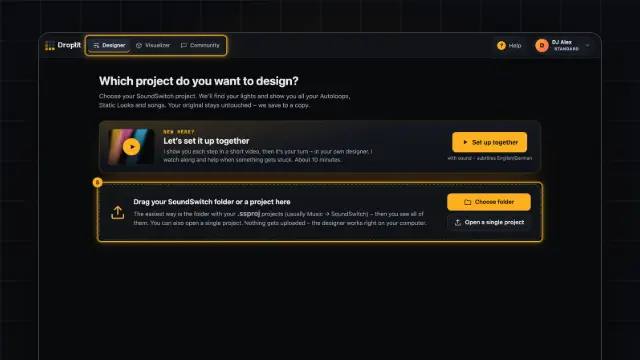 Getting started in the web versionThe web version runs in Chrome or Edge and needs a free account. Once it's set up, you're in your project with a few clicks.free to read
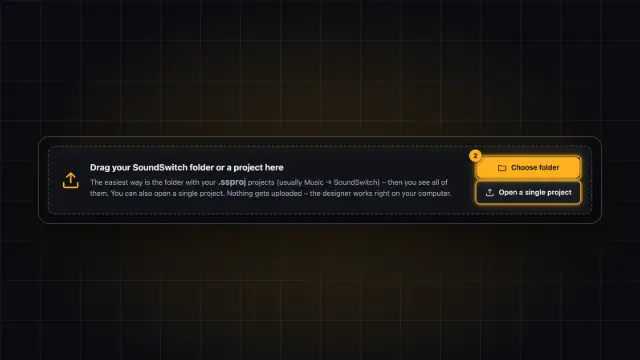 Sharing your SoundSwitch folder or a projectIn the web version, the designer works directly with your SoundSwitch projects. To do that, you share them with the browser once: either the whole folder with your projects or just a single project. Nothing gets uploaded.free to read
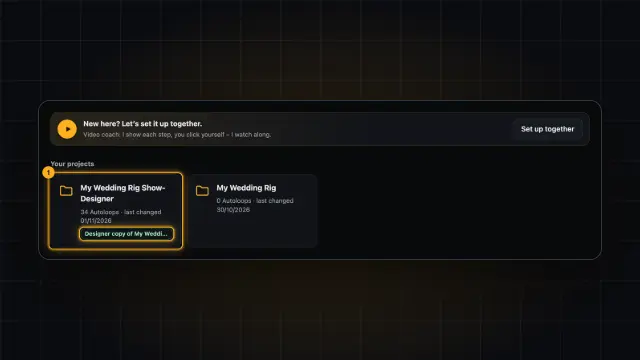 Opening and switching projectsOn the start page you choose the SoundSwitch project you want to design. After that you see your lights, banks and songs in the Overview.free to read