
Viewing a show in the community
Every show in the community runs in a 3D preview, just as it looks for its creator. Next to it you see which lights it was built for and whether it fits your rig.
Step by step
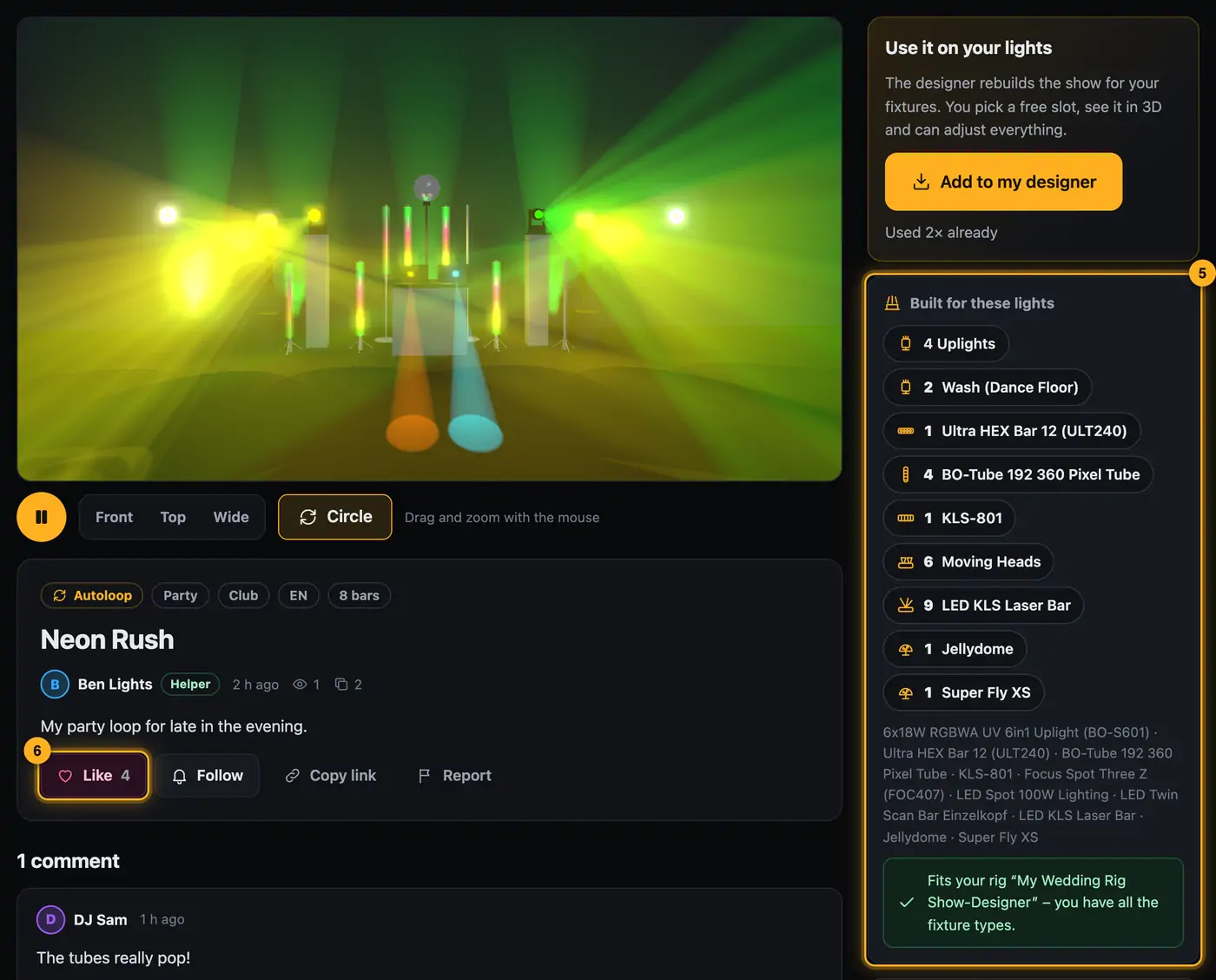
- Tap a show. First a tile glows in the show's colors; after a few seconds the 3D stage appears.
- The show starts right away and the camera slowly circles the stage. Use the mouse to rotate and zoom yourself.
- Below the stage, pause the show with the pause button and choose the camera: Front, Top or Wide. Circle turns the camera move on or off.
- Below that you see the name, kind of show, occasions, language and the creator's description.
- On the right, Built for these lights shows which fixture types and models the show uses and whether it fits your rig.
- If you like the show, tap Like. At the bottom under Comment, write to the creator and tap Send comment.
- To use the show yourself, tap Add to my designer on the right (see Use a show from the community on your lights).
Good to know
- For the comparison with your rig, the community uses the project you last opened in the designer. Without an opened project it says “Open your project in the designer once, and we'll show here whether the show fits your lights.”
- “Fits your rig “…” – you have all the fixture types.” means the show runs completely on your lights. If it says “You don't have: …”, the designer leaves those parts out when you add the show.
- To give hearts and comment you need a community name. If you don't have one yet, the community asks for it the first time.
- Every heart earns the creator 2 points, every use 5.
- With Attach image you add up to four images to a comment.
- Copy link puts the link to the show on the clipboard. Only people with an account can open it. For couples and clients, use Share preview instead.
- With Follow you're notified when someone comments. Report sends the show to the team for review (see Notifications, following and reporting).
- If the right side says View only, the creator has turned off using the show.
- Tapping the creator's name opens their profile with their other shows.
- Music isn't part of the show. The preview only shows the light.
If something goes wrong
- “This device can't show 3D graphics. You see the show's colors.”: Your browser can't display the 3D stage. Open the show in a current Chrome or Edge on a computer.
- “The 3D preview can't be loaded right now. …”: Reload the page later.
- It says “3D stage is still loading …” for a long time: Large setups take a little longer. Wait a moment or reload the page.
- Your own show says “This post was reported several times and is hidden …”: Others can't see it at the moment. The team is checking the reports.
More from “Community”
- The community: questions, answers and showsIn the community, DJs help each other: you ask questions, answer others and show your shows. Others see them in 3D and can use them on their own lights with one click. The community is for signed-in users only.free to read
- Ask the community a questionStuck? Ask the other DJs. While you type, the community already shows solved questions and matching guides – often the answer is already there.free to read
- Help others and earn pointsYou know your way around? Then help others – every idea moves someone forward. Good answers earn points, levels and badges.free to read
- Use a show from the community on your lightsLike a show from the community? Add it to your designer with one click. The designer adapts it to your fixtures – you see it in 3D right away.free to read
- Show a show in the communityShow your best shows: others see them in 3D, give hearts, comment – and can use them on their own lights.free to read