
Use a show from the community on your lights
Like a show from the community? Add it to your designer with one click. The designer adapts it to your fixtures – you see it in 3D right away.
Step by step
- Open your project in the designer once beforehand. Then the show page tells you whether it fits your lights.
- Tap Add to my designer. The designer opens.
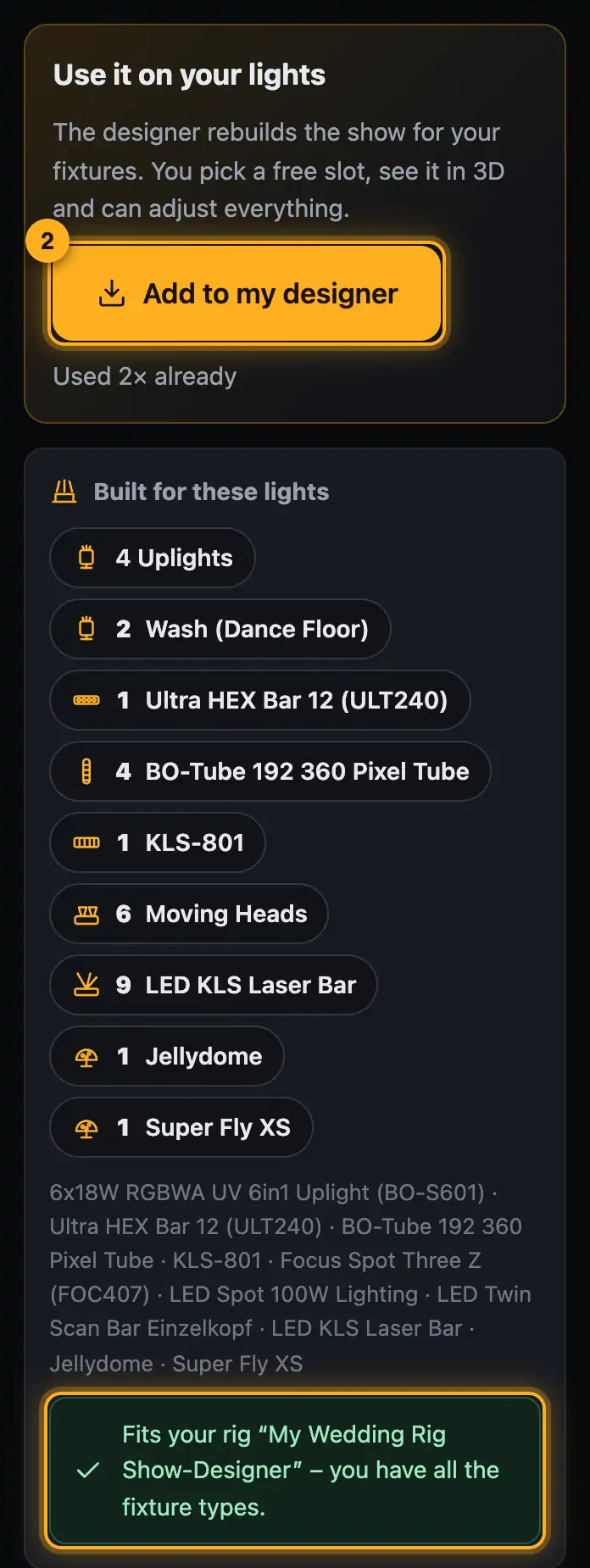
The note shows if the show fits your rig. - In the Use a show from the community window, choose the bank. The show goes to the next free slot – nothing gets overwritten.
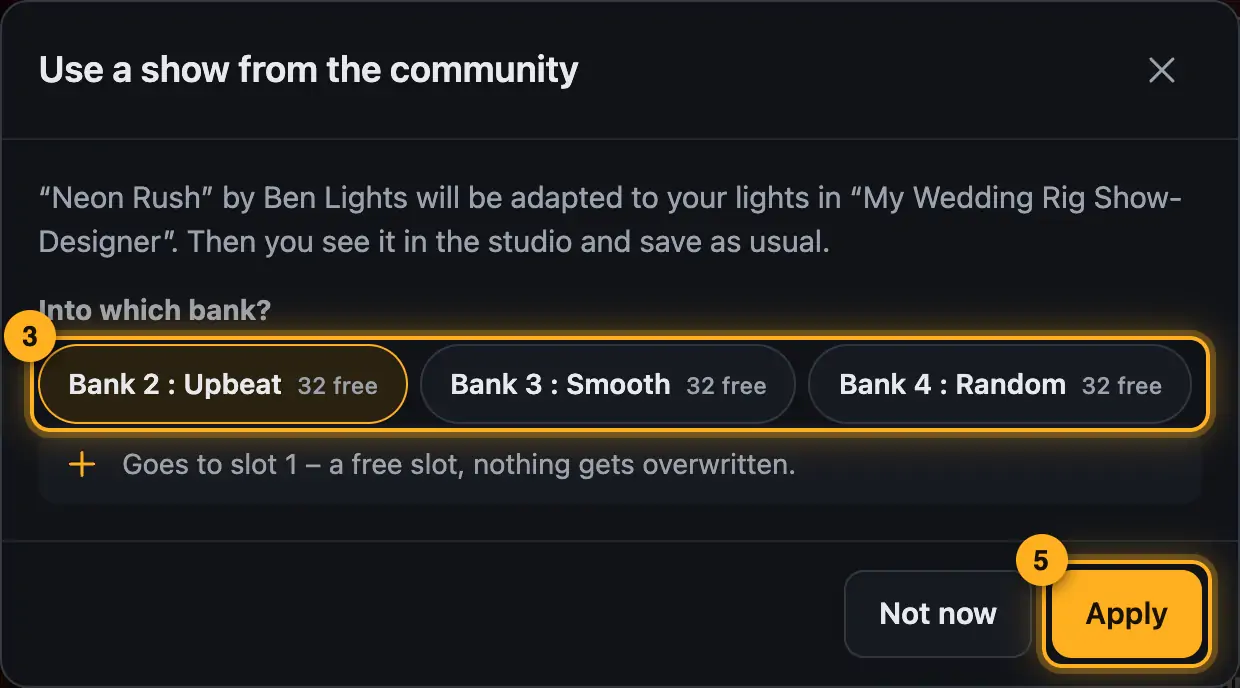
The show goes to the chosen bank. - For song shows, pick the song. If you have the same song, the show fits bar by bar.
- Tap Add. The show opens in the studio. Adjust it if you like.
- Save as usual with Save to SoundSwitch.
Good to know
- Fixture types you don't have are left out. The designer tells you which ones.
- The creator's settings for single fixtures are dropped; the show runs on your groups.
- For a different song, the designer rebuilds the show from its mood and colors for your song's parts.
- Some creators turn using off. Then it says View only.
More from “Community”
- The community: questions, answers and showsIn the community, DJs help each other: you ask questions, answer others and show your shows. Others see them in 3D and can use them on their own lights with one click. The community is for signed-in users only.free to read
- Ask the community a questionStuck? Ask the other DJs. While you type, the community already shows solved questions and matching guides – often the answer is already there.free to read
- Help others and earn pointsYou know your way around? Then help others – every idea moves someone forward. Good answers earn points, levels and badges.free to read
- Viewing a show in the communityEvery show in the community runs in a 3D preview, just as it looks for its creator. Next to it you see which lights it was built for and whether it fits your rig.free to read
- Show a show in the communityShow your best shows: others see them in 3D, give hearts, comment – and can use them on their own lights.free to read