
Show a show in the community
Show your best shows: others see them in 3D, give hearts, comment – and can use them on their own lights.
Step by step
- Open the show in the designer's studio (Autoloop, Static Look or song show) and let it play in the 3D preview.
- Tap Share preview, then Show in the community.

The way leads through “Share preview”. - Give the show a name and add a few words about what you use it for.
- Under Good for, choose what it's meant for, for example wedding or club.
- Leave Others may add this show to their own designer on or turn it off.
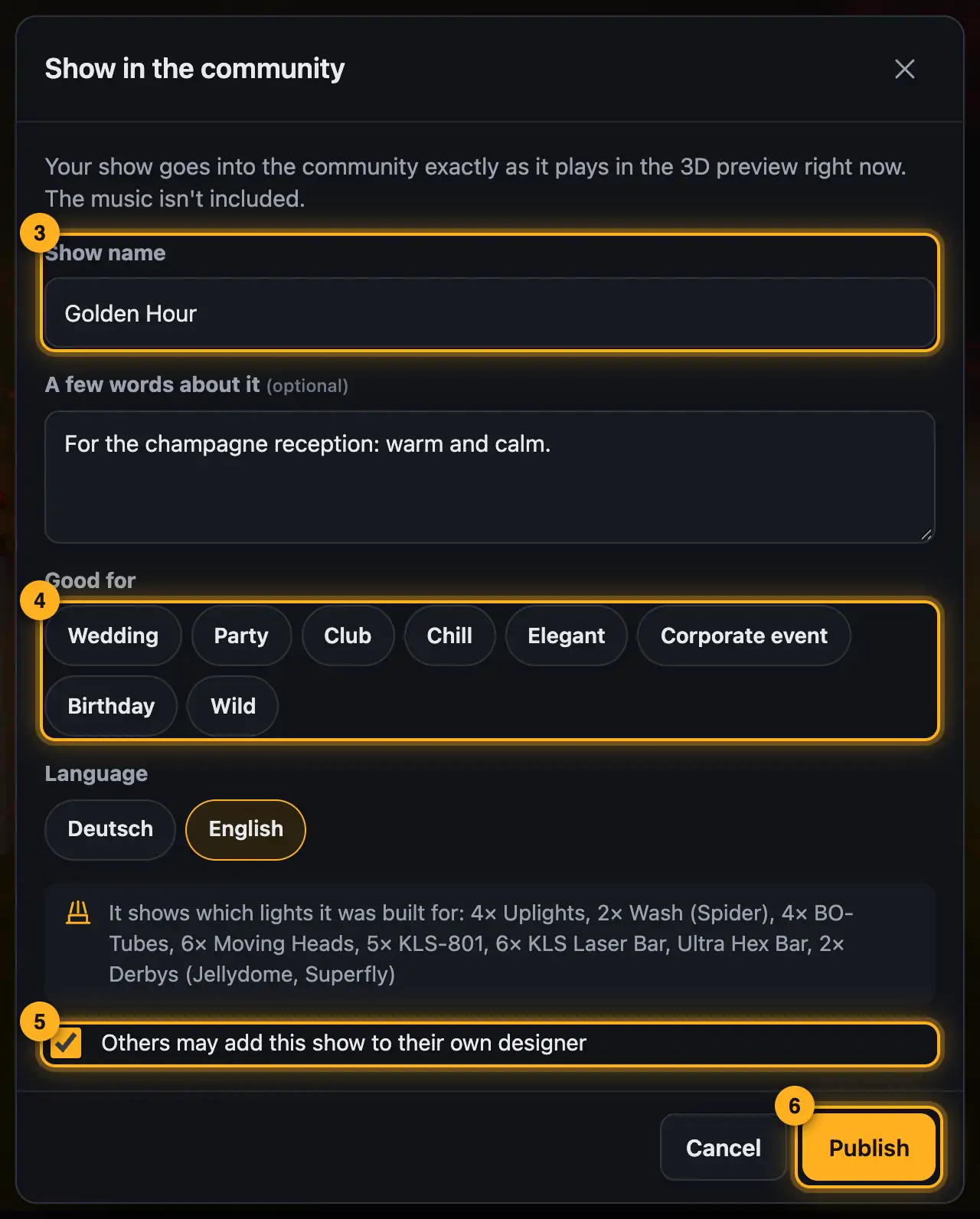
You decide if others may take the show. - Tap Publish. With View in the community you see it in the gallery right away.
Good to know
- The show goes along exactly as it plays in the 3D preview: setup, fixtures and light data. Music and project files are not included.
- It also shows which lights it was built for, so others can see whether it fits their rig.
- You can only share shows you designed in Droplit. Shows with parts imported from your SoundSwitch project (for example from purchased templates) stay private.
- For couples and clients there's the private link instead: Share preview.
Questions
Can I change or delete the show later?
Open it in the community: Edit changes name, text, occasions and whether others may use it, Delete removes it. It stays in your project.
More from “Community”
- The community: questions, answers and showsIn the community, DJs help each other: you ask questions, answer others and show your shows. Others see them in 3D and can use them on their own lights with one click. The community is for signed-in users only.free to read
- Ask the community a questionStuck? Ask the other DJs. While you type, the community already shows solved questions and matching guides – often the answer is already there.free to read
- Help others and earn pointsYou know your way around? Then help others – every idea moves someone forward. Good answers earn points, levels and badges.free to read
- Viewing a show in the communityEvery show in the community runs in a 3D preview, just as it looks for its creator. Next to it you see which lights it was built for and whether it fits your rig.free to read
- Use a show from the community on your lightsLike a show from the community? Add it to your designer with one click. The designer adapts it to your fixtures – you see it in 3D right away.free to read