Screen profile in SoundSwitch (Droplit.Show Screen)
To SoundSwitch, a screen is a fixture like any light. With the “Droplit.Show Screen” profile you pick with cues what the LED wall or TV shows: looks, visuals, particles, dancer, image effects, frames, line animation and wedding animations, plus tempo, color and triggers. The visualizer shows the result live as soon as the screen has the same address (see TVs, projectors and LED walls in your setup). You create the profile once yourself in the SoundSwitch Fixture Manager.
Which mode?
| You want … | Mode |
|---|---|
| only the color from the lights | 16CH |
| plus lyrics (for later) | 18CH |
| looks, visuals, particles, dancer by cue in a song | 24CH |
| fine control: density, size, color, text style, drop burst, transition | 32CH |
| every control, including a beat channel and lead time | 48CH |
When in doubt, take 48CH. The smaller modes are the same beginning, channels 1 to 18 are identical in all of them. Create the modes in this order: 16CH, 18CH, 24CH, 32CH, 48CH. SoundSwitch then names them “(Mode 1)” to “(Mode 5)”.
Step by step
- Open the Fixture Manager and create a new fixture: manufacturer “Generic”, name “Droplit.Show Screen”.
- Add a mode: click “+” under “Modes”, click the new mode, enter e.g.
48CHas “Mode Name” and press Enter. Leave “Auto” ticked for the channel count. - Add a cell: click “+” under “Cell”. You get “Cell 1: Main” with a template (Intensity, Strobe, Red …).
- Click “Cell 1: Main” and enter the channels from the table below: per row double-click “Num Channels” →
1, “Coarse” → channel number, “Description” → name, each with Enter. Add missing rows with “+” below the table and pick the attribute from the list. - “Remove Unused” removes the empty template rows.
- “Fixtures” → “Check Fixture”: bottom left must read “Integrity check: Passed”.
- “File” → “Save Workspace”. Not “Transfer to Public Cloud” – this way the profile stays with you.
- In SoundSwitch, reload the fixture library with “Refresh”, search for the manufacturer “Generic” and drag “Droplit.Show Screen (Mode 5) (Chn = 48)” onto the grid. Give it a free address, e.g. Universe 2, channel 1.
- In the visualizer, enter the same address and the layout “Droplit.Show Screen 48CH” on the screen.
The channels
Channels 1 to 18 (all modes):
| Channel | Attribute | Description |
|---|---|---|
| 1 | Intensity | Intensity |
| 2 | Red | Red |
| 3 | Green | Green |
| 4 | Blue | Blue |
| 5 | White | White |
| 6 | Strobe | Strobe |
| 7 | Gobo | Inhalt (content) |
| 8 | Attribute 2 | Video-Tempo |
| 9 | Prism | Effekt (effect) |
| 10 | Zoom | Zoom |
| 11 | Focus | Focus |
| 12 | Pan | Pan |
| 13 | Tilt | Tilt |
| 14 | Attribute 3 | Bank |
| 15 | Attribute 6 | Textbank |
| 16 | Attribute 1 | Ruhebild (idle picture) |
| 17 | Attribute 4 | Text |
| 18 | Attribute 5 | Zeile (line) |
From 24CH (channels 19 to 24), from 32CH also 25 to 32, 48CH has all:
| Channel | Attribute | Description | What it does | from |
|---|---|---|---|---|
| 19 | Attribute 7 | Animation | slot in the bank (see value list) | 24CH |
| 20 | Attribute 8 | Animations-Bank | 1 looks, 2 visuals, 3 particles, 4 dancer, 5 image effects, 6 frames, 7 line, 8 wedding | 24CH |
| 21 | Attribute 9 | Tempo | 1–15 hold, 16–47 fixed, 48–79 beat ×½, 80–143 beat ×1, 144–207 beat ×2, from 208 steps by tempo | 24CH |
| 22 | Attribute 10 | Effekt-Stärke | effect strength, 128 = normal, 255 = double | 24CH |
| 23 | Attribute 11 | Schlag-Reaktion | in steps of 32: off, every beat, every one, every 2 bars, only in bursts | 24CH |
| 24 | Attribute 12 | Verhalten unter Text | behavior under text, steps of 32: normal, dim | 24CH |
| 25 | Attribute 13 | Dichte | particle density, 128 = normal | 32CH |
| 26 | Attribute 14 | Größe | size, 128 = normal | 32CH |
| 27 | Attribute 15 | Richtung | direction, steps of 16: as the type, fall, rise, left, right, out of the center, into the center, swirl, float | 32CH |
| 28 | Attribute 16 | Farbe | color, steps of 32: light, light + opposite, rainbow, change on the one, gold, white, colors of the show | 32CH |
| 29 | Attribute 17 | Zweite Auswahl | particles, dancer, frame, line or wedding on top of the visual (value list) | 32CH |
| 30 | Attribute 18 | Text-Stil | style of lyrics and announcements | 32CH |
| 31 | Attribute 19 | Auslöser | trigger, steps of 32: impact, drop burst, resync on the one, new random, calm on, calm off, raise figure (fires on every change) | 32CH |
| 32 | Attribute 20 | Übergang | transition fade, 1–255 = 0–10 s | 32CH |
| 33–37 | Attribute 21–25 | Animation B, Animations-Bank B, Mischung A/B, Mischart A/B, Tempo B | reserved | 48CH |
| 38 | Attribute 26 | Schlag | beat for the animations: every jump above 128 is a beat | 48CH |
| 39 | Attribute 27 | Deckkraft Partikel und Rahmen | opacity of particles and frames | 48CH |
| 40 | Attribute 28 | Visual über Folien | visual over slides | 48CH |
| 41 | Attribute 29 | Vorlauf | lead time against display delay, 1–255 = 0–500 ms | 48CH |
| 42 | Attribute 30 | Energie aus dem Licht | dancer: below 128 tempo only, from 128 tempo + light | 48CH |
| 43 | Gobo2 | Grenze Locker | dancer, 60–200 BPM | 48CH |
| 44 | Prism2 | Grenze Abgehen | dancer, 60–200 BPM | 48CH |
| 45 | Zoom2 | Text-Lage | text position | 48CH |
| 46 | Focus2 | Text-Größe | text size | 48CH |
| 47 | Prism3 | Regler 1 der Animation | animation control 1, e.g. line height | 48CH |
| 48 | Iris | Regler 2 der Animation | animation control 2, e.g. line width | 48CH |
The descriptions stay in German so every profile reads the same. On every channel from 19 up, 0 means: no preset.
Good to know
- You set a look with one cue on channels 20 and 19 together, e.g. bank 2 (visuals) = channel 20 at 48 and Tunnel = channel 19 at 14. All values are in Values for channels 19, 20 and 29.
- Channel 1 (Intensity) dims the whole picture, channels 2 to 5 set the light color. Autoloops only set these channels and leave 19 to 48 alone.
- In a song, SoundSwitch gives a fixture without its own block dimmer 0. Give the screen a block at 100 % in the script, otherwise it stays black.
- On Universe 2, SoundSwitch calls the address “Universe 2, channel 1”, not 513.
Questions
Not yet. Until then, create it yourself with this guide; 48CH takes about 20 minutes.
No, one mode is enough. Then create it as the first mode, SoundSwitch names it “(Mode 1)”.
If something goes wrong
- “Integrity check” fails: usually a row still has 0 channels or two rows share a channel number. Run “Remove Unused” and check the Coarse column.
- The fixture is missing in SoundSwitch: press “Refresh” in the library and search for “Generic”.
- A cue has no effect: check that the layout in the visualizer matches the channel count in SoundSwitch.
More from “SoundSwitch & export”
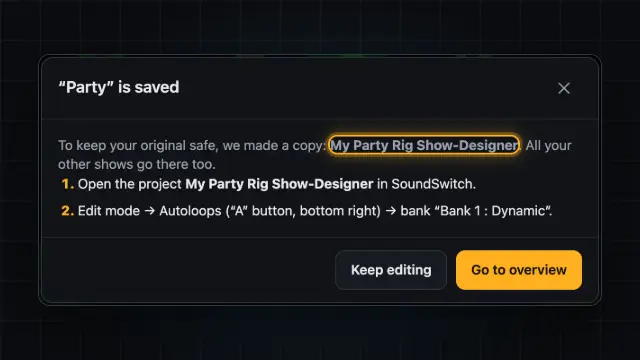 Where Droplit saves“Save to SoundSwitch” writes your show to exactly the slot you picked. Droplit never touches your original project: the first time you save, it makes a copy and works there from then on.free to read
 Opening the project in SoundSwitchAfter saving, your show is in the copy “<project Show-Designer”. To see it in SoundSwitch, open exactly that project there.free to read
 Checking an Autoloop in SoundSwitchA saved Autoloop sits in SoundSwitch in the bank slot you picked in Droplit. Here is how to find and check it.free to read
 Checking a static look in SoundSwitchA saved static look sits in SoundSwitch’s Performance mode, in the bank and slot Droplit named when you saved.free to read
 Checking a song show in SoundSwitchDroplit writes a song show into the song’s script. In SoundSwitch it plays automatically as soon as you load the song.free to read