
Art-Net bridge: see SoundSwitch live in the web version (Windows and Mac)
Your browser can't receive Art-Net from SoundSwitch on its own. The Art-Net bridge is a small program that does it and passes the values to the 3D visualizer of the web version. This way you can see live on Windows too what SoundSwitch is sending to your lights. The bridge doesn't need to be installed.
Step by step
- Download the bridge for your system and unzip the ZIP file.
- Windows: double-click
artnet-bridge.exe(Windows on ARM:artnet-bridge-arm64.exe). Mac: double-clickartnet-bridge. If your Mac says it can't verify the program: System Settings → Privacy & Security → scroll all the way down → “Open Anyway”, then confirm with your password. You only need this the first time. Up to macOS 14, right-click → “Open” works too. - A black window opens. Keep it open while you need the bridge.
- In SoundSwitch, open the preferences, “DMX & Art-Net” tab (depending on the version “Hardware”), and turn on “Enable Art-Net” and “Localhost Art-Net Node”.
- In the web version, open the 3D visualizer and tap “SoundSwitch” behind the sun button at the top right of the 3D view.
- If your browser asks whether the page may access devices on your local network, choose “Allow”.
- Play something in SoundSwitch. The top now says e.g. “Art-Net · 40 packets/s · U1”, and the lamps follow along.
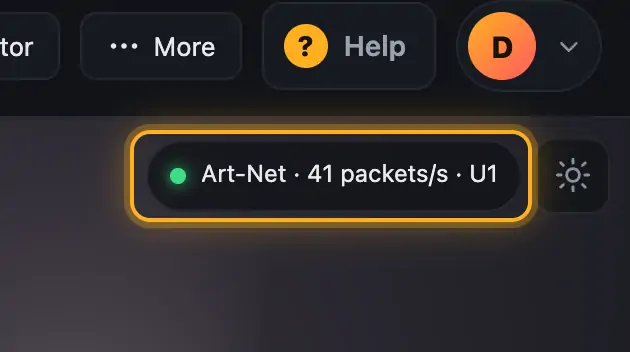
The signal is now arriving.
Good to know
- The bridge only listens on your computer (
127.0.0.1:6455) and only answers the Droplit website. It doesn't change anything in SoundSwitch or on your lights. - The bridge isn't signed, so Windows warns once the first time you start it (see below).
- If you restart the bridge, turn “Enable Art-Net” in SoundSwitch off and on once.
Questions
Does the bridge cost anything?
No, it's part of Droplit.
Can I minimize the window?
Yes. If you close it, the bridge stops.
If something goes wrong
- Windows shows “Windows protected your PC”: tap “More info” and then “Run anyway”.
- The Windows firewall asks: choose “Allow”.
- Mac: “can't be opened”, or your Mac only offers “Done” and “Move to Trash”: The program isn't registered with Apple. Since macOS 15, right-click no longer helps. Open System Settings → Privacy & Security, scroll all the way down and tap “Open Anyway” next to
artnet-bridge. The button only appears after you have tried to start the program once. - The top still says “Art-Net bridge not running”: Is the bridge's black window running? If the browser blocked access to the local network, allow it in the site settings (lock icon left of the address).
- The bridge window says “Port 6454 (Art-Net) is in use”: Another program already receives Art-Net, e.g. a second lighting software. Close it and start the bridge again.
- “Waiting for Art-Net from SoundSwitch …” in the bridge window: Check both switches in SoundSwitch and that something is playing there.
Still not working? Use to send us a screenshot. Tell us which Windows and SoundSwitch version you use.
More from “SoundSwitch & export”
- Where Droplit saves“Save to SoundSwitch” writes your show to exactly the slot you picked. Droplit never touches your original project: the first time you save, it makes a copy and works there from then on.free to read
- Opening the project in SoundSwitchAfter saving, your show is in the copy “<project Show-Designer”. To see it in SoundSwitch, open exactly that project there.free to read
- Checking an Autoloop in SoundSwitchA saved Autoloop sits in SoundSwitch in the bank slot you picked in Droplit. Here is how to find and check it.free to read
- Checking a static look in SoundSwitchA saved static look sits in SoundSwitch’s Performance mode, in the bank and slot Droplit named when you saved.free to read
- Checking a song show in SoundSwitchDroplit writes a song show into the song’s script. In SoundSwitch it plays automatically as soon as you load the song.free to read