
Community profile and badges
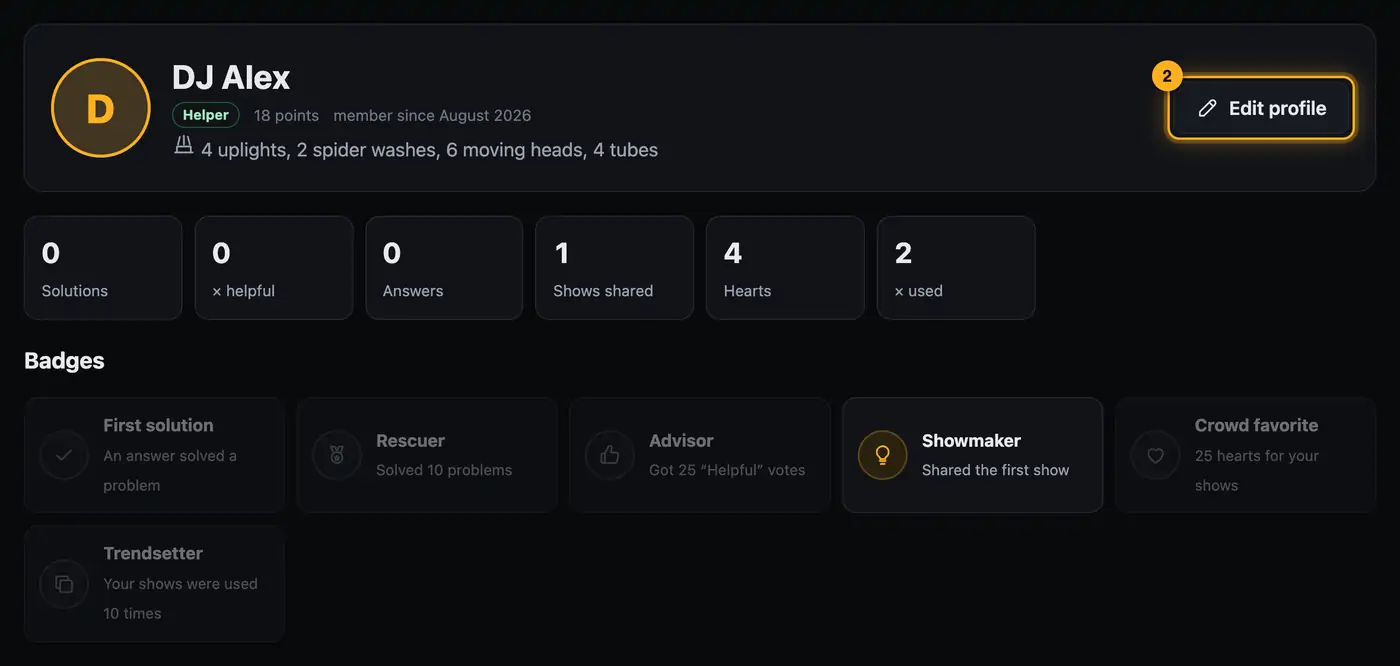
Your community profile shows others who you are and what you work with. It also shows your points and badges.
Step by step
- In the community, tap your name on the right. Your profile page opens.
- Tap Edit profile.
- Change your name under Your name in the community.
- Under Color, pick the color for the round badge with your initial.
- If you like, enter your rig under My fixtures, for example “8 uplights, 2 moving heads, 4 tubes, Control One”, and a few words about yourself under About me.
- The Email me when someone answers (at most one per hour) checkbox turns community emails on or off.
- Tap Save.
What's on your profile page
- Level, points and since when you've been a member, plus “About me” and “My fixtures”.
- Your numbers: solutions, helpful votes, answers, shows shared, hearts and how often your shows were used.
- Badges: all that exist. The ones you haven't earned yet are faded.
- Your shows and questions.
Badges
- First solution: an answer of yours solved a problem.
- Rescuer: solved 10 problems.
- Advisor: got 25 “Helpful” votes.
- Showmaker: shared the first show.
- Crowd favorite: 25 hearts for your shows.
- Trendsetter: your shows were used 10 times.
- Team: part of the Droplit team. This badge only appears for team members.
Good to know
- Your level depends on your points: from 10 Helper, from 50 Light pro, from 200 Legend. How to earn points is described in Help others and earn points.
- All signed-in users can see your profile. Your email address never appears on it.
- A new name shows up right away on all your questions, shows and answers.
- Your community name isn't your account name. You don't change your account's name and email address here (see Signing in and out).
- Tapping someone else's name opens their profile with their shows and questions.
If something goes wrong
- “The name needs 3 to 24 characters.”: Choose a shorter or longer name.
- “Please use only letters, digits, spaces, dots, dashes or underscores.”: Leave out other characters. The name has to start with a letter or digit.
- “This name is already taken.” or “This name is reserved. Please pick another one.”: Choose a different name.
More from “Community”
- The community: questions, answers and showsIn the community, DJs help each other: you ask questions, answer others and show your shows. Others see them in 3D and can use them on their own lights with one click. The community is for signed-in users only.free to read
- Ask the community a questionStuck? Ask the other DJs. While you type, the community already shows solved questions and matching guides – often the answer is already there.free to read
- Help others and earn pointsYou know your way around? Then help others – every idea moves someone forward. Good answers earn points, levels and badges.free to read
- Viewing a show in the communityEvery show in the community runs in a 3D preview, just as it looks for its creator. Next to it you see which lights it was built for and whether it fits your rig.free to read
- Use a show from the community on your lightsLike a show from the community? Add it to your designer with one click. The designer adapts it to your fixtures – you see it in 3D right away.free to read