
Changing the language
Droplit is available in English and German. English is the default, and you can switch with two clicks.
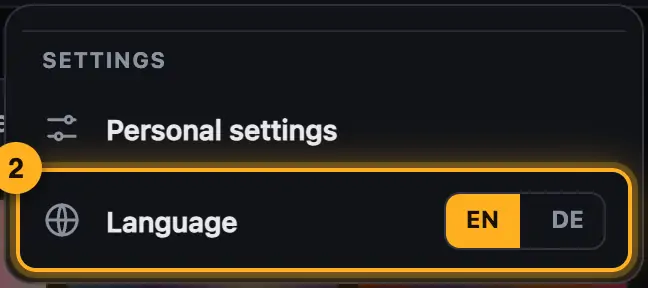
Step by step
- Next to “Language”, tap “DE” or “EN”.
- The page reloads in the language you chose.
- You can also use “Personal settings” → “Language” → “English” or “Deutsch” in the same menu. Close the window with “Done” afterwards if it's still open.
Good to know
- If your browser or Mac is set to German, or you're in Germany, Austria or Switzerland, a bar appears at the top, for example “Du bist in Deutschland? Droplit gibt es auch auf Deutsch.” “Auf Deutsch umstellen” switches right away, “Stay in English ×” keeps English.
- The bar only appears as long as you haven't chosen a language yet.
- Without an account, your choice applies on this device. With an account it's also saved there and applies on every computer you sign in on (see Language in your account).
- The names of your shows, projects and fixtures stay the way you named them.
Questions
Will I lose unsaved changes?
The page reloads when you switch. If you have unsaved changes in the Studio, the browser asks first. Best save before switching.
Why are some things named like in SoundSwitch?
Terms from SoundSwitch (e.g. Autoloops, Static Looks, Edit, Perform) keep the names SoundSwitch uses.
If something goes wrong
- The old language comes back after switching: With an account, the language chosen last applies. Switch it once in the designer or on your account page, then the new choice is saved.
- Some texts stay in German: This affects content from your project and new effects without an English name. Feel free to report missing translations via .
More from “Getting started”
- What is Droplit?Droplit builds light shows for SoundSwitch without programming effect after effect. You pick a slot, a mood and colors. Droplit turns that into a show for exactly your lights and saves it to your SoundSwitch project.free to read
- What you needFor Droplit you need a SoundSwitch project with your lights.free to read
- Getting started in the web versionThe web version runs in Chrome or Edge and needs a free account. Once it's set up, you're in your project with a few clicks.free to read
- Sharing your SoundSwitch folder or a projectIn the web version, the designer works directly with your SoundSwitch projects. To do that, you share them with the browser once: either the whole folder with your projects or just a single project. Nothing gets uploaded.free to read
- Opening and switching projectsOn the start page you choose the SoundSwitch project you want to design. After that you see your lights, banks and songs in the Overview.free to read