
What's new: new features and how to try them
New features, improvements and fixed bugs are collected under “What's new”. Every entry comes with short steps to try it, and the designer shows you the spot on the page.
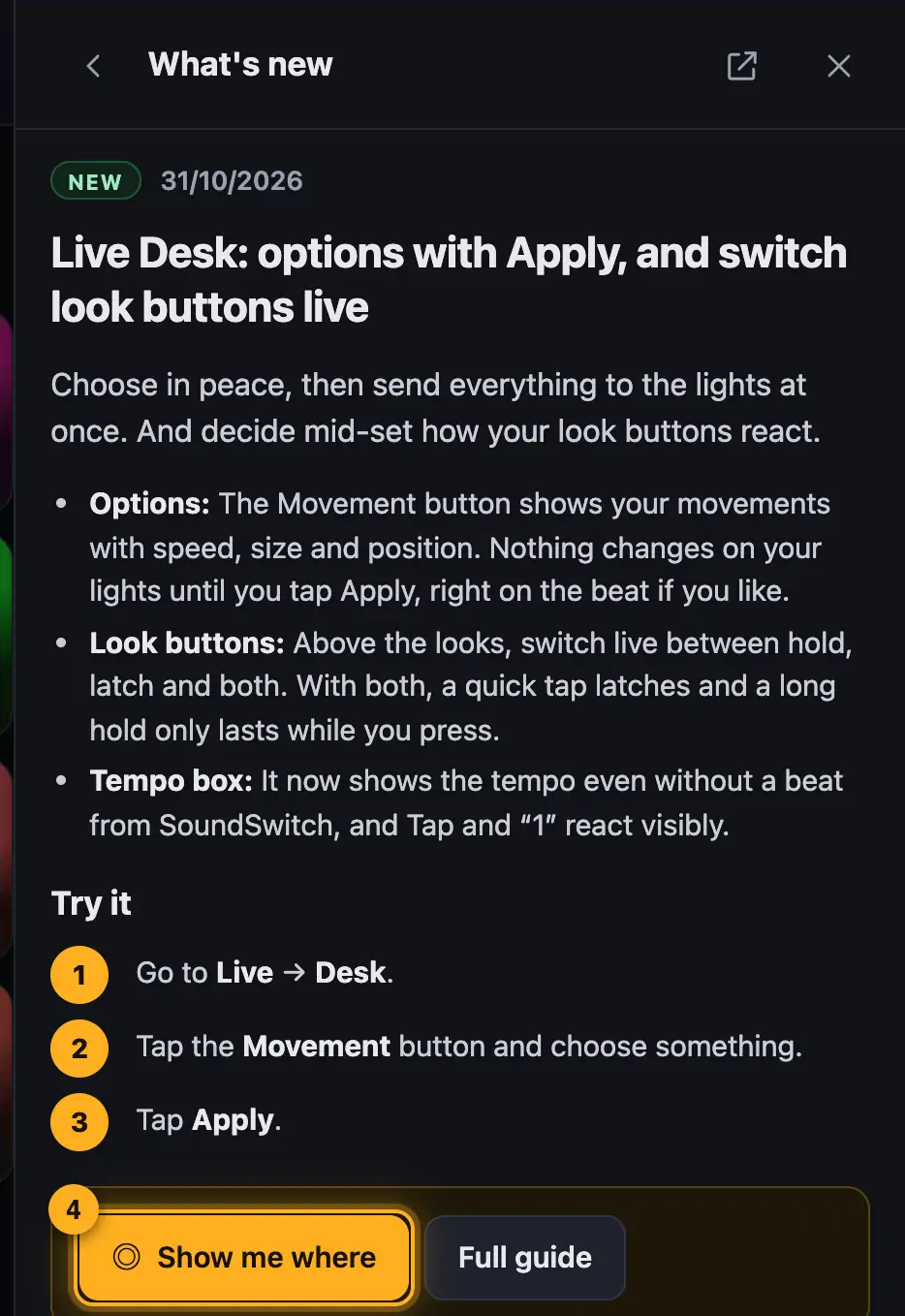
Step by step
- If the Help button shows a green “New”, there are entries you haven't read yet. Tap “Help”.
- Your unread entries are listed under “New in Droplit”. Tap one.
- Read “Try it” and follow the steps.
- Tap “Show me where”. The designer highlights the spot with a yellow frame (“It's right here”). A click or any key hides the frame again.
- If the feature lives on another page, the button says, for example, “Try it in the 3D visualizer”. The page opens in a new tab with the entry already open.
- “Full guide” opens the detailed help on this topic.
Good to know
- New features carry a green “NEW” in front of their button for 14 days, in the designer, the 3D visualizer and on the website. That way you see at a glance where something was added. After that it disappears by itself.
- The labels show the kind of change: “New” (new feature), “Improved” (an existing feature can do more) and “Fixed” (a bug was fixed).
- An entry counts as read as soon as you open it. “Mark all as read” in the list removes the “New” from the Help button.
- What you've read is only remembered in this browser. On another computer the entries show up as new again.
- If the spot isn't visible right now, the entry says “That spot isn't visible right now …”. Follow the steps first, for example open a project. As soon as the spot appears, “Show me where” becomes available.
- Below every entry, “Share an idea” and “Report a bug” let you send feedback on that change right away.
Questions
Why don't I see “Show me where”?
The spot is on another page or only appears after the first step. Use the “Try it in …” button or follow the steps.
Where do I find older changes?
In the “What's new” list, sorted by date. In the help center you can page through with “Older” and “Newer” below an entry.
More from “Getting started”
- What is Droplit?Droplit builds light shows for SoundSwitch without programming effect after effect. You pick a slot, a mood and colors. Droplit turns that into a show for exactly your lights and saves it to your SoundSwitch project.free to read
- What you needFor Droplit you need a SoundSwitch project with your lights.free to read
- Getting started in the web versionThe web version runs in Chrome or Edge and needs a free account. Once it's set up, you're in your project with a few clicks.free to read
- Sharing your SoundSwitch folder or a projectIn the web version, the designer works directly with your SoundSwitch projects. To do that, you share them with the browser once: either the whole folder with your projects or just a single project. Nothing gets uploaded.free to read
- Opening and switching projectsOn the start page you choose the SoundSwitch project you want to design. After that you see your lights, banks and songs in the Overview.free to read