
Download my data
On your account page you download all the data the designer keeps in your account as a single file.
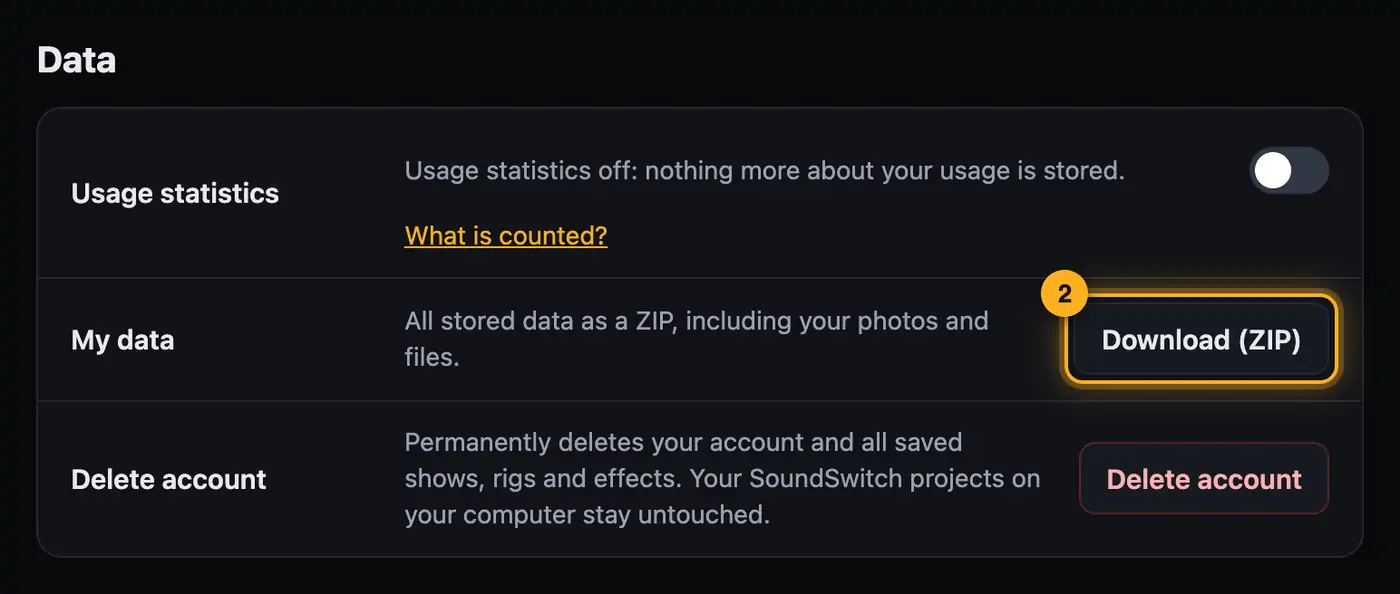
Step by step
- Open your account page and choose the “Data” area.
- In the “My data” row, tap “Download (ZIP)”.
- The browser saves the file
show-designer-daten.zipto your downloads folder.
Good to know
- The file contains:
- your account data (email address, name, sign-up date)
- all files in your account with their last-changed date: show documents, rig profiles, custom effects, 3D setups, locations, presets, fixture profiles and your personal settings
- your bug reports, ideas and questions with their status and our reply
- how many AI requests you made each month, and your ratings of AI results
- your preview folders with shows, likes and comments
- your community profile, your questions, shows and answers
- your usage statistics
- The ZIP also contains your screenshots from feedback, photos and scans of your locations, manuals and community images. It doesn't include the 3D snapshots of your previews and community shows, because they are made from your shows.
- The file
daten.jsonin the ZIP is a text file. You can open it with any text editor. - Your SoundSwitch projects and the shows in them are on your computer anyway. Back them up as usual.
Questions
Can I import the file again?
No. The file is meant for keeping and looking things up. There's no import function.
Do I need this as a backup?
Your data is stored in your account and available on every computer you sign in on. If you want to delete your account, download the file first.
If something goes wrong
- The browser shows a short error text instead of a file: You're no longer signed in. Sign in and try again.
More from “Account & data”
- Creating an account and confirming your emailFor the web version you need a free account. You create it with your email address and confirm the address via a link.free to read
- Your overview: what matters at a glanceThe overview is your home page after signing in. At a glance it shows what's new, how far you've come and which shows you've built – and one button takes you back into the designer.free to read
- Managing preview linksAll folders you created in the Studio with “Share preview” are managed on your account page. There you see likes and comments, reply to your guests, extend links or withdraw them.free to read
- Plan and AI requestsEvery AI request on the website costs real money. That's why every account has a plan, and the plan decides how many AI requests you can make.free to read
- Signing in and outYou sign in on the website with your account. Your overview then opens, and from there one click takes you into the designer.free to read