
Roles & order: check groups and roles
In the “Roles & order” window you check and change what the designer recognized from your patch: groups, order, roles, moving heads, positions and gobo mapping.
Step by step
- The top tells you whether this is a saved rig, an “Automatic suggestion from the patch” or “Taken over from your rig “…”” (see Taking over your rig in another project). Enter a “Rig name” if you like.
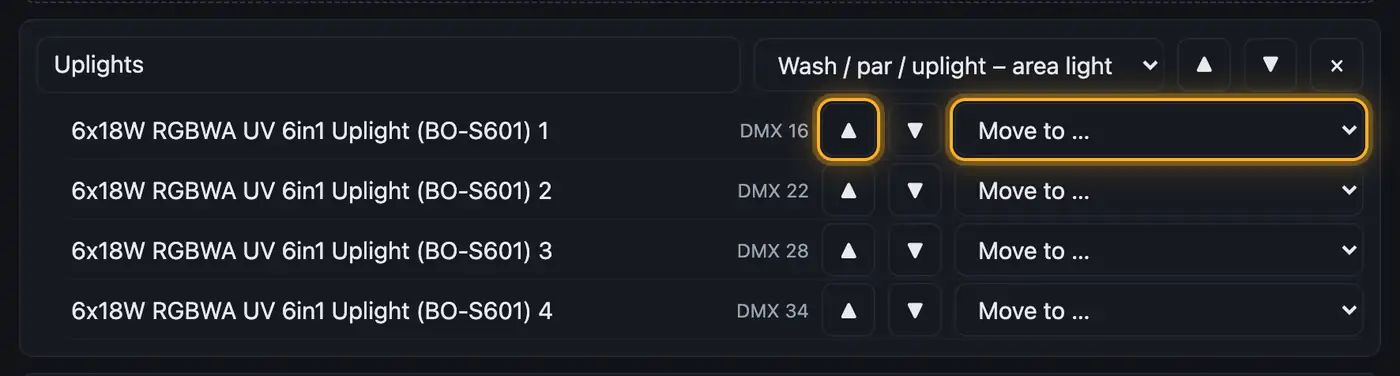
- Under “Fixture groups”, every group has a card:
- Change the name in the text field, the role in the menu next to it.
- Sort groups with ▲ and ▼, dissolve them with ×.
- Sort the fixtures in a group with ▲ and ▼: top = left, as seen from the audience. It's easier with “Find the order”: the designer asks fixture by fixture where it stands and shows the DMX address. Finish with “Save”.
- “Move to …” puts a fixture into another group, a new group (“→ New group”) or “Don't control”.
- “Not controlled” lists fixtures without a group, with the reason. “Add to …” brings them into a group.
- “Moving heads” shows the pan/tilt range (“Pan°”, “Tilt°”) and, if a head has no positions of its own, its “fixed position”.
- Under “Positions”, choose the “Source” and the “Base position”.
- Under “Gobo, rotation, prism (Attribute Cues)” there's a card each for gobo, rotation and prism. Every row links a name to an Attribute Cue of your venue:
- Choose the matching cue in the menu next to the name, and delete the row with ×.
- “+ Entry” asks for the name: for a gobo e.g. “Swirl” or “Offen” (the open gobo). For rotation and prism, type one of the internal names the prompt shows: aus (off), langsam (slow), mittel (medium) or schnell (fast) for rotation, aus (off), rund (round) or linear for prism. Then choose the cue.
- Click “Save”. “Rig “…” saved” appears.
More from “Fixture profiles & rig”
- How Droplit recognizes your lightsDroplit reads your SoundSwitch project and builds your rig from it: which fixtures there are, what they can do, which groups they belong to and in which order they stand. You don't have to create anything by hand.Summary
- Roles: what a fixture does in showsThe role decides what a fixture does in your shows. The designer assigns it when it recognizes your rig, and if it got something wrong, you change it with a few clicks.Summary
- Taking over your rig in another projectA checked rig doesn't only apply to copies with exactly the same patch. If you open a project where your fixtures are patched a little differently, the designer takes over groups, roles and order from the most similar rig you have already checked.Summary
- Hiding fixtures you don't bringNot every fixture in your patch comes to every gig. If you hide it, it disappears from the 3D view and the floor plan, and in “Fixtures & stage” the shows leave it out too.Summary
- Sparks and hazeFor safety reasons, Droplit never controls spark machines, fog machines and hazers, flames, CO2, confetti or bubble machines. You keep triggering them yourself in SoundSwitch.Summary