
Report a bug
If something doesn't work as expected, report it right where it happens, with a screenshot in one click. The report reaches us immediately.
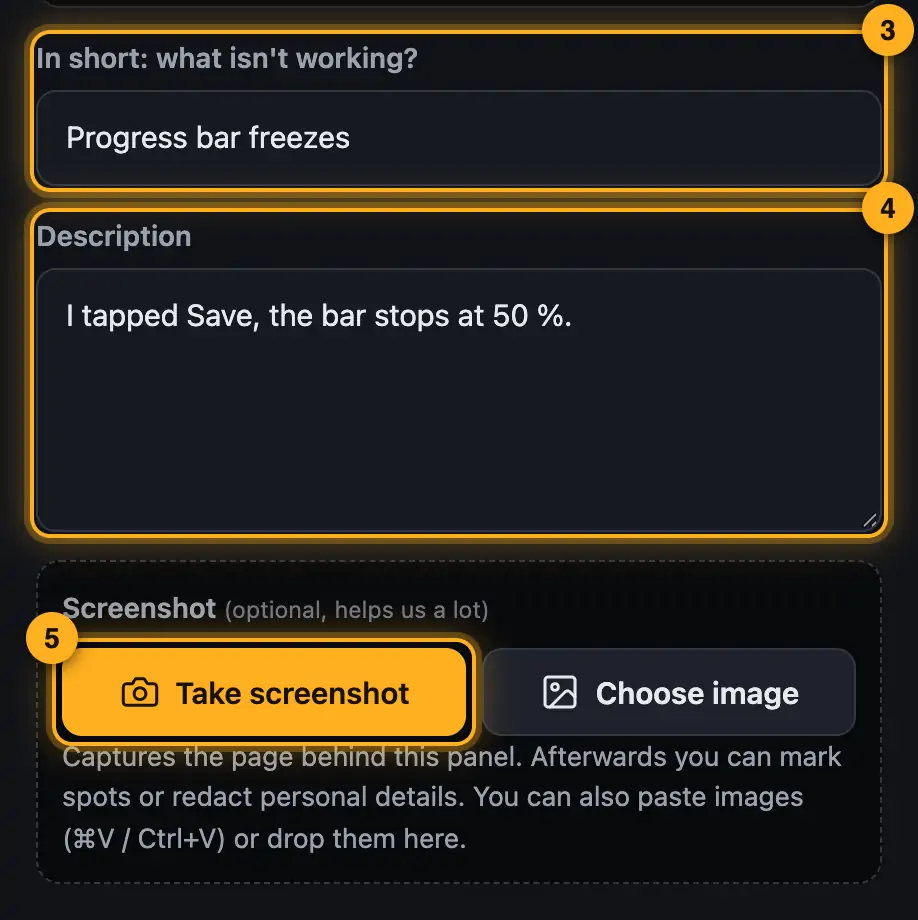
Step by step
- Stay on the page where the bug happens and tap “Help” at the top right.
- Tap “Report a bug”.
- Under “In short: what isn't working?”, write one line, e.g. “Saving to SoundSwitch stops halfway”.
- Under “Description”, describe what you did, what happened and what you expected.
- Tap “Take screenshot”. The help panel disappears for a moment and the page behind it is captured.
- If you want to point at a spot, tap “Mark up” and drag a box or an arrow over it (see Marking up and redacting a screenshot).
- Enter your address under “Email for our reply” if you'd like to hear back from us. With an account it's already filled in.
- Tap “Send”. You'll see “It's arrived” with the number of your report.
Good to know
- The report knows which page and view you were on. You don't have to describe that.
- “Include technical details (page, view, browser, screen size, recent error messages)” is ticked by default. We then also send your browser, window size, language and the page's most recent error messages. “Show what will be sent” shows you exactly what that is. You can untick the box at any time.
- Your text is kept as a draft if you close the panel or sending fails. Only the screenshot isn't remembered.
- You don't need an account to report something. Without an email address, though, we can't reply.
Questions
Could the screenshot show something personal?
It could, e.g. your email address or project names. Use “Mark up” → “Redact” to cover such spots before sending.
What happens after sending?
We get the report immediately. If you gave an email address, you'll get a reply as soon as we've looked at or fixed the bug. With an account you also see the status under My feedback.
I only saw the bug once. Should I still report it?
Yes. Rare bugs in particular can only be found with your description and the technical details.
If something goes wrong
- “Sending failed: …”: Check your internet connection and tap “Send” again. Your text is still there.
- “Too many attempts – please try again later”: A lot of reports were sent in a short time. Wait about an hour.
- The screenshot looks different from your screen: Tap “Capture exactly (browser will ask)” below the image.
More from “Feedback & contact”
- Help assistant and AI helpThe help assistant answers your questions right away from our guides. If that's not enough, ask the AI help or send us your question.free to read
- Marking up and redacting a screenshotA screenshot often says more than a long description. In the feedback panel you capture it with one click, point at the spot with a box or an arrow and redact anything nobody should see.free to read
- Suggest an idea or ask a questionIf something's missing or you can't find an answer in the help, write to us straight from the program. Ideas go onto our list, questions we answer by email.free to read
- My feedback and repliesWith an account you see all your bug reports, ideas and questions in one place, with their status and our reply.free to read