
Choosing and opening a song
“Songs” lists every song that SoundSwitch has set up for a show. Tap a song to open it in the Studio.
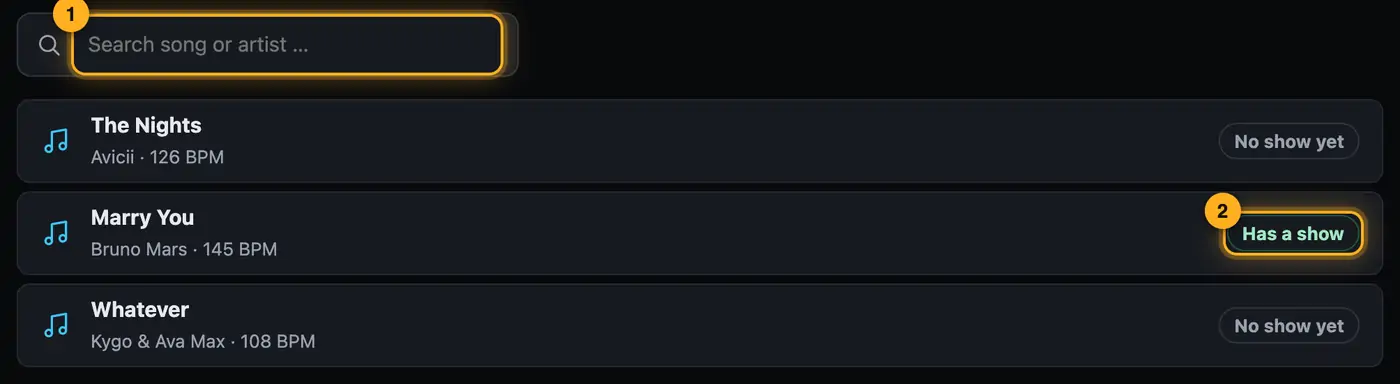
Step by step
- In the Overview, tap “Songs” on the left.
- Type part of the title or artist into “Search song or artist …”. The list filters right away.
- Each row shows title, artist and tempo (BPM), plus a note on the right:
- “Has a show”: this song's script already contains a show.
- “No show yet”: the script is empty.
- “Music not found”: the audio file isn't where SoundSwitch expects it.
- Tap the song. The Studio opens with “Song show” at the top.
- With an existing show: it loads and plays. Above it you read “This is the show saved for this song in SoundSwitch. …”
- Without a show: Droplit builds a show with the mood “Party” right away.
- “Back” at the top left takes you back to the list.
More from “Song shows”
- What is a song show?A song show is a light show for exactly one song. It follows the song's structure with calm parts, build-ups and drops, and plays along in SoundSwitch automatically as soon as you load the song.Summary
- Song studio – parts, zones, notes and effect chainsThe song page works like a lighting console: tools on the left, the stage in the middle, below it the song as part cards and as a timeline with the beatgrid. On the right you adjust whatever you tapped below – the whole song, a part, a zone or a single note.Summary
- Your song is missing from the listThe song list only shows songs that SoundSwitch has already created a script file for. SoundSwitch creates this file once you open the song there, place an effect and save.Summary
- Song analysis: beatgrid, drops and breaksTo make the show fit the music, Droplit takes the beatgrid from SoundSwitch and listens to the audio file hit by hit. From that it builds the song parts Calm, Groove, Build-up, Drop and Breakdown, and the special moments: hard hits, drum passages, breaks, fills and impacts.Summary
- Special moments: hits, breaks and impacts in the lightThe mood builds the look for every song part. On top of that, Droplit now listens to every single hit and plays up the spots a lighting designer would program by hand: hard hits of the whole band, drum passages, breaks, fills, the impact after a build and the ending.Summary