
Setting up several fixtures at once
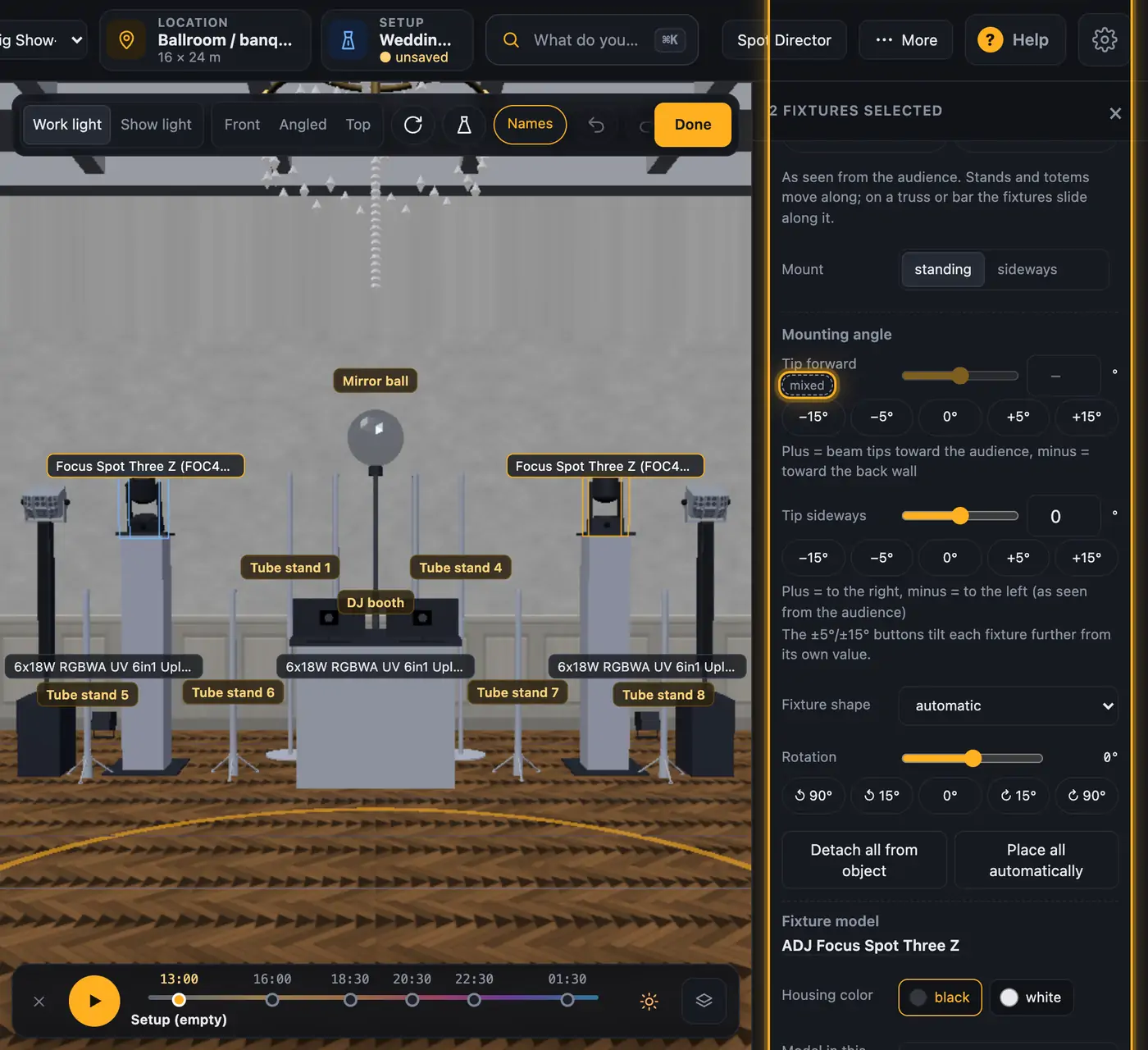
When you select several fixtures, you set them up in one go. On the right you get the “For all selected” box with every setting that works for each selected fixture. A change there applies to all of them.
How it works
- Select the fixtures:
- In the fixture list or in 3D, ⌘ / Ctrl + click adds more fixtures or removes them again.
- ⇧ + click in the list selects a whole range.
- “select all” on a group, e.g. “Moving heads”, selects every fixture in that group.
- “For all selected” appears on the right. At the top: “Hide all” or “Show all” and “Copies per fixture”.
- Under “Placement” (edit mode only):
- “Mounting”: put them all on one object, evenly spaced, or “free on the floor” (more in Putting fixtures on truss and stands).
- “Shift by”: enter a step in metres and click “to the left”, “to the right”, “forward” or “back” (as seen from the audience).
- “Mount”: “hanging”, “standing” or “sideways”, as far as it works for all fixtures.
- “Height above floor” and “Put on” when all fixtures stand freely. A click on “Tripod”, “Totem” or “Gravity LS 331 B” puts a holder of its own under each fixture.
- “Aim” for uplights, bars and lasers, “Mounting angle” with “Tip forward” and “Tip sideways” (see Tipping fixtures and the test beam), “Fixture shape” and “Rotation”.
- “Detach all from object” and “Place all automatically”.
- Below that, depending on the selection:
- “Fixture model” with “Housing color”, “Model in this series”, “Other model …” and “Automatic”.
- “Combo fixture” → “Swap sides”.
- “DMX” with “Mode” and “Spark trigger”.
- “Invert movement” with “Invert pan” and “Invert tilt” for moving heads.
More from “Fixtures, stage & 3D”
- The workbench: setting up the visualizer with the toolbar on the leftThe visualizer has a new layout: instead of one long sidebar and lots of buttons at the top, there is a toolbar on the left with seven areas. Only one area is open at a time, and the 3D view stays large next to it. At the top you see which location and which setup are loaded, and the search gets you to any function in two seconds.Summary
- Opening and using the 3D visualizerThe 3D visualizer shows your lights on a virtual stage. You see what SoundSwitch or Droplit is sending to your fixtures right now, and you can rebuild your real setup.Summary
- Fixtures & stage in Droplit“Fixtures & stage” is the full 3D visualizer right inside Droplit. This is where you set up your stage and hide fixtures that your shows shouldn't use.Summary
- Choosing the source: SoundSwitch, Designer or test patternAt the top right of the 3D view you choose where the light values come from. You either watch live what SoundSwitch sends to your fixtures, or the preview from Droplit.Summary
- Fixture details and DMX monitorClick a fixture to see its address, its mode and all channel values live. The DMX monitor adds all 512 channels of a universe at a glance.Summary