
Fixture details and DMX monitor
Click a fixture to see its address, its mode and all channel values live. The DMX monitor adds all 512 channels of a universe at a glance.
Step by step
- Click a light. On the right you see “Fixture”, “Manufacturer”, “Type”, “DMX” (universe and channel range) and “Mode”.
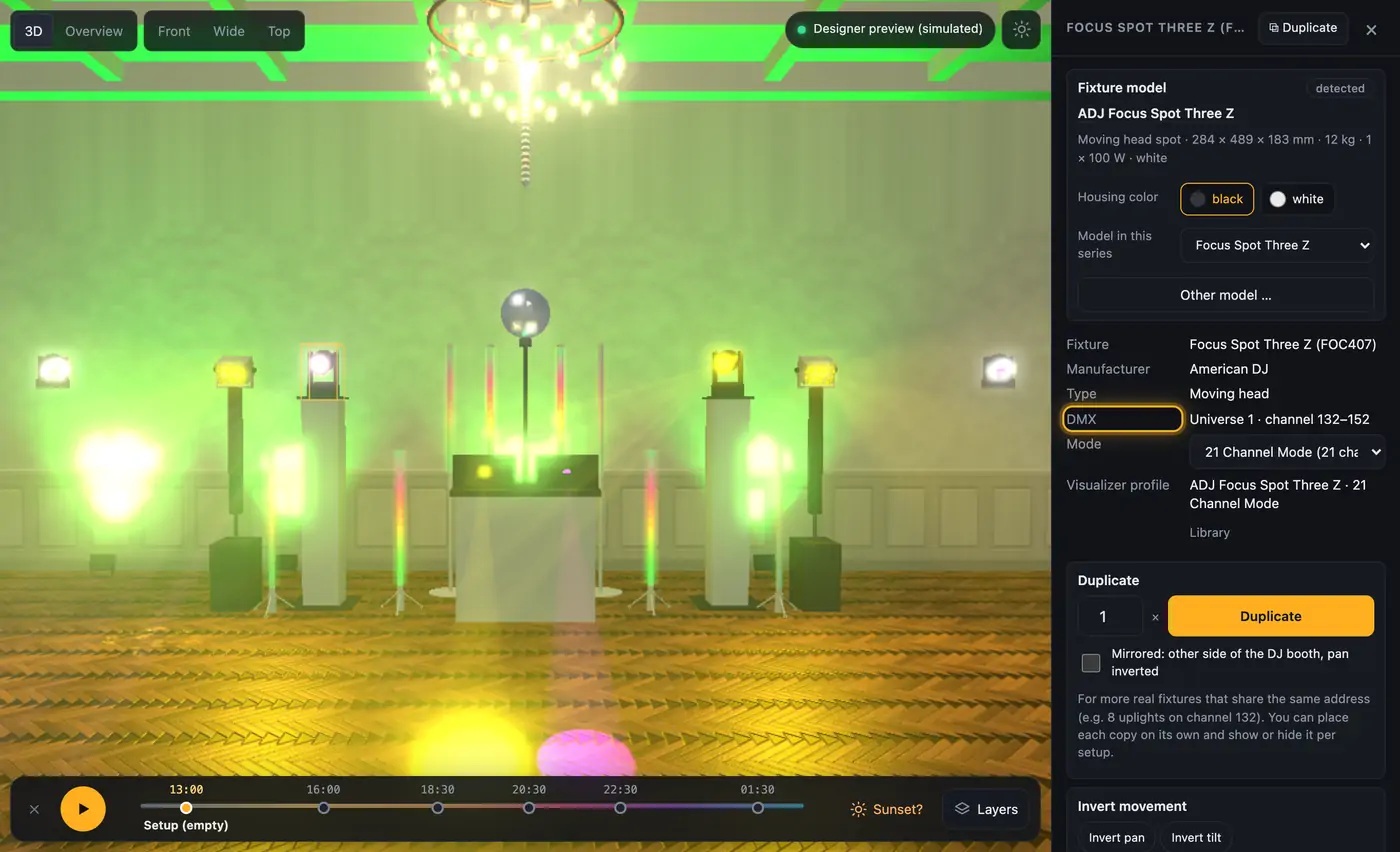
Details show the address and cells. - Below that, every cell of the fixture is listed with a color swatch and plain text, e.g. dimmer, strobe, color, pan and tilt. Under it are the single channels with address, bar and value.
- Click “More” at the top right → “DMX monitor”. The “DMX monitor” opens at the bottom with all 512 channels.
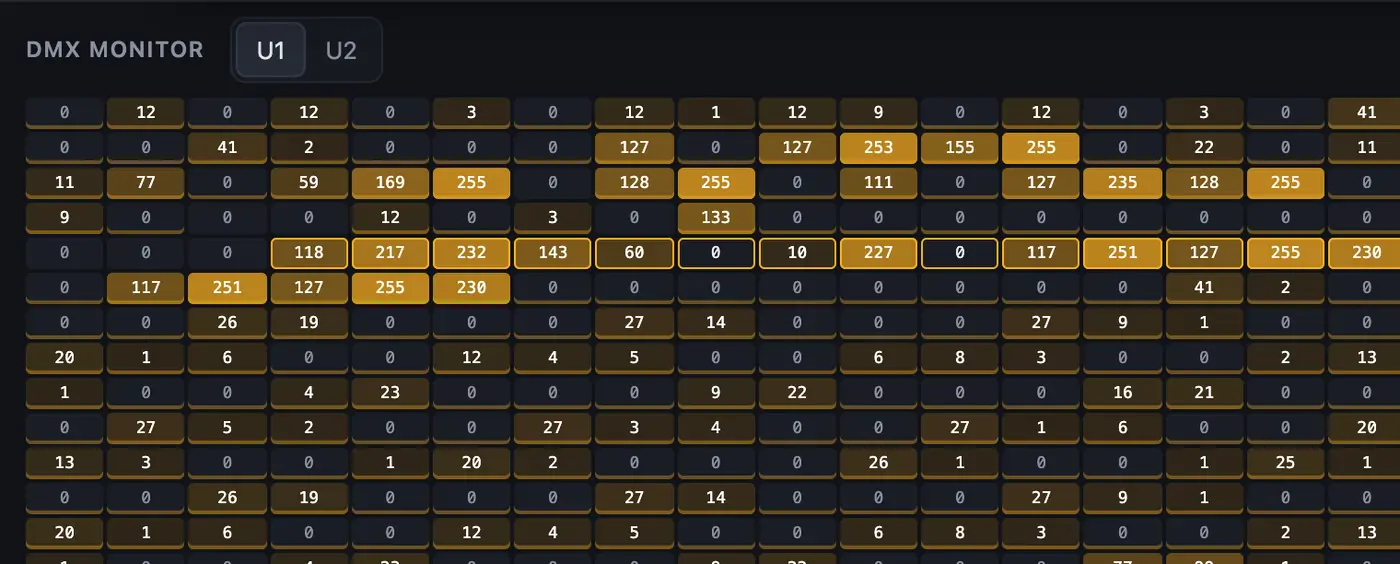
The monitor shows every channel of the universe. - “U1”, “U2” … switch the universe.
- Used channels are marked, and the channels of the selected fixture are highlighted as well.
- Hover over a channel: the top of the monitor shows which fixture uses it and its value.
- Close the details with “×”, and the monitor by choosing “More” → “DMX monitor” again.
More from “Fixtures, stage & 3D”
- The workbench: setting up the visualizer with the toolbar on the leftThe visualizer has a new layout: instead of one long sidebar and lots of buttons at the top, there is a toolbar on the left with seven areas. Only one area is open at a time, and the 3D view stays large next to it. At the top you see which location and which setup are loaded, and the search gets you to any function in two seconds.Summary
- Opening and using the 3D visualizerThe 3D visualizer shows your lights on a virtual stage. You see what SoundSwitch or Droplit is sending to your fixtures right now, and you can rebuild your real setup.Summary
- Fixtures & stage in Droplit“Fixtures & stage” is the full 3D visualizer right inside Droplit. This is where you set up your stage and hide fixtures that your shows shouldn't use.Summary
- Choosing the source: SoundSwitch, Designer or test patternAt the top right of the 3D view you choose where the light values come from. You either watch live what SoundSwitch sends to your fixtures, or the preview from Droplit.Summary
- Recording the 3D view as a videoThe visualizer can record the 3D view as a video. That way you can show a couple or an event planner in advance how the light show will look.Summary