
TVs, projectors and LED walls in your setup
TVs, projectors, projection screens and LED walls stand in your setup just like your lights. In the 3D view they show what will be on them on the night: the light color of the show, a logo or an idle picture. An LED wall or TV with the “Droplit.Show Screen” profile at 24CH or more even shows the full screen picture from your show: looks, visuals, particles, dancer and more, controlled by cues from SoundSwitch. The visualizer also tells you which mounts, cables and power you need.
Step by step
- Drag a screen into your setup or tap it. It appears next to the booth.
- Tap it. On the right you set size, mount and bottom edge (for a TV “Screen size”, “Orientation” and “Mount”, for the LED wall “Width”, “Height” and “Image” = “Live like a screen”).
- In the “Image” section, pick the “Mode”: “Light” (color of the show), “Logo” (up to 7 characters in a ring, e.g. initials), “Idle” (black with a name), “Black” or “off”.
- Under “Color from” you choose where the picture gets its color: “fixtures” (all lights with color, the brightest counts, or only the ticked ones) or “own DMX address”.
- With “own DMX address”, enter “Universe” and “Channel” exactly as the fixture is patched in SoundSwitch (e.g. Universe 2, channel 1) and pick the “Channels” layout.
- For the full screen picture, pick “Droplit.Show Screen 24CH”, “32CH” or “48CH” and patch the “Droplit.Show Screen” profile in the same mode at this address in SoundSwitch. How to create the profile: Screen profile in SoundSwitch.
- Play something in SoundSwitch (through the Art-Net bridge). The wall shows the picture your cues pick on channels 19 to 48. Channel 1 dims the whole picture, channels 2 to 5 set the light color.
More from “Fixtures, stage & 3D”
 The workbench: setting up the visualizer with the toolbar on the leftThe visualizer has a new layout: instead of one long sidebar and lots of buttons at the top, there is a toolbar on the left with seven areas. Only one area is open at a time, and the 3D view stays large next to it. At the top you see which location and which setup are loaded, and the search gets you to any function in two seconds.Summary
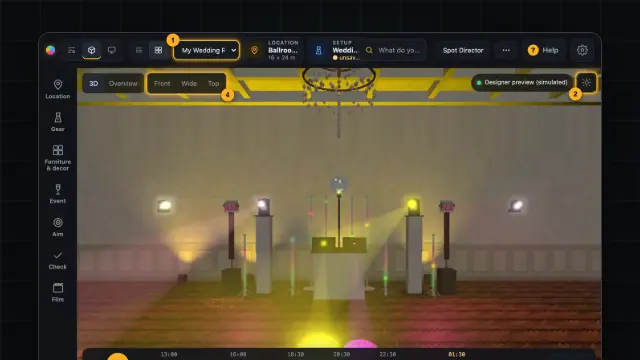 Opening and using the 3D visualizerThe 3D visualizer shows your lights on a virtual stage. You see what SoundSwitch or Droplit is sending to your fixtures right now, and you can rebuild your real setup.Summary
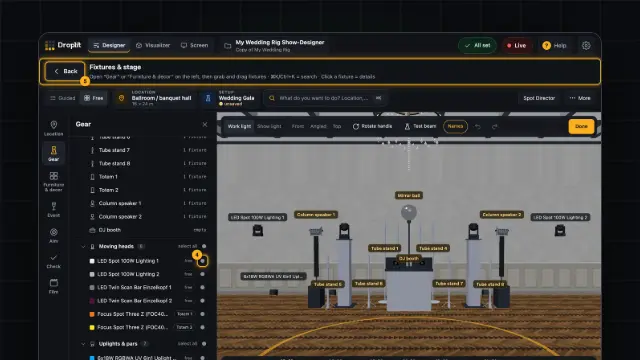 Fixtures & stage in Droplit“Fixtures & stage” is the full 3D visualizer right inside Droplit. This is where you set up your stage and hide fixtures that your shows shouldn't use.Summary
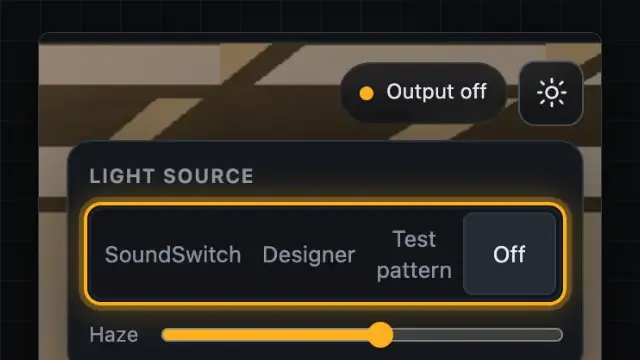 Choosing the source: SoundSwitch, Designer or test patternAt the top right of the 3D view you choose where the light values come from. You either watch live what SoundSwitch sends to your fixtures, or the preview from Droplit.Summary
 Image quality and natural lightBehind the sun button you set how sharp the 3D view renders and how natural the light looks. For most people the default “Automatic” is right. Even large rigs with 70 fixtures run smoothly with it.Summary