
How Effect lanes are laid out
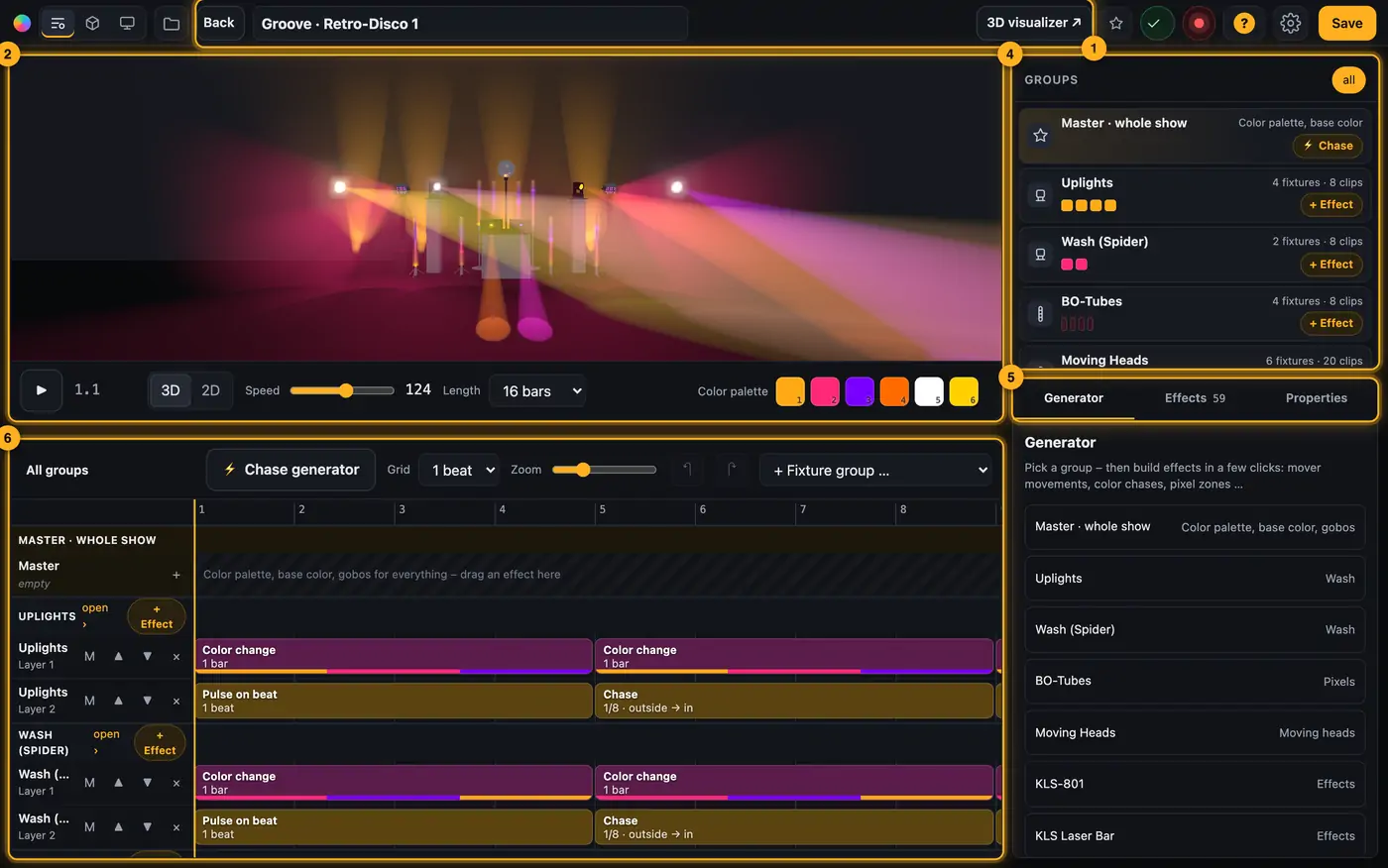
Effect lanes have four areas: the preview at the top left, groups and tools on the right, and the timeline below. You save in the header at the top. For songs the lanes sit right in the Song Studio at the Everything level.
Step by step
- Header: “Back”, the show's name, “● unsaved” when there are unsaved changes, “3D visualizer ↗” (opens the visualizer in its own window) and “Save”.
- Preview at the top left: it starts in 3D. Switch with “3D” and “2D”, your choice is remembered. Below it:
- ▶ to play, and the position as bar.beat,
- for Autoloops “Speed” (60–180 BPM, preview only) and “Length” (8 to 128 bars),
- on the right the “Color palette”: six color swatches. Click one to open the color picker.
- Song shows get an extra strip with artist and title (see Basic structure from the song analysis).
- On the right, “Groups”: at the top “Master · whole show”, below it every fixture group with its number of fixtures and clips. The small tiles show each fixture's color live. “+ Effect” opens the effect studio for that group.
- Below that, three tabs:
- “Generator”: create effects for the selected group in a few clicks.
- “Effects”: the effect library, the number shows how many effects fit.
- “Properties”: settings of the selected clip or of the whole show.
- Timeline at the bottom: tools at the top (“Grid”, “Zoom”, ↶ undo, ↷ redo, “+ Fixture group …”), below them the master lane and the layers of each group.
More from “Effect lanes & effect studio”
- Opening Effect lanes and going back to the StudioIn Effect lanes you edit a show effect by effect on a timeline. You start in the Studio with a mood and then refine single spots in Effect lanes.Summary
- Look programmer: Static Looks like on a lighting consoleWhen you open a Static Look in Table, you get the look programmer: every fixture is a row, every channel a column – intensity, color, strobe, position, movement, gobo, prism, focus and everything else. Thru is hatched. On the right you set everything the selected fixtures can do – across all groups.Summary
- Editing lanes and clipsThe timeline shows one or more layers (lanes) per fixture group. Clips sit on them: colored bars that play an effect for a certain time.Summary
- Master lane and color palette changesThe master lane affects all fixture groups at once. Use it to set a base mood, e.g. a cool verse and a warm chorus, and add accents in the groups on top.Summary
- Editing one group or single fixturesWith many lanes the timeline fills up quickly. Group focus shows just one fixture group. With “Single fixtures” every fixture in the group gets its own timeline.Summary