
Choosing and changing mover targets in the top view
In the effect studio you see every position of your moving heads as a top view: where do the beams really land, on the dance floor, the back wall or the mirror ball? If a target is off, you aim again right in the 3D preview.
Step by step
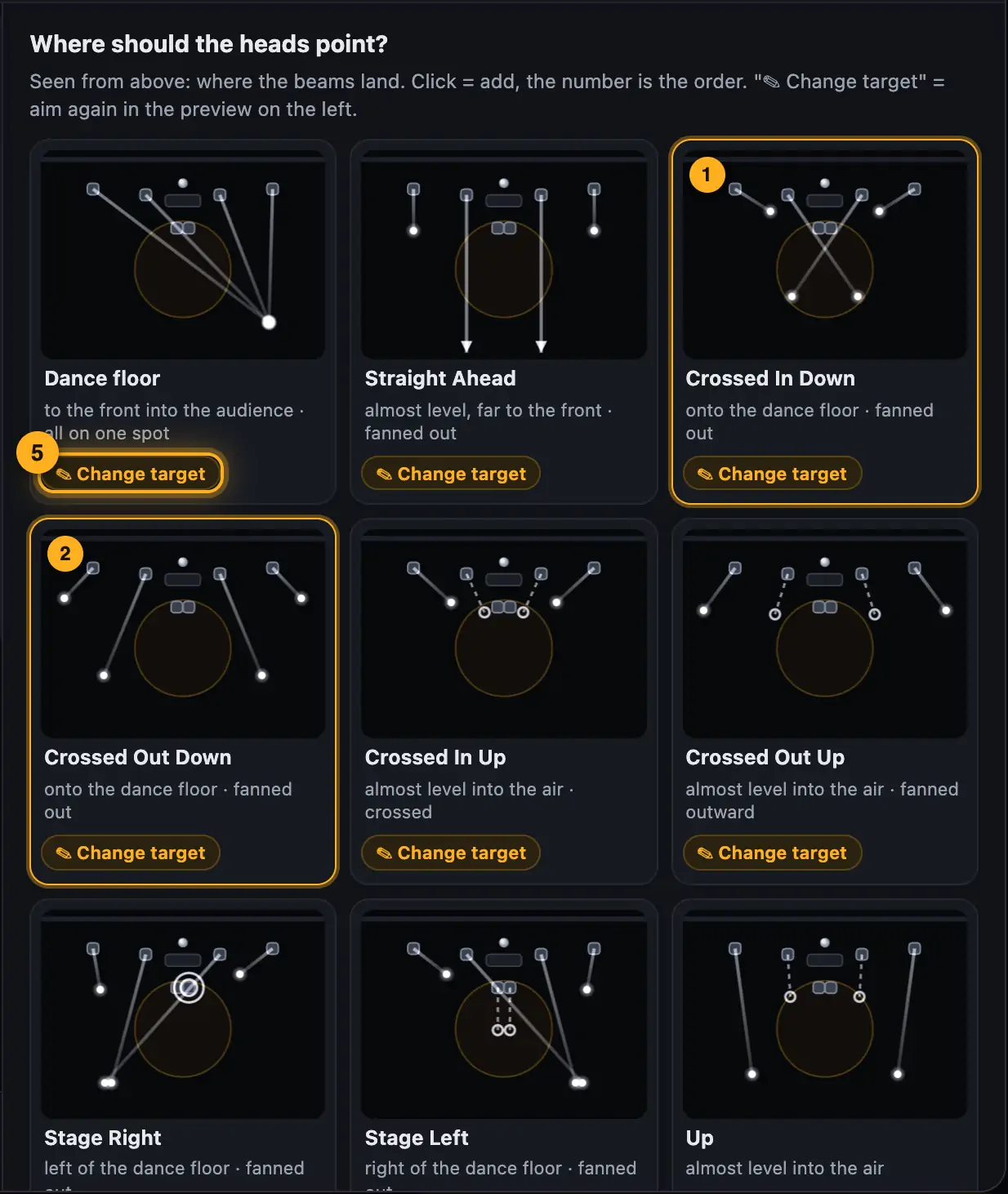
- Wait a moment until the 3D preview has loaded. Then the top-view cards appear. Each shows the room from above with dance floor and DJ booth, a line from each head to its light spot, and below in words where the heads point, e.g. “onto the dance floor · crossed”.
- Under “How do they move?” pick a movement: “Hold still”, “Jump – all together”, “Jump – one after another”, “Jump – against each other”, “Small circles”, “Large circles”, “Jump + circle” or “No movement”.
- Tap a target at the top. When holding still or circling, the heads point exactly there. When jumping, you add several targets. The number on the card is the order.
- When jumping, set how often under “Change every”.
- Change a target: tap “✎ Change target” on a card. The panel “Target for …” with the position's name opens on the right, and the preview on the left shows the heads in this position.
- Click the floor, the wall or the mirror ball in the 3D preview. All heads aim there.
One click in 3D sets the new target. - Change just one head: pick its number under “Moving heads” (or click it on the left), then the target. “all” selects all heads again.
- Under “Quick”: “Fan” (the heads share the dance floor), “Crossed” (left aims right and vice versa), “Mirror left → right” and “Reset” (back to the values from SoundSwitch or the automatic ones).
- Targets in the air (e.g. “Up”): under “Into the air” tap “↑ Straight up”, “V outward”, “X crossed up”, “Angled to the audience” or “Over the heads”. Or tap “👁 Look up”: the preview then looks up from the audience and shows a blue grid in the air. Click a point on the grid, or the ring above a head for straight up. “Look back” brings back the normal view.
- Tap “✓ Done”. The cards now show the new targets.
More from “Effect lanes & effect studio”
- Opening Effect lanes and going back to the StudioIn Effect lanes you edit a show effect by effect on a timeline. You start in the Studio with a mood and then refine single spots in Effect lanes.Summary
- Look programmer: Static Looks like on a lighting consoleWhen you open a Static Look in Table, you get the look programmer: every fixture is a row, every channel a column – intensity, color, strobe, position, movement, gobo, prism, focus and everything else. Thru is hatched. On the right you set everything the selected fixtures can do – across all groups.Summary
- How Effect lanes are laid outEffect lanes have four areas: the preview at the top left, groups and tools on the right, and the timeline below. You save in the header at the top. For songs the lanes sit right in the Song Studio at the Everything level.Summary
- Editing lanes and clipsThe timeline shows one or more layers (lanes) per fixture group. Clips sit on them: colored bars that play an effect for a certain time.Summary
- Master lane and color palette changesThe master lane affects all fixture groups at once. Use it to set a base mood, e.g. a cool verse and a warm chorus, and add accents in the groups on top.Summary