
Chase generator: chasers, color and movement chases across the whole rig
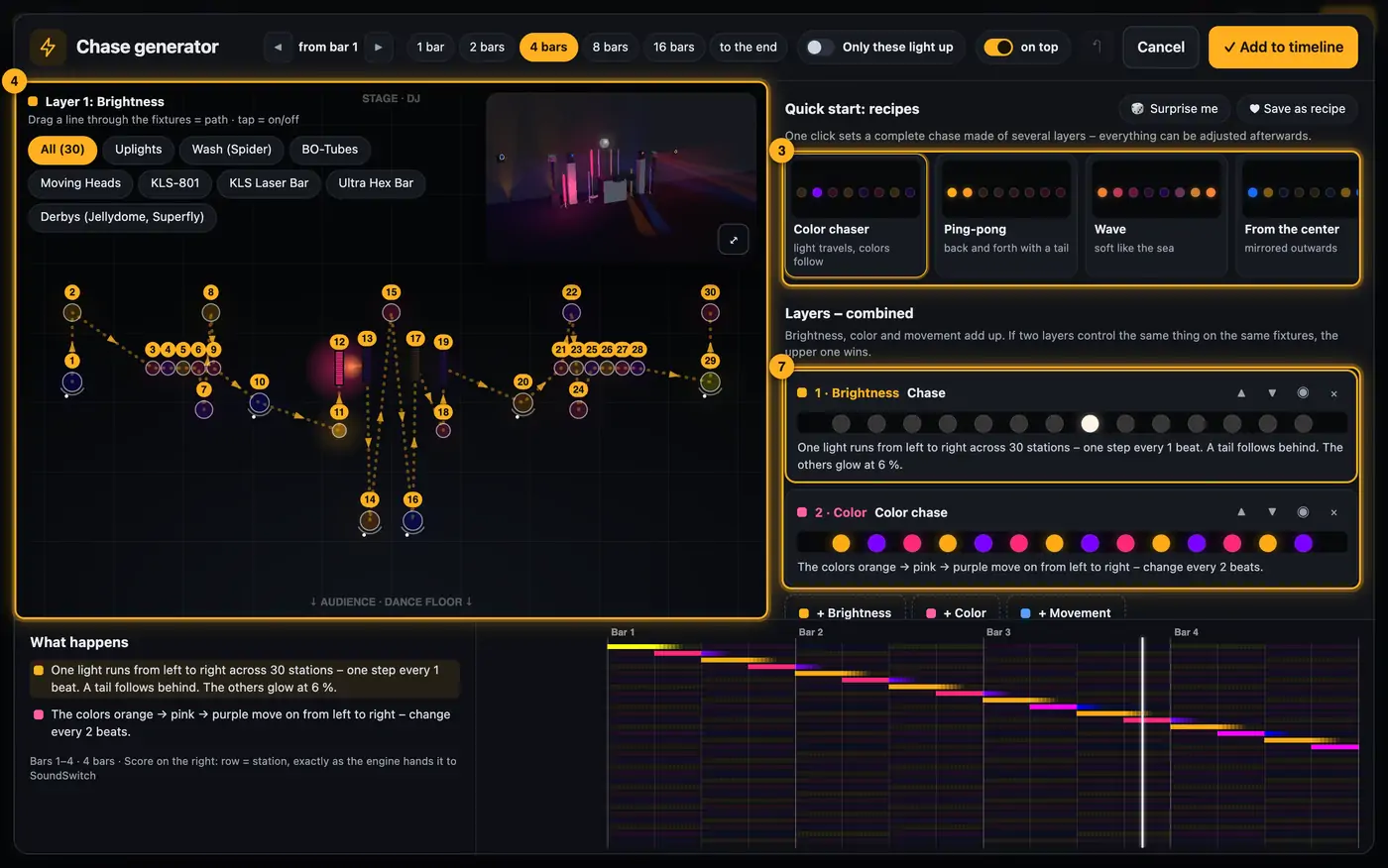
The chase generator builds chases across the whole rig or across fixtures you select. Brightness, color and movement are separate layers that you combine. Before you add anything, you see exactly what will happen: in the stage plan, in the 3D preview, as a plain sentence and as a score over time.
Step by step
- Play the show to where the chase should start and open the chase generator. A recipe starts running right away.
- At the top you set the range: “from bar …” with ◀ ▶ and the length, e.g. “4 bars”.
- On the right under “Quick start: recipes”, tap a card, e.g. “Ping-pong”, “Wave” or “Crossfire”. Each recipe sets several layers at once. “🎲 Surprise me” rolls a matching combination.
- Choose fixtures: in the stage plan on the left, “All” is selected first. Tap group chips to remove or add groups, or tap single fixtures.
- Set the path: under “Path across the stage”, choose e.g. “left → right”, “center → out”, “in a circle” or “by groups”. Or drag a line through the fixtures in the plan with the mouse or your finger. The chase then runs exactly like that. The numbers on the fixtures show the order.
The chase follows the path across the stage. - Under “What lights up together” you decide whether each fixture takes its turn on its own, left and right mirrored (“mirrored (pairs)”), a whole row or a whole fixture group.
- Combine layers: “+ Brightness”, “+ Color” and “+ Movement” add layers. Tap a layer to adjust it below: effect card, tempo and details such as colors or mover targets.
- Tempo: choose how long one step takes, or tap e.g. “2 bars” under “Fit one pass to”. A full pass then takes exactly two bars. The line below converts this to seconds, e.g. “1 step = 1 beat (0.5 s) · full pass = 2 bars (4 s) · at 120 BPM”.
- Check “What happens” at the bottom: each layer is described in a sentence. Tap a sentence to select that layer for editing. Next to it, the score shows each station as a row with color and brightness over time.
- Tap “✓ Add to timeline” or press ⌘Enter / Ctrl+Enter.
More from “Effect lanes & effect studio”
- Opening Effect lanes and going back to the StudioIn Effect lanes you edit a show effect by effect on a timeline. You start in the Studio with a mood and then refine single spots in Effect lanes.Summary
- Look programmer: Static Looks like on a lighting consoleWhen you open a Static Look in Table, you get the look programmer: every fixture is a row, every channel a column – intensity, color, strobe, position, movement, gobo, prism, focus and everything else. Thru is hatched. On the right you set everything the selected fixtures can do – across all groups.Summary
- How Effect lanes are laid outEffect lanes have four areas: the preview at the top left, groups and tools on the right, and the timeline below. You save in the header at the top. For songs the lanes sit right in the Song Studio at the Everything level.Summary
- Editing lanes and clipsThe timeline shows one or more layers (lanes) per fixture group. Clips sit on them: colored bars that play an effect for a certain time.Summary
- Master lane and color palette changesThe master lane affects all fixture groups at once. Use it to set a base mood, e.g. a cool verse and a warm chorus, and add accents in the groups on top.Summary