
Playing Autoloops and static looks live
In the “Perform” layout you see SoundSwitch 2.11 in Performance mode, just like on your laptop after clicking “MIDI”: the same tabs, buttons, colors and spacing. You play Autoloops and static looks there just as on the night.
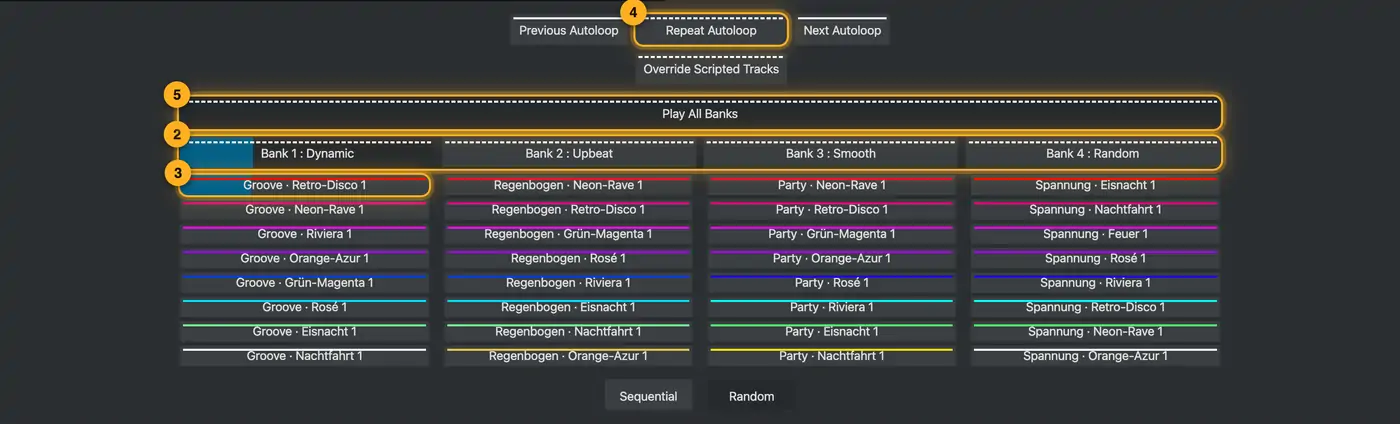
Step by step
- Tap the “Autoloops” tab. At the top are the headers of your 4 banks, below them the 32 slots of the bank shown. Slots 1–8 are the first column, 9–16 the second and so on.
- Tap a bank header to show that bank in the grid. The header of the bank shown is dark.
- Tap a loop. It starts on the next beat. A blue bar in the loop and in its bank’s header shows how far along it is.
- When a loop ends, the next one starts, as in SoundSwitch. You control this with:
- “Previous Autoloop” / “Next Autoloop”: previous or next loop.
- “Repeat Autoloop”: the current loop keeps repeating.
- “Override Scripted Tracks”: Autoloops play even for songs with a light show.
- “Play All Banks” on (dark): all banks play one after another. Tap it off and only the bank shown plays.
- At the bottom choose “Sequential” (in order) or “Random”. This is the same setting as “Next Autoloop” in the live settings.
- “Static Looks” tab: pick bank 1–4 at the top, its 32 slots are below. Tap a look to lay it over the Autoloop. Tap it again to turn it off. Empty slots show “+”.
- The colored line at the top of the button is the pad color from SoundSwitch. Solid means “hold”: the look only lights while you press. Dashed means on and off.
- On the right, “Active Static Looks” shows how many looks are on. The look at the top wins.
- Drag a row to the top and that look wins.
- The eye mutes it, but it stays in the list.
- “—” turns it off.
- “Clear all” (or Esc) turns all looks off at once.
More from “Live mode”
- Opening live modeLive mode plays all Autoloops, static looks and song shows of your project on the 3D stage, and you control them the way you do on the night: on the computer, on the PRIME 4 or on the Control One. That way you see how your shows work together before the gig.Summary
- Live Desk: control your show while you DJThe Live Desk is your own MIDI surface for SoundSwitch: on your computer, tablet and phone. It comes mapped to your show, with the names and colors of your loops and looks. There is nothing to learn or map.Summary
- Spot Director: guide your movers from your phone on the nightWith Spot Director you guide your moving heads from your phone or tablet during the event. Tap the floor and all selected heads go there together. Drag your finger and they follow the couple across the dance floor.Summary
- Choosing the controls: Perform, PRIME 4, Control One, StageAt the top of live mode you choose what the controls look like. Each layout recreates a device, so you pick your shows the same way you do on the night.Summary
- Overrides: color, strobe, blackout and moreOverrides sit on top of everything that is running. Use them to color everything in one color, trigger strobe, black out, aim the moving heads or set the brightness. They only affect the preview, like the buttons of the same name in SoundSwitch.Summary