
Film studio: a flythrough of the day as a video
The film studio turns your setup into a short film: scene by scene through the day, from setup through the reception and dinner to the party, with camera moves, your music on the beat, a title and credits. You end up with an MP4 to send to the couple or post on social media.
Step by step
- Choose the type. The studio opens large, with the preview in the chosen format at the top.
- The scenes are cards at the bottom. Click one: below it you choose “When” (the time of day, e.g. “Dinner” or “Party”), the “Camera” (e.g. “Approach from outside”, “Like a guest”, “Through the tables”, “Drone”, “On the dance floor”, “View from the booth”) and the “Duration”. “Duplicate” and “Remove” change the list, “+ Scene” adds one. Drag to reorder.
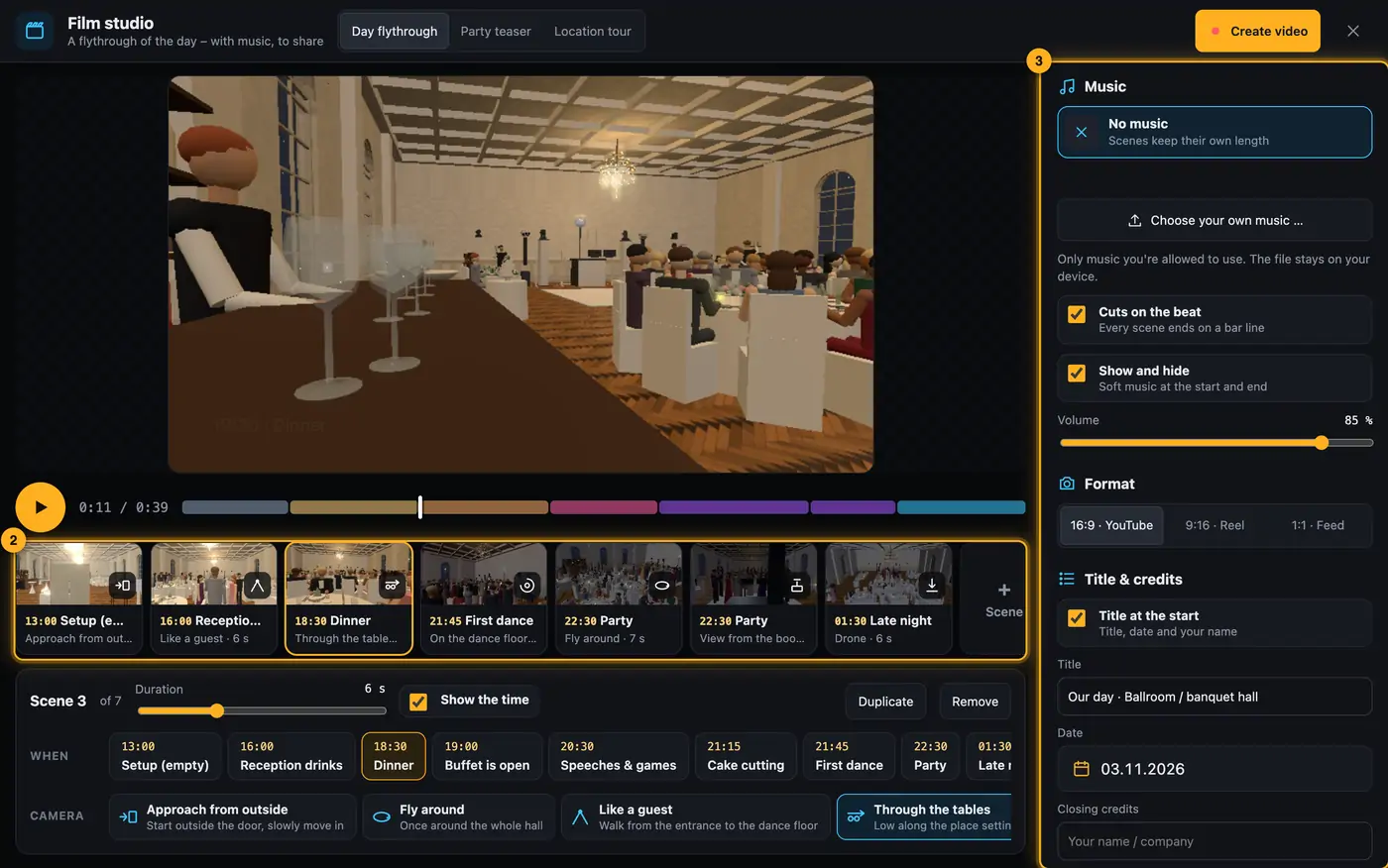
Scenes sit as cards at the bottom. - On the right under “Music”, choose “Choose your own music …” and a file from your device. The visualizer detects the tempo (“≈ 120 BPM”). With “Cuts on the beat” every scene ends on a bar line. Drag the start point in the waveform, for example to the chorus.
- Under “Format” choose “16:9 · YouTube”, “9:16 · Reel” or “1:1 · Feed”. “Title & credits” holds the title, the date (own date picker) and your name for the credits.
- ▶ plays the film. When it's right, click “Create video” at the top. Recording runs in real time with sound.
- Afterwards: “Download” saves the video, “Share …” opens whatever your device offers (WhatsApp, email, AirDrop …).
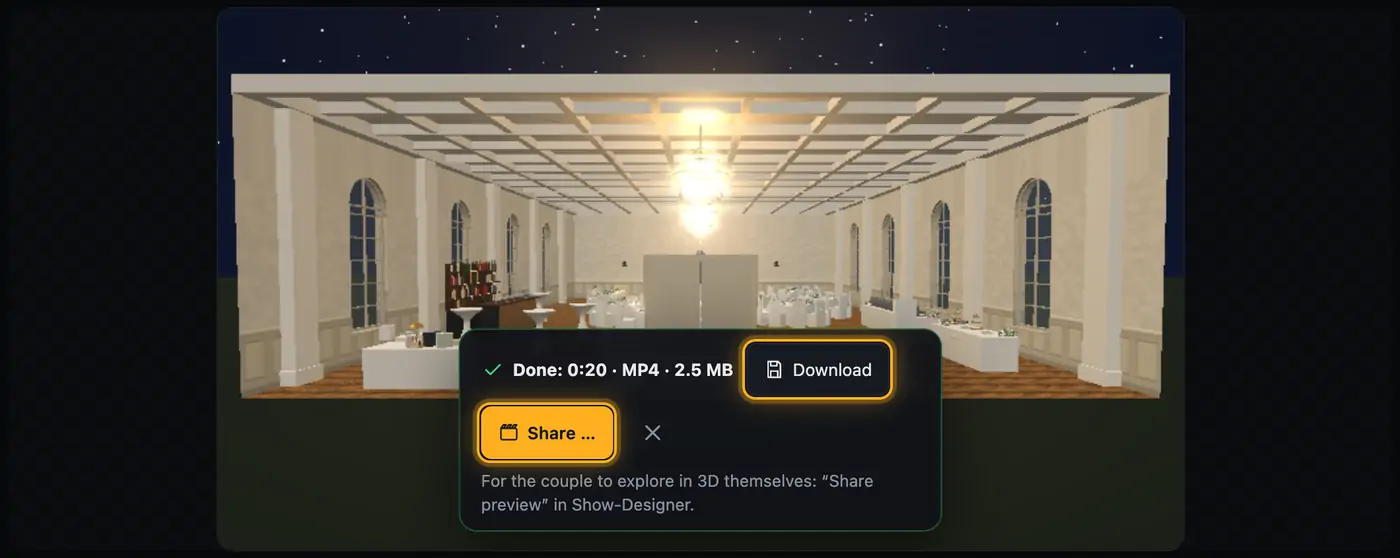
Download or share the finished video.
More from “Fixtures, stage & 3D”
- The workbench: setting up the visualizer with the toolbar on the leftThe visualizer has a new layout: instead of one long sidebar and lots of buttons at the top, there is a toolbar on the left with seven areas. Only one area is open at a time, and the 3D view stays large next to it. At the top you see which location and which setup are loaded, and the search gets you to any function in two seconds.Summary
- Opening and using the 3D visualizerThe 3D visualizer shows your lights on a virtual stage. You see what SoundSwitch or Droplit is sending to your fixtures right now, and you can rebuild your real setup.Summary
- Fixtures & stage in Droplit“Fixtures & stage” is the full 3D visualizer right inside Droplit. This is where you set up your stage and hide fixtures that your shows shouldn't use.Summary
- Choosing the source: SoundSwitch, Designer or test patternAt the top right of the 3D view you choose where the light values come from. You either watch live what SoundSwitch sends to your fixtures, or the preview from Droplit.Summary
- Fixture details and DMX monitorClick a fixture to see its address, its mode and all channel values live. The DMX monitor adds all 512 channels of a universe at a glance.Summary