
Match orientation – when moving heads really point somewhere else
The preview uses the same pan/tilt values as SoundSwitch. If the heads still point somewhere else here than in your venue, they're mounted differently than in the 3D setup: rotated by 90° (display facing sideways instead of forward), pan runs the other way, or they hang instead of standing. “Match orientation” works this out. You show once where the heads really point, and the setup is rotated to match.
Step by step
- Click “Match orientation”. The heads light up white and move to the chosen position, with exactly the values from SoundSwitch.
- On the left under “Position from SoundSwitch”, pick a position whose real target you know, for example “Dance Floor Centre”. The easiest way is to run that position in SoundSwitch for a moment and look where the heads shine in the room.
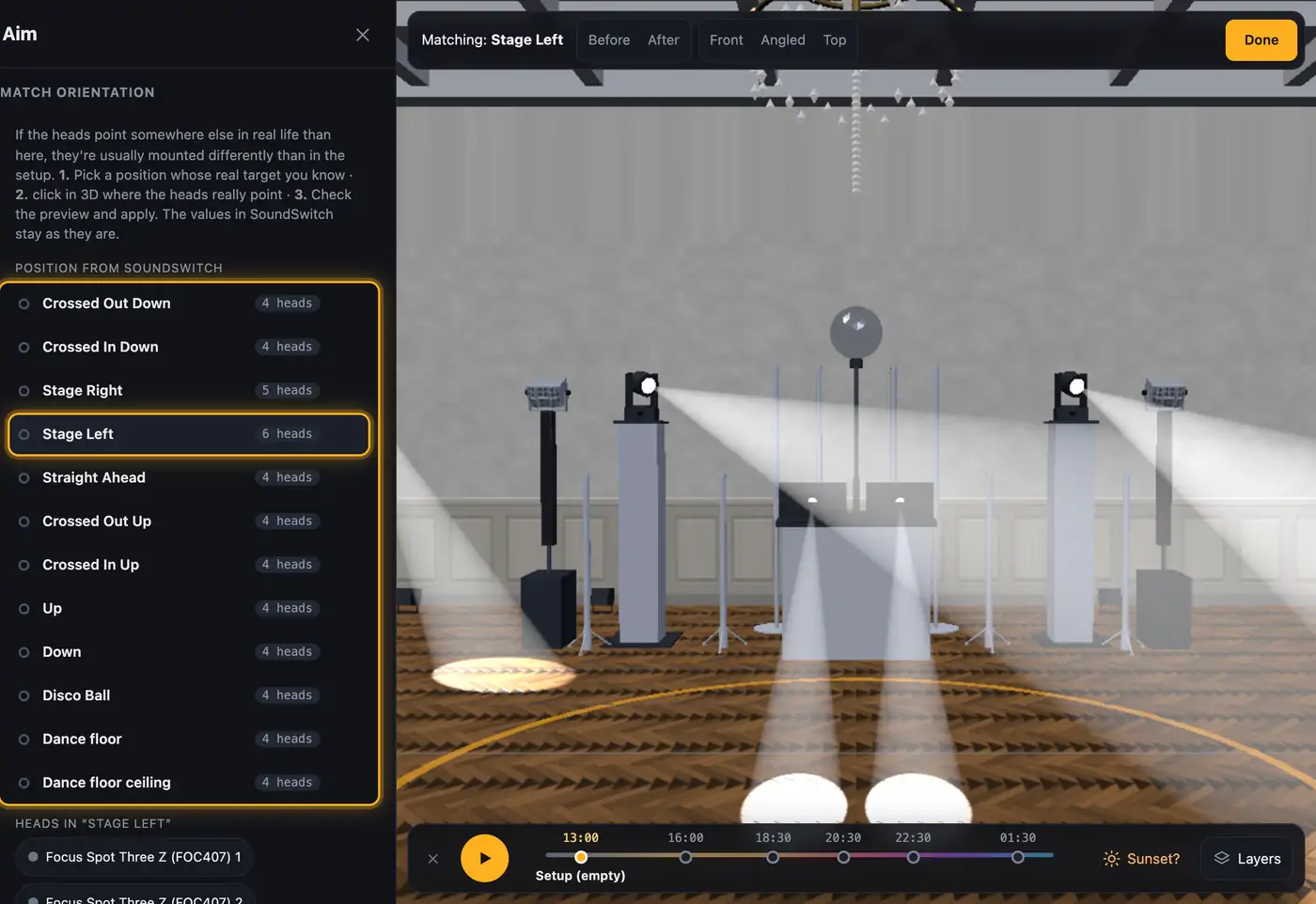
Pick a position whose real target you know. - Click in the 3D view where the heads really point, usually the middle of the dance floor. One click counts for all heads: the visualizer assumes they all point at this spot. The “Top” viewpoint in the bar above the 3D view makes this easiest. If a head points elsewhere, click it first (in 3D or under “Heads in …”) and then its target.
- Under “Preview” you read in plain words what changes for each head, for example “Rotation 0° → −98° (−98°)”, “Invert pan: on” or “Mount: standing → hanging”. Below it you see how well the beam hits afterwards (“hits the target”, “1.2 m too short” …).
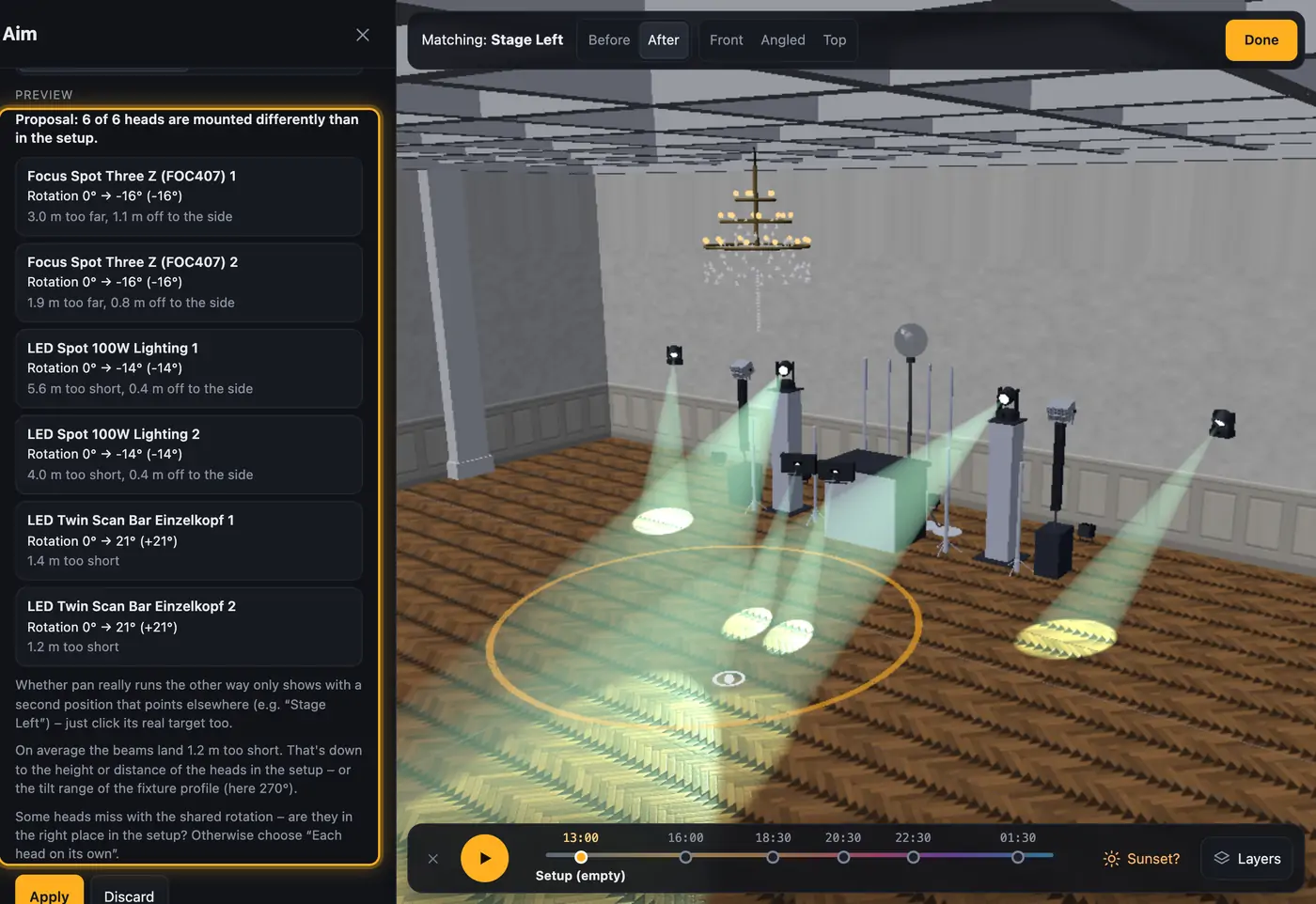
The preview lists the change per head. - Use “Before” and “After” in the bar above the 3D view to compare both. Heads glowing green show the state after matching.
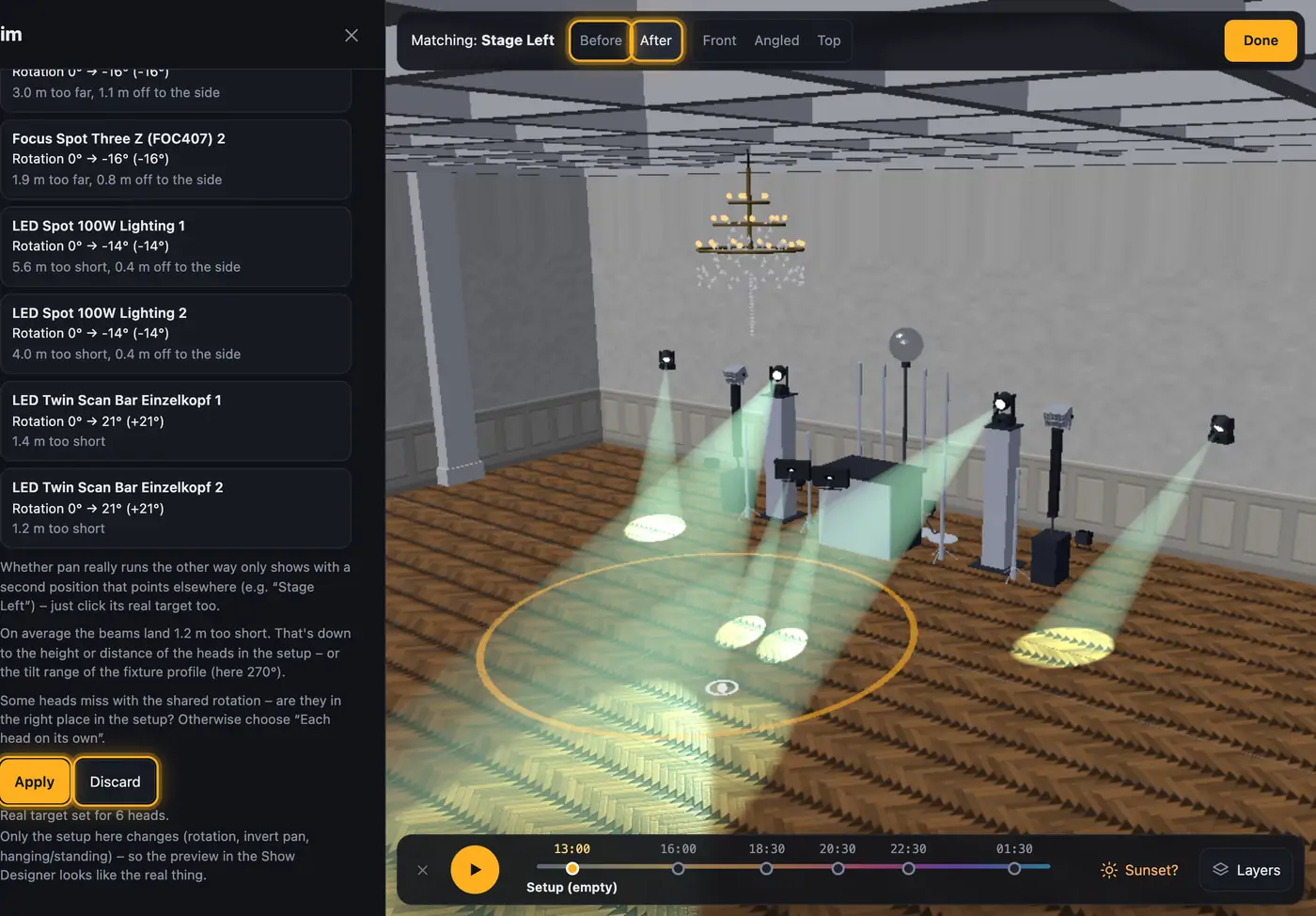
Compare before you apply. - If it fits, click “Apply”. “Discard” leaves the setup as it was. After applying, “Undo” brings back the old state, and so does the undo arrow in the setup.
- For more certainty, match a second position that points clearly somewhere else (e.g. “Stage Left”). Only then can the visualizer tell whether pan runs the other way at your gig.
- “Done” ends matching. If you came from edit mode, you go back there.
More from “Fixtures, stage & 3D”
- The workbench: setting up the visualizer with the toolbar on the leftThe visualizer has a new layout: instead of one long sidebar and lots of buttons at the top, there is a toolbar on the left with seven areas. Only one area is open at a time, and the 3D view stays large next to it. At the top you see which location and which setup are loaded, and the search gets you to any function in two seconds.Summary
- Opening and using the 3D visualizerThe 3D visualizer shows your lights on a virtual stage. You see what SoundSwitch or Droplit is sending to your fixtures right now, and you can rebuild your real setup.Summary
- Fixtures & stage in Droplit“Fixtures & stage” is the full 3D visualizer right inside Droplit. This is where you set up your stage and hide fixtures that your shows shouldn't use.Summary
- Choosing the source: SoundSwitch, Designer or test patternAt the top right of the 3D view you choose where the light values come from. You either watch live what SoundSwitch sends to your fixtures, or the preview from Droplit.Summary
- Fixture details and DMX monitorClick a fixture to see its address, its mode and all channel values live. The DMX monitor adds all 512 channels of a universe at a glance.Summary