
Setting gobo, rotation and prism
For selected moving heads you set the gobo, gobo rotation and prism per fixture model. Droplit turns this into its own Attribute Cues for SoundSwitch.
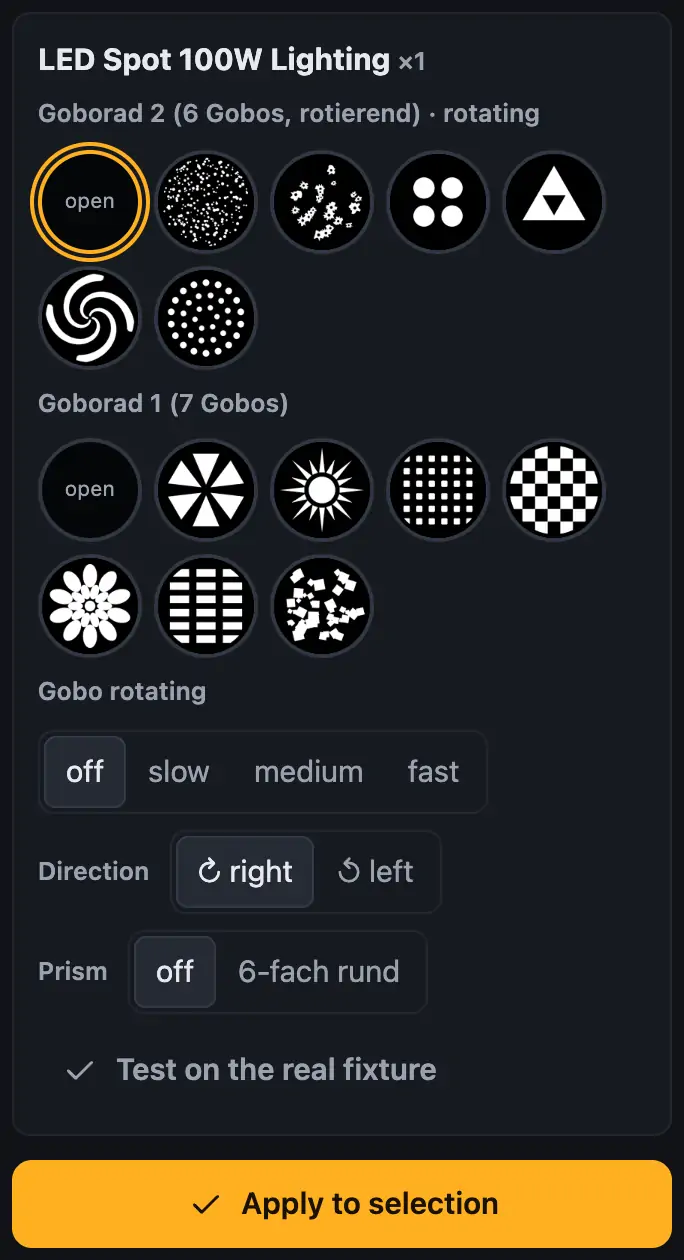
Step by step
- Select moving heads under “Set single fixtures” and choose the time range under “When”.
- Under “Gobo, rotation & prism” each fixture model in the selection is listed with its count. For a moment it says “Loading fixture data …”.
- Tap a gobo. “open” means no gobo. If the fixture has several gobo wheels, each wheel shows its name, rotating wheels with “rotating”.
- Set “Gobo rotating” to “off”, “slow”, “medium” or “fast” and choose the “Direction”: ↻ “right” or ↺ “left”.
- Choose a prism under “Prism”, or “off”. Set its rotation under “Prism rotating”.
- Tap “Apply to selection”.
More from “Studio: designing shows”
- The Studio at a glanceIn the Studio you design a show for exactly one slot: pick a mood, adjust the colors and a few sliders, watch the preview and save to SoundSwitch. For most shows, that’s all you need.Summary
- Customize your layoutYou decide what the Studio shows: hide sections, collapse them, reorder them (also into the other column), drag their height and make their content larger or smaller. You can also make the preview taller and the columns wider. The Studio remembers all of it for every Autoloop, Static Look and song show.Summary
- Fill bank“Fill bank” fills empty pads with Autoloops and Static Looks that suit your event and your lights. You decide how much you want to do yourself: everything automatic, a quick look, pad by pad, or playing the show together live from scenes.Summary
- Just say it (AI)With “Just say it” you describe the light you want in one sentence, for example “first dance, romantic, rosé and gold, slow movers”. The AI then sets the mood, colors and sliders, and the designer builds the show as usual. You can also name single lights and moments, for example “uplights red, movers white, strobe in the second chorus”.Summary
- Show rules: limits, favorites and no-gosShow rules let you decide once what Droplit should use, what it should avoid and where the limit is. Everything it builds afterwards follows them: moods, song shows, the Fill assistant, the Look assistant and AI. You can lift any rule for a single case.Summary