
PRIME 4 and PRIME 4 G2: Engine Lighting recreated
The “PRIME 4” layout shows the Denon DJ PRIME 4+ or the PRIME 4 G2 as in the manufacturer’s photo, with Engine Lighting on the touchscreen. On the PRIME 4 and PRIME 4+ you control the lights on the touchscreen only, on the G2 also with the pads.
Step by step
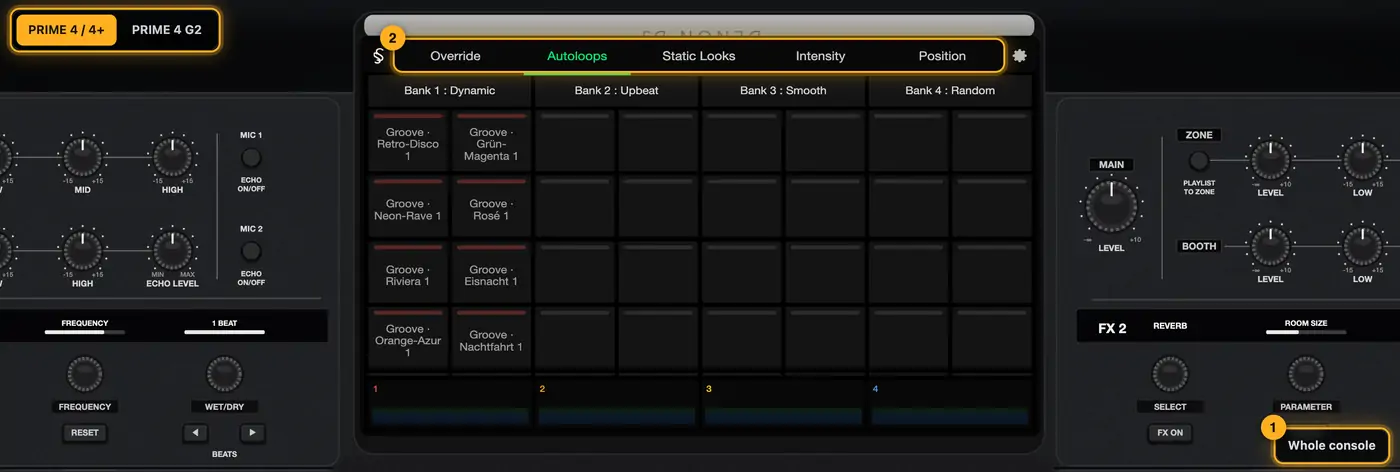
- First you see the touchscreen close up. Bottom right, “Whole console” shows the whole unit and “Screen” goes back. Double-clicking the console or the “VIEW” button does the same.
- At the top of the screen the tabs “Override”, “Autoloops”, “Static Looks”, “Intensity” and “Position”, the gear on the right.
- “Autoloops”: the 4 banks with their names at the top, below each bank two columns with its loops. Tap a loop to start it. The loop that’s playing shows in bold in its bank’s color. Tap a bank name to play only that bank (name turns green), tap again for all banks. More than 8 loops in a bank: scroll down the list.
- “Static Looks”: the 32 slots from bank 1. A tap turns a look on, a new one replaces the previous one. If a look is set to “hold” in SoundSwitch, it only lights while you press the tile.
- “Override”: “Effect Overrides” (Play/Pause, Movement, Black Out, Strobe, Hue, UV, Smoke, White), below that sliders for movement size, movement speed, strobe rate, color and smoke/haze rate, then 9 colors and your project’s positions. White and UV only work while you press them. “Smoke/Haze Rate” is greyed out: the slider only works on the real unit.
- “Intensity”: vertical sliders for the brightness of song shows (“Scripted Track Intensity”) and Autoloops (“Autoloop Intensity”), plus groups 1 to 4.
- “Position” (with moving heads): drag in the grid to move all heads together. Your moving heads are listed on the right, at the bottom “Current Pos:” picks a position with ‹ ›.
- Gear: toggles for “Randomize Autoloops”, “Override Scripted Tracks” and “Repeat Autoloops Mode”. “Loop Auto Strobe” is greyed out: it only works on the real unit. “Engine Lighting Status: Connected” is always shown.
- PRIME 4 G2 only: the pads of both decks start in lighting mode. On the real device you call it up with SHIFT + STEMS. ◀ ▶ next to the pads page through the 5 pages, each deck on its own. Each pad has 4 quarters: “HOT CUE”, “LOOP”, “ROLL” or “STEMS” switch the pads to their normal job. Then they no longer control lights. Back to lighting: first “SHIFT”, then “STEMS” on the same deck.
- “Performance”: top Movement, Strobe, Hue and Smoke, 25 to 100 % per quarter. Bottom White and UV (hold), Black Out and Play/Pause.
- “Color/Position”: top two colors per pad, bottom positions 1–8.
- “Autoloop Controls”: top banks 1–4, bottom Play All, Previous/Next, Repeat and Override Scripted Tracks.
- “Autoloop Select” and “Static Look Select”: the 32 slots, 4 per pad.
More from “Live mode”
- Opening live modeLive mode plays all Autoloops, static looks and song shows of your project on the 3D stage, and you control them the way you do on the night: on the computer, on the PRIME 4 or on the Control One. That way you see how your shows work together before the gig.Summary
- Live Desk: control your show while you DJThe Live Desk is your own MIDI surface for SoundSwitch: on your computer, tablet and phone. It comes mapped to your show, with the names and colors of your loops and looks. There is nothing to learn or map.Summary
- Spot Director: guide your movers from your phone on the nightWith Spot Director you guide your moving heads from your phone or tablet during the event. Tap the floor and all selected heads go there together. Drag your finger and they follow the couple across the dance floor.Summary
- Choosing the controls: Perform, PRIME 4, Control One, StageAt the top of live mode you choose what the controls look like. Each layout recreates a device, so you pick your shows the same way you do on the night.Summary
- Playing Autoloops and static looks liveIn the “Perform” layout you see SoundSwitch 2.11 in Performance mode, just like on your laptop after clicking “MIDI”: the same tabs, buttons, colors and spacing. You play Autoloops and static looks there just as on the night.Summary