
DMX board: run every channel by hand
The DMX board is a classic lighting console in your browser. You run every DMX channel with its own fader, with no loops and no automation. The 3D stage shows the result right away, so you see exactly what each channel does on a fixture. That makes it a good fit for teaching lighting.
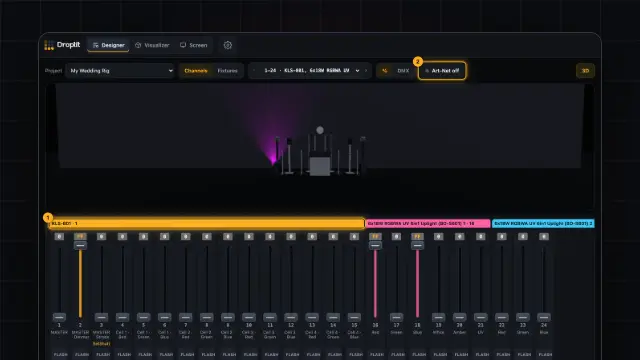
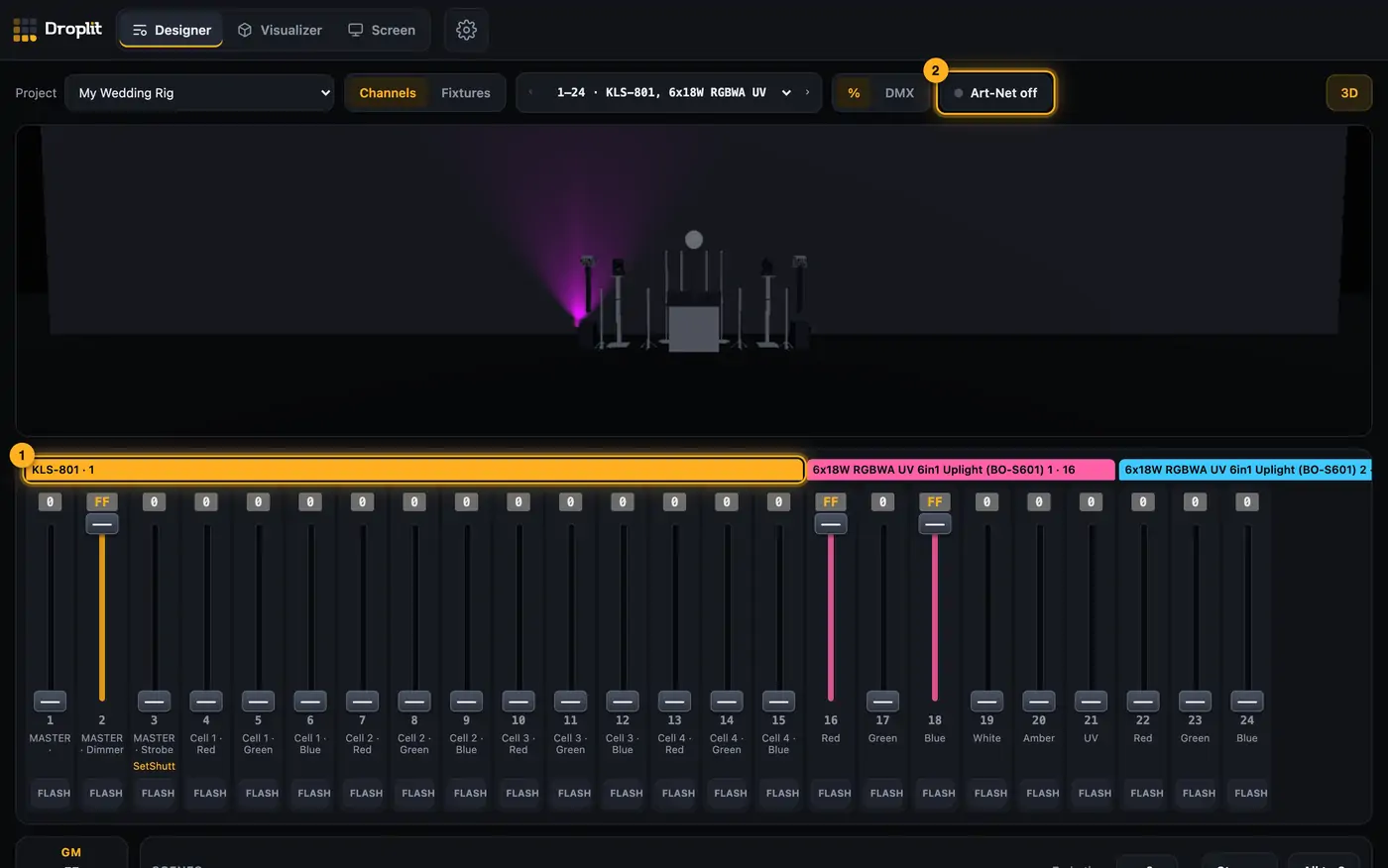
Where do I find it?
Live mode → DMX board at the top. The board opens in a new tab with your project.
More from “Live mode”
 Opening live modeLive mode plays all Autoloops, static looks and song shows of your project on the 3D stage, and you control them the way you do on the night: on the computer, on the PRIME 4 or on the Control One. That way you see how your shows work together before the gig.Summary
 Live Desk: control your show while you DJThe Live Desk is your own MIDI surface for SoundSwitch: on your computer, tablet and phone. It comes mapped to your show, with the names and colors of your loops and looks. There is nothing to learn or map.Summary
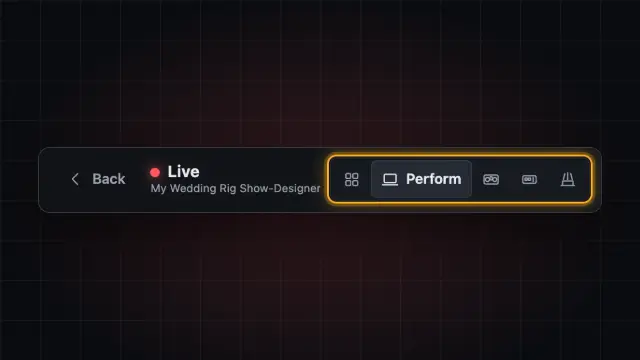 Choosing the controls: Perform, PRIME 4, Control One, StageAt the top of live mode you choose what the controls look like. Each layout recreates a device, so you pick your shows the same way you do on the night.Summary
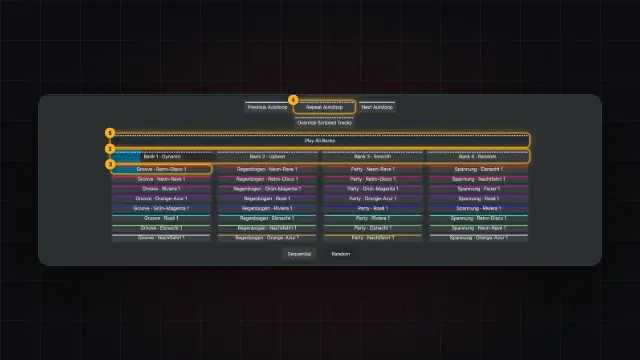 Playing Autoloops and static looks liveIn the “Perform” layout you see SoundSwitch 2.11 in Performance mode, just like on your laptop after clicking “MIDI”: the same tabs, buttons, colors and spacing. You play Autoloops and static looks there just as on the night.Summary
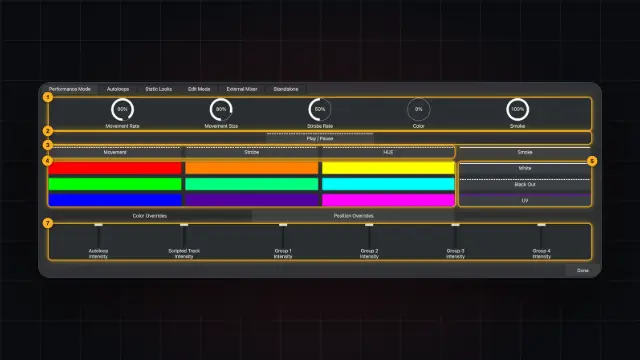 Overrides: color, strobe, blackout and moreOverrides sit on top of everything that is running. Use them to color everything in one color, trigger strobe, black out, aim the moving heads or set the brightness. They only affect the preview, like the buttons of the same name in SoundSwitch.Summary