
Your lights in the Overview
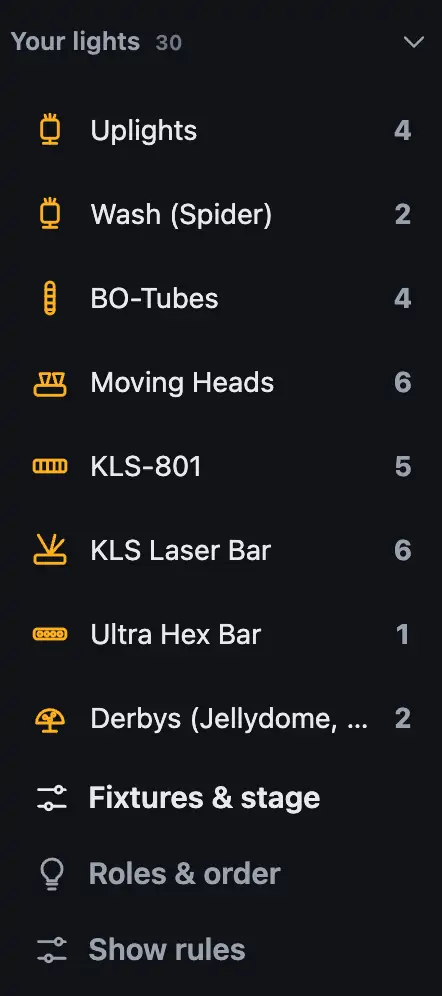
The “Your rig” section stays at the bottom left. Its list “Your lights” shows every fixture group Droplit found in your project, each with an icon and a count. From here you get to all the settings for your fixtures.
Step by step
- Look at the list. Each row is a fixture group with an icon, a name and a count. The total is shown next to “Your lights”.
- Hover over a group to see the fixture models in it.
- Tap a group. “Fixtures & stage” opens with this group’s fixtures selected.
- Below the list you find these buttons:
- “Fixtures & stage”: the 3D visualizer of your setup. Move fixtures, hide them or change how many there are.
- “Getting started”: the guided assistant for lights, stage, gobos, test and first show.
- “Roles & order”: which role each group has and the left-to-right order of the fixtures.
More from “Projects & banks”
- The Overview: banks and padsAfter you open a project, you land in the Overview. It shows the banks of your SoundSwitch project as pads, much like on a controller, and you pick the slot you want to design.Summary
- Banks and slotsSoundSwitch organizes Autoloops and Static Looks in banks of 32 slots each. Droplit shows the same banks and names as SoundSwitch and writes to exactly the slot you choose.Summary
- Filling an empty slot with a new showA pad with “+” is a free slot. When you tap it, Droplit immediately builds a first show for your lights. You adjust it in the Studio and then save it to SoundSwitch.Summary
- Opening and editing an existing showTo open a show that’s already in SoundSwitch, tap its pad. Droplit loads it exactly as it’s saved in SoundSwitch and plays it in the preview.Summary
- Renaming, deleting or moving a showDroplit builds and changes shows in their slot. You can rename a show in the Studio. Deleting and moving aren’t part of Droplit; you do that in SoundSwitch.Summary