
Opening and editing an existing show
To open a show that’s already in SoundSwitch, tap its pad. Droplit loads it exactly as it’s saved in SoundSwitch and plays it in the preview.
Step by step
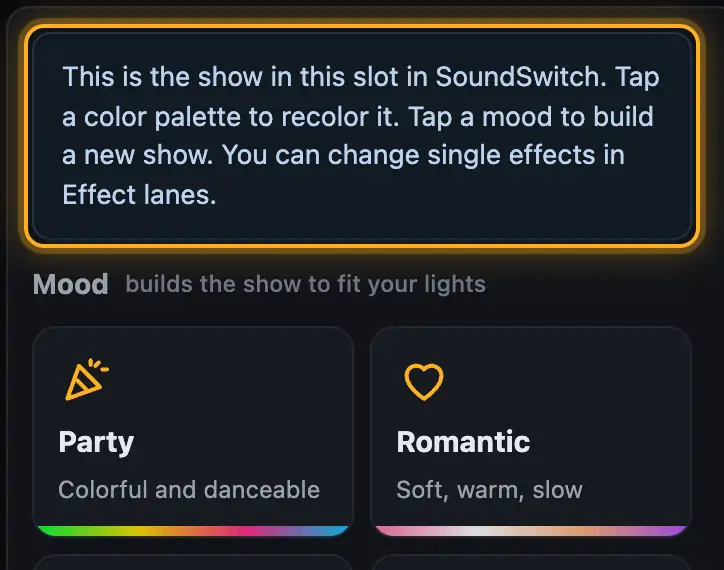
- Tap a filled pad. On the right in the Studio you see “This is the show in this slot in SoundSwitch. …”.
- Decide what you want to change:
- Tapping a color palette recolors the existing show. Its structure and effects stay.
- “Warmer” or “Cooler” shift its colors.
- Tapping a mood builds a completely new show for this slot. First Droplit asks “Build a new show?”. “Build new” builds it, “Not now” leaves everything as it is.
- You change single effects in Effect lanes.
- Tap “Save to SoundSwitch”. The changed show replaces the old one in the same slot.
More from “Projects & banks”
- The Overview: banks and padsAfter you open a project, you land in the Overview. It shows the banks of your SoundSwitch project as pads, much like on a controller, and you pick the slot you want to design.Summary
- Banks and slotsSoundSwitch organizes Autoloops and Static Looks in banks of 32 slots each. Droplit shows the same banks and names as SoundSwitch and writes to exactly the slot you choose.Summary
- Filling an empty slot with a new showA pad with “+” is a free slot. When you tap it, Droplit immediately builds a first show for your lights. You adjust it in the Studio and then save it to SoundSwitch.Summary
- Renaming, deleting or moving a showDroplit builds and changes shows in their slot. You can rename a show in the Studio. Deleting and moving aren’t part of Droplit; you do that in SoundSwitch.Summary
- Switching projectsAt the top left, next to “Droplit”, the project button shows which project you’re working in. It takes you back to the project list at any time.Summary